How to Configure Label Names
This page covers how to configure label names across different model types to match A2L files and enable MCD features.
Label Configuration
In a model, you have multiple possibilities how to name a label. The tools ASCET 6 and ASCET-DEVELOPER provide certain options to configure the composition of an element name. E.g. the element name can be appended with their parent elements and the order of the name parts can be defined. So the name may differ from the name in the a2l file and MCD features like INCA connectivity will not work.
Therefore, EHB-CB provides the flexibility to configure the label names by using a JSON configuration file (plain ASCII, UTF8 format), so that it matches the names in A2L file. There is one single JSON file with individual configuration possibilities per model type (ASCET 6, ASCET DEVELOPER, Simulink) and also a common configuration for any model type.
See sample LabelConfig.json in the sub folder .\examples\configuration of your EHB-CB installation directory.
|
Please ensure, that the configuration parameters in ASCET and in the JSON file are matching. Otherwise labels from a2l-file or from INCA could not be shown in EHB-NAV. |
For all model types
EHB-CB provides an option to add configurable and invisible label names to blocks for Simulink, ASCET, ASCET-DEVELOPER and C-Code models. Label names can be assigned directly based on the block names (Exact replacement) or based on block name patterns (Pattern-based replacement). These replacement rules can be defined under the keyword "Common" in the label configuration JSON file.
Exact replacements
Exact replacements are specified as key-value pairs of strings in rule groups marked with the key word "exact". They work straight-forward - the string in the key is replaced by the string in the value:
"Original_Name" : "New_Name"
With the JSON file shown below all blocks with name "Afr_rpmEngSpd" will have the label name "Afr_rpmEngSpd_modified" and all blocks with the name "Two-point-controller" will have the label name "Two-point-controller_changed".
{
	"Common": {
		"exact": {
			"Afr_rpmEngSpd":"Afr_rpmEngSpd_changed",
			"Two-point-controller":"Two-point-controller_changed"
		}
	}
}
If the same key is used again with a different value, the latest value is considered.
Pattern-based replacements
Pattern-based replacements are specified as key value pairs of strings in rule groups marked with the key word "pattern". The keys make use of regular expressions to match strings that shall be amended. The values denote replacement strings. The latter can make use of the match groups defined in the regular expression.
"Target-Pattern" : "Substitute-Pattern"
Here’s an example for the Pattern-based replacement rules:
{
	"Common": {
		"pattern": {
			"(.*)_write": "$1",
			"read_(.*)": "$1"
		}
	}
}
Here, the sequence of patterns is important. If there are multiple patterns matching with a label name, the first match will be applied. If the single character '.' is used for a regular expression it must be escaped by '\\'
"prefix_(.*)\\.postfix" : "$1_postfix",
Combination of Exact and Pattern-based replacements
A combination of Exact and Pattern-based label configuration is also possible. In case there is an "Exact replacement" already provided for a block and there is also a match found based on the pattern, the exact label name will take the precedence. For example, in the below JSON file there is a label name already provided for "Afr_rpmEngSpd_write" in the "Exact replacement" section. But it also matches the pattern "(.*)_write". In this case, the label name will be "Afr_rpmEngSpd_changed".
{
	"Common": {
		"exact": {
			"Afr_rpmEngSpd_write": "Afr_rpmEngSpd_changed",
			"Two-point-controller": "Two-point-controller_changed"
		},
		"pattern": {
			"(.*)_write": "$1",
			"read_(.*)": "$1",
			"read_(.*)_write": "$1",
			"(.*)_middle_(.*)": "$1_$2"
		}
	}
}|
EHANDBOOK also provides an option to configure label names for individual model languages. When the "Common" label configuration is used along with any model specific label configuration, the "Common" label names will take the precedence. |
For ASCET-DEVELOPER
The element name could be placed first or last, when appended with their parent elements or package names could be omitted.
With the JSON file shown below (plain ASCII, UTF8 format), ASCET-DEVELOPER models in the container will have the element name placed last and will not be appended with the package name. This is also the default, if no label configuration is provided.
{
	"ASCET-DEVELOPER": {
		"elementNameFirst": false,
		"includePackageName": false
	}
}
For example, a class element "signal" within class "Component", placed inside package "components" would have the name as in the below table according to the various combinations provide in JSON file. This name is used to connect to INCA on EHANDBOOK-NAVIGATOR.
includePackageName |
elementNameFirst |
|
true |
false |
|
true |
signal.Component.components |
components.Component.signal |
false |
signal.Component |
Component.signal |
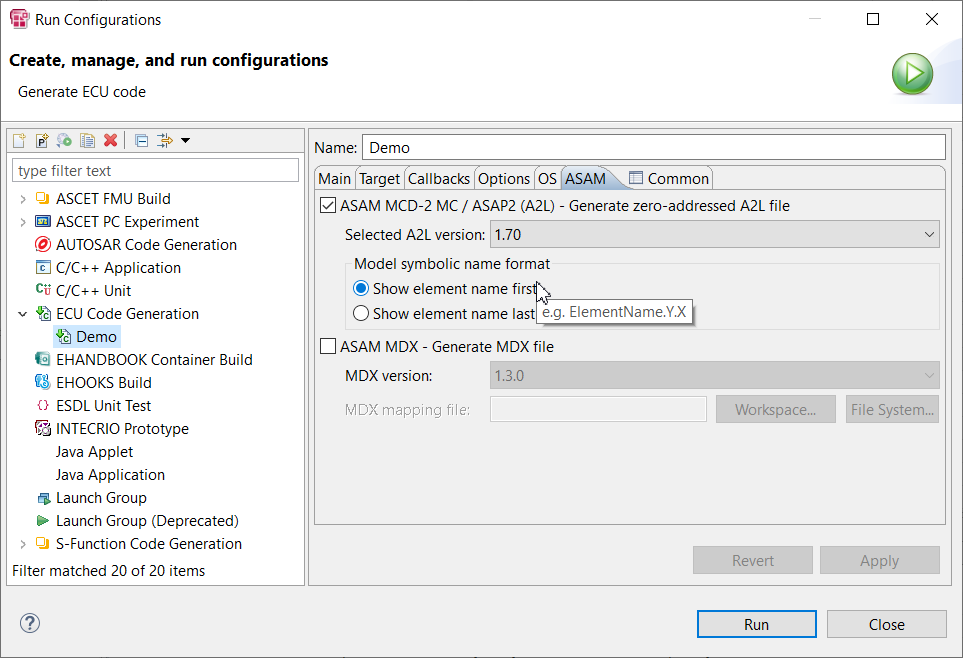
In the above JSON file, 'elementNameFirst' parameter corresponds to the 'Model symbolic name format' in the ASAM MCD section under the 'ASAM' tab in the launch configuration for ECU code generation in ASCET-DEVELOPER tool as shown below:
While the 'includePackageName' corresponds to the 'Legacy code generation' option in 'Naming convention' section under the 'Options' tab in the run configuration as shown below:
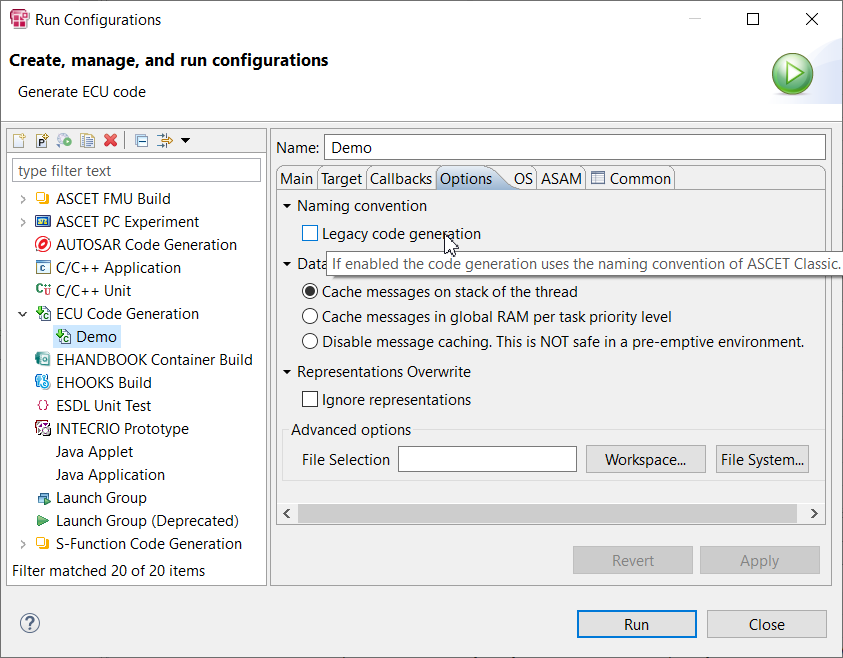
If the checkbox is selected, then ASCET Classic naming convention is used where the package names are omitted, while de-selecting it will have the package name being included in the label.
For ASCET 6
The element names could be placed first or last and their parent elements module and project names or their class instance names could be appended also.
With the JSON file shown below, models in the container will have the element name placed last and will be appended with the class instance names. This is also the default, if no label configuration is provided.
{
	"ASCET": {
		"elementNameFirst": false,
		"includeModuleName": false,
		"includeProjectName": false,
		"includeClassInstanceName": true
	}
}
For example, an instance "componentInstance" of class "Component" having a class element "signal", placed within a module "RootModule" of project "Project" would have the name as in the below table according to the various combinations provide in JSON file. This name is used to connect to INCA on EHANDBOOK-NAVIGATOR.
| includeProjectName | includeModuleName | includeClassInstanceName | elementNameFirst | Name |
|---|---|---|---|---|
true |
true |
true |
true |
signal.componentInstance.RootModule.Project |
true |
true |
true |
false |
Project.RootModule.componentInstance.signal |
true |
true |
false |
true |
signal.RootModule.Project |
true |
true |
false |
false |
Project.RootModule.signal |
true |
false |
true |
true |
signal.componentInstance.Project |
true |
false |
true |
false |
Project.componentInstance.signal |
true |
false |
false |
true |
signal.Project |
true |
false |
false |
false |
Project.signal |
false |
true |
true |
true |
signal.componentInstance.RootModule |
false |
true |
true |
false |
RootModule.componentInstance.signal |
false |
true |
false |
true |
signal.RootModule |
false |
true |
false |
false |
RootModule.signal |
false |
false |
true |
true |
signal.componentInstance |
false |
false |
true |
false |
componentInstance.signal |
false |
false |
false |
true |
signal |
false |
false |
false |
false |
signal |
|
When If the ClassInstance label is hidden (for example, This ensures that the generated unique name remains consistent with the configured Label Configuration. |
The A2L file, generated by ASCET with selected ECU target EHOOKS, has a pre-fix appended to all measurement signals and parameters. This prefix is configurable in the options dialog in ASCET:
Options -> Targets -> EHOOKS -> Name Templates: Global Namespace Prefix
With the JSON file shown below, prefix can be added to all measurement signals and parameters.
{
	"ASCET": {
		"elementNameFirst": false,
		"includeModuleName": false,
		"includeProjectName": false,
		"globalNamePrefix": "XY_"
	}
}
For Simulink
EHB-CB provides the option to add a configurable and invisible unique name to blocks, signals and buses in the Simulink model. This hidden unique name is then used for measurement, calibration and diagnostics (MCD) features like INCA connectivity in EHB-NAV.
Using the JSON file shown below, labels can be configured with unique names for Simulink signals, propagated signals, or signal objects. The configuration of unique names for signals can be achieved through a common configuration with exact or pattern-based mapping, as referenced in the Common section of the JSON file.
Example: Adding Unique Name for signals
{
	"Common": {
		"exact": {
			"Signal Name": "Replaced_Signal_Name_used_in_MCD"
		}
	}
}
With the JSON file shown below, Simulink blocks of block type "Constant" will have label configured via uniqueName.
Example: Adding Unique Name for the Constant blocks
{
	"Simulink": {
		"blockRules": [
			{
				"selectors": [
					{
						"parameter": "BlockType",
						"value": "Constant"
					}
				],
				"uniqueName": "${Value}"
			}
		]
	}
}|
JSON file path has to be given as an argument for command-line parameter "-labelconfig" |
{
	"Simulink": {
		"blockRules": [
			{
				"selectors": [
					{
						"parameter": "BlockType",
						"value": "Inport"
					}
				],
				"replacements": [
					{
						"parameter": "Name",
						"regex": "(.*)",
						"replacement": "$1__TestSuffix"
					}
				],
				"uniqueName": "Test_prefix.${Name}"
			}
		],
		"nonVirtualBusRules": [
			{
				"busNameSelector": {
					"value": "signalBus"
				},
				"busElementNameSelector": {
					"regex": "signal__(.*)"
				},
				"busNameReplacement": {
					"regex": "prefix_(.*)_suffix",
					"replacement": "$1"
				},
				"busElementNameReplacement": {
					"regex": "(.*)__(.*)",
					"replacement": "$1"
				},
				"uniqueName": "${busNameReplacement}.${busElementNameReplacement}"
			}
		]
	}
}
Configuration for blockRules
BlockRules assist to configure uniqueName for any type of Simulink blocks based on selectors and replacements configurations. It is possible to provide list of blockRules [0…n].
selectors
selectors are filters that are applied to select the block based on the provided key-value pairs.
| Key | Value | Optional |
|---|---|---|
parameter |
Valid Simulink block parameter |
No |
value |
Simulink block parameter value |
Yes |
regex |
Simulink block parameter value regex pattern |
Yes |
-
selectors are composed of either parameter and value combination or parameter and regex combination.
-
It is possible to provide list of selectors [0…n].
-
If a blockRule does not contain any selectors, then a uniqueName will be created for all the blocks.
-
To construct a uniqueName from blockRules, all the defined selectors have to be satisfied.
replacements
replacements are optional.
| Key | Value | Optional |
|---|---|---|
parameter |
Valid Simulink block parameter |
No |
regex |
Simulink block parameter value regex pattern |
No |
replacement |
Prepare an unique name using regex groups or text |
No |
|
A replacement is composed of "parameter" and "regex" applied on "parameter". |
Example:
"replacements": [
	{
		"parameter": "Name", (1)
		"regex": "(.*)", (2)
		"replacement": "$1__Suffix" (3)
	}
]| 1 | "parameter" key has the value as "Name"(which is a Simulink block name) |
| 2 | The key "regex" has a pattern which will be applied on this Simulink block name to match all the characters of this name. |
| 3 | The "replacement" key’s value will replace the matched characters with the replacement value(in the example "parameter" is appended by _Suffix ⇒ Name_Suffix) |
The resultant value after "replacement" will be used as expression in the uniqueName.
uniqueName
-
The uniqueName key is mandatory, and corresponding labels are only created if "uniqueName" is provided in the JSON configuration file.
-
uniqueName is composed of fixed expressions or text
-
uniqueName is composed of expressions, where each expression starts with "$" followed by "{" and ends with "}".
Examples for uniqueName:
$\{Sample1}_$\{Sample2}_suffix (1)| 1 | Sample1, Sample2 here are place-holders for block parameter values defined inside the model. If the replacements are provided for Sample1 or Sample2 it will replace expression using "replacement" value otherwise "block parameter" value is considered. |
Replacement results with example data: "abc", "efg"
Template for uniqueName |
Resulting uniqueName |
${Sample1}_${Sample2}_suffix |
abc_efg_suffix |
prefix_${Sample1}_${Sample2}_suffix |
prefix_abc_efg_suffix |
prefix.${Sample1}.midfix.${Sample2}.suffix |
prefix.abc.midfix.efg.suffix |
Optional configuration involving the model name
| Expression | Description |
|---|---|
${ModelName} |
Replaced with Simulink model name |
-
${ModelName} is a predefined optional expression which will be processed during Container-Build to construct the unique name.
Example:
{
	"selectors": [
		{
			"parameter": "BlockType",
			"value": "SubSystem"
		}
	],
	"uniqueName": "prefix_${ModelName}_suffix" (1)
}| 1 | If we consider ModelName as "Hello", the resulting unique name is prefix_Hello_suffix. |
Configuration for nonVirtualBusRules
nonVirtualBusRules assist to configure uniqueName for any type of Simulink buses based on "busNameSelector", "busElementNameSelector" and "busNameReplacement", "busElementNameReplacement" configurations. It is possible to provide list of nonVirtualBusRules [0…n].
-
busNameSelector is a filter, applied on the bus name, provided by value or regex configuration.
-
busElementNameSelector is a filter, applied on the bus element name (bus member), provided by value or regex configuration.
If nonVirtualBusRule does not contain any selectors, then uniqueName will be created for all the buses. To construct an uniqueName from nonVirtualBusRules, all the defined selectors are to satisfied.
-
busNameReplacement is applied on the bus name by using regex, replacement.
-
busElementNameReplacement is applied on the bus element name by using regex, replacement.
In the regex pattern, 2 fixed expressions are allowed - ${busName}, ${busElementName}. These expressions are updated before processing regex and replacement
Example:
"busElementNameReplacement": {
	"regex": "${busName}_(.*)",  (1)
	"replacement": "$1"
}| 1 | If we consider busName as "Hello", the regex is updated with Hello_(.*) |
There are four optional fixed expressions that can be used within uniqueName: ${busNameReplacement}, ${busElementNameReplacement}, ${busElementName}, and ${busName}.
{
	"busNameSelector": {
		"value": "signalBus"
	},
	"busElementNameSelector": {
		"regex": "signal__(.*)"
	},
	"busNameReplacement": {
		"regex": "prefix_(.*)_suffix",
		"replacement": "$1"
	},
	"busElementNameReplacement": {
		"regex": "(.*)__(.*)",
		"replacement": "$1"
	},
	"uniqueName": "${busNameReplacement}.${busElementNameReplacement}"
}| Expression | Description |
|---|---|
${busName} |
Replaced with bus name |
${busElementName} |
Replaced with bus member name |
${busNameReplacement} |
Replacement provided in the non-virtual bus rule |
${busElementNameReplacement} |
Replacement provided in the non-virtual bus rule |
For AUTOSAR
EHANDBOOK Container-Build provides the option to add a configurable and invisible unique name to AUTOSAR ports and its interfaces in the interface function overview. This hidden unique name is then used for MCD features like INCA connectivity in EHANDBOOK-NAVIGATOR.
{
	"AUTOSAR": {
		"includeSwcInstanceName": true,
		"includePortName": true
	}
}
In the above JSON file, 'includeSwcInstanceName' parameter applies the instance name of the component to be included in the name of port and interface. 'includePortName' parameter applies the port name to be added in the name of the interface.
For example, a component instance "component" containing a port "port" having an interface "interface" would have the name as in the below table according to the various combinations provide in JSON file.
includeSwcInstanceName |
includePortName |
|
true |
false |
|
true |
component.port.interface |
component.interface |
false |
port.interface |
interface |