How to Configure View and Visibility
This page covers how to control what is visible and expandable in interactive models.
View Concept
For know-how protection purposes, ASCET allows designing the models for different views, e.g. it is possible to hide some element for a defined view. EHB supports this concept. With the command line option -viewtype "ViewName" you are setting, for which view the model and its screenshots should be generated. The command line option -ascetview "config-file.xml" locates the file, where for every view name the corresponding model appearance is configured in a given format.
You can export a view file from ASCET:
Tools (ASCET Main Window) Views → Select the view names to be exported (multiple selection allowed) → Click Export button and choose destination and name of the file.
The following elements are supported in EHB for the views:
| ASCET View contents | Support in EHB |
|---|---|
BDE Settings Show Unused Sequence Calls Show Used Sequence Calls Show Graphical Comments Show Process Name Locals |
All settings supported |
Default settings for Elements As Line Contour |
Element properties of type 'Implementation Cast' is supported only |
Documentation Settings |
Not Implemented |
In ASAM-CCX, you can also define a view name in the tag <SD GID="view">Name</SD>. It supersedes the command line option -viewtype. For details, please refer to the document ASAM CCX Structure and ABLOCK Usage for EHB.
|
The view name provided by -viewtype has to match to the view name specified in corresponding view file, otherwise no view is applied. |
For c-code the same method is used with the parameter -ccodeview "config-file.xml". Here the same xml format as for ASCET is used, but you can only specify, if process sequence calls are visible in the interactive model or not. These calls are showing the computation order of the c-code.
Sample files are available in the examples sub folder of the EHB-CB installation directory. (..\examples\configuration\AscetFiguresView.xml, CCodeViews.xml)
Configuration of details shown for Simulink subsystem-based blocks
For know-how protection reasons or for a better readability, Simulink blocks that are based on subsystems can be specified as non-expandable for interactive models in EHANDBOOK-NAVIGATOR during EHANDBOOK Container generation. To enable the global configuration feature, the command line option -simulinkview (CB) or -simulinkviewfile (UGG) that takes "path_to_jsonfile\name.json" as argument is used. The JSON file specifies the behavior of the blocks then, see samples below.
Makes referenced blocks with masks non-expandable (e.g. libraries):
{
	"GlobalView": {
		"HideContents": [
			{
				"BlockType": "Reference",
				"Simulink.Mask": "true"
			}
		]
	}
}
Makes all subsystems with masks non-expandable:
{
	"GlobalView": {
		"HideContents": [
			{
				"BlockType": "SubSystem",
				"Simulink.Mask": "true"
			}
		]
	}
}
Makes any masked Simulink block non-expandable:
{
	"GlobalView": {
		"HideContents": [
			{
				"Simulink.Mask": "true"
			}
		]
	}
}
Makes any subsystem non-expandable:
{
	"GlobalView": {
		"HideContents": [
			{
				"BlockType": "SubSystem"
			}
		]
	}
}
A sample file is available in the examples sub folder of the EHB-CB installation directory. (..\examples\configuration\SimulinkGlobalView.json)
|
The feature above works only if the key word Simulink.Mask is used inside the model file. This is the case for MATLAB 2012b onwards. For older versions (2012a and below) the key word MaskDisplay is used, which is currently not supported. |
Support for mask parameters in Simulink Constant blocks
In a Simulink 'Constant block', the block parameter 'Constant value' can be exposed as a mask parameter. For this feature to work, the mask parameter 'Name' must be set to 'Value'. The parameter 'Value' corresponds to the block’s 'Constant value', which can be configured by the user.
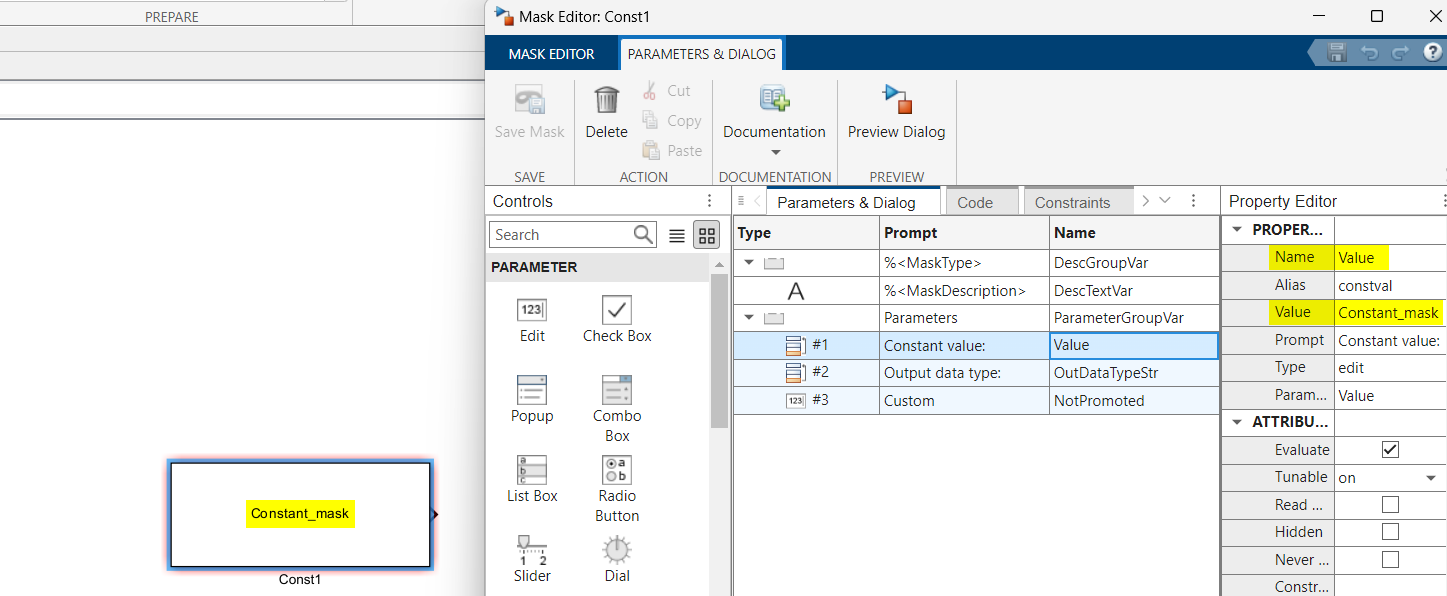
When this configuration is used, the block becomes interactive in EHANDBOOK.
-
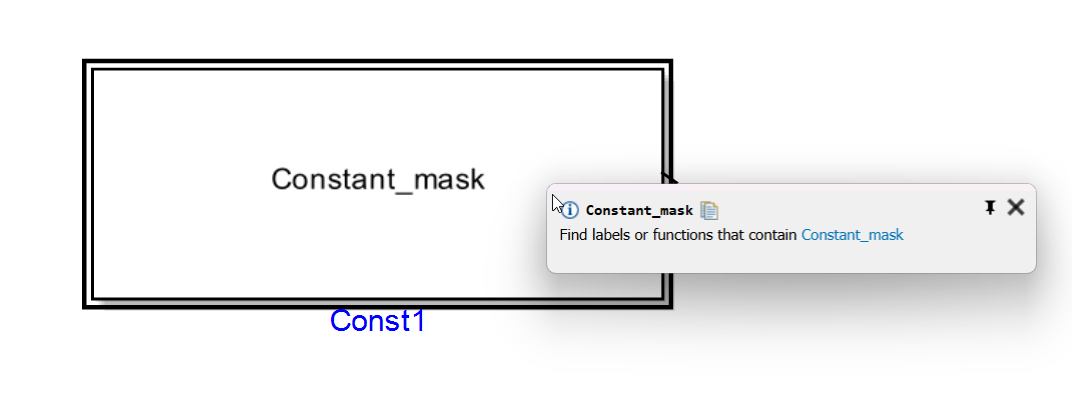
Clickable Blocks: The entire area of the configured 'Constant block' becomes clickable.
-
Label Popup: Clicking the block opens a label popup displaying the configured 'Constant value'.
-
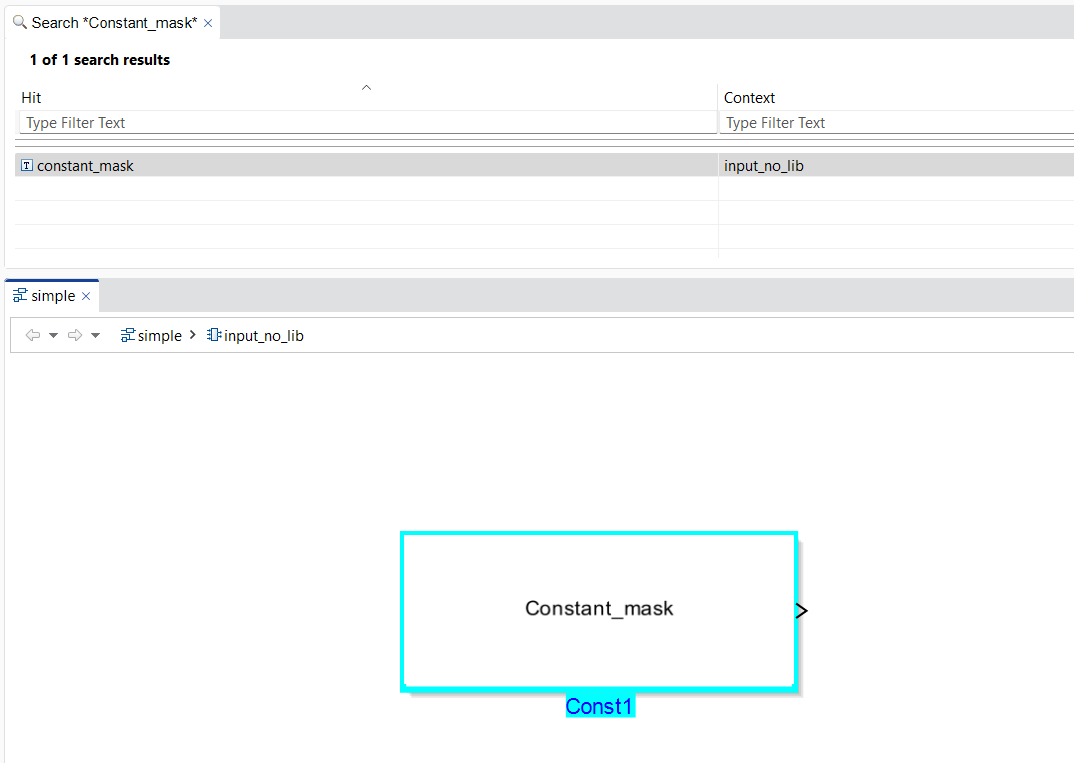
Searchable Labels: The 'Constant value' is indexed and can be found using the search functionality.
|
This feature only works for Simulink 'Constant' blocks. Known limitations:
|