How to Replace an EHANDBOOK File in a Project
Procedure
This is used to replace the selected EHANDBOOK file with the new one.
To replace the EHANDBOOK file, follow the steps below:
-
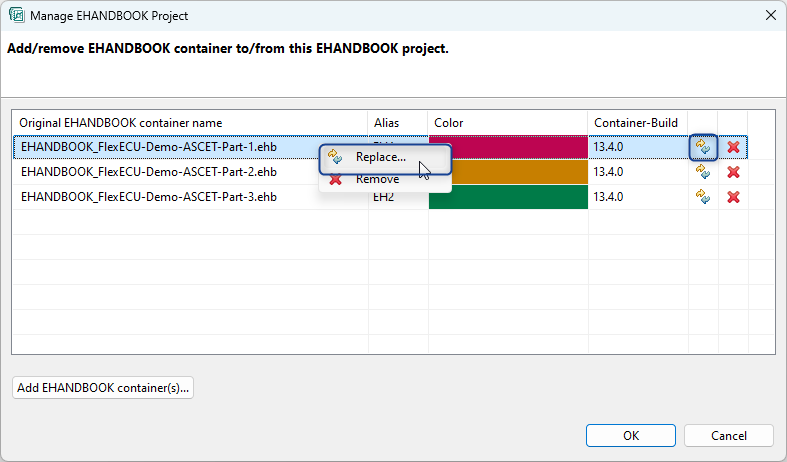
On the File menu, click
Manage Project…
Manage EHANDBOOK Projectdialog box is displayed. -
Select the file and click
 .
.
<Or> -
Select the file and right-click.
A context menu is displayed. -
Click

-
Select EHANDBOOK Filewindow is opened to select the EHANDBOOK file
(s). -
Browse and select the EHANDBOOK file.
-
Click Open.
The selected file will be replaced.
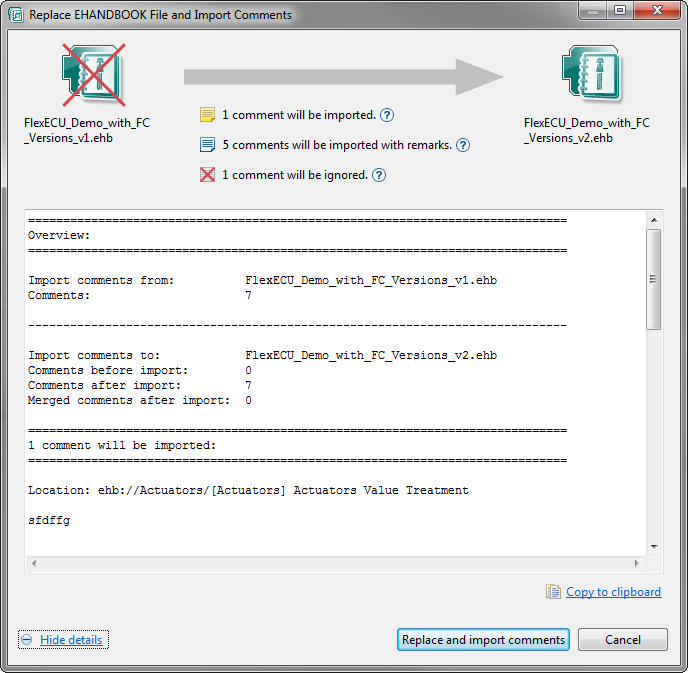
In few cases, if you are replacing a file which has comments in it, then Replace EHANDBOOK File and Import Comments
dialog box displays. Click Replace and import comments.
The comments which are present in the old file will also be
imported into a new file.
When a file is replaced with a new one, the defined alias name and color of the old file will be retained for the new one. Even the position of the new file in the table is same as the old file.