How to Configure Simulink Integration Features
This page covers Simulink-specific integration features, library paths, and special content rendering.
Mask image generation for Simulink models
When Simulink models are used with a MATLAB connection, EHB-CB can generate mask images for the corresponding Simulink blocks.
Passing Simulink library paths to EHB-CB
Simulink models can contain blocks that are defined in external libraries. EHB-CB needs access to these libraries during container generation to resolve the blocks correctly.
Two command line parameters could be used to provide SIMULINK library paths as input for the container generation.
simlib
Provide folder paths enclosed within double quotes separated by commas. Example:
-simlib "path1,path2,path3"
simlibfile
Provide path to json file containing paths to all libraries required. Example:
-simlibfile "path_to_json_file"
The key property in the json file used is "libraryPaths". Here’s an example of the JSON file:
{
	"libraryPaths": [
		"path1",
		"path2",
		"path3"
	]
}
The key property in the JSON file is libraryPaths. The following is an example of the JSON file:
Mask image generation
The libraries provided using -simlib or -simlibfile are also used when EHB-CB processes Simulink models for mask image generation.
If a Simulink model uses blocks from a library that is not available during container generation, EHB-CB cannot resolve those blocks. In this case, the generated mask image may contain ??? instead of the expected block image.
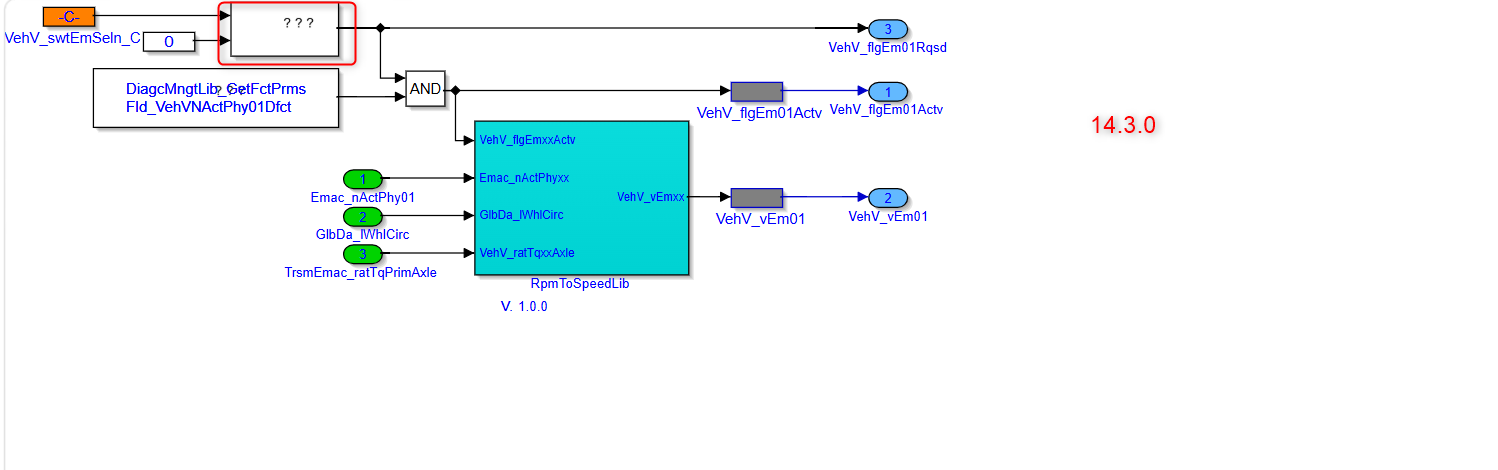
The ??? indicates that one or more blocks used by the Simulink model could not be resolved during mask image generation.
The EHB-CB log file also contains an entry indicating that one or more blocks could not be resolved. This log entry can be used to identify the unresolved blocks and determine which libraries are required.
Resolving missing libraries
To resolve the issue, add the paths to all Simulink libraries required by the model using either -simlib or -simlibfile.
-
Make sure that all libraries required by the Simulink model are included. This includes libraries containing blocks used directly by the model and any additional libraries required by referenced or dependent blocks.
-
After the required libraries are configured, EHB-CB can resolve the blocks during mask image generation. The mask images are then generated as expected without the ??? placeholders.
-
If ??? still appears after adding the library paths, check the EHB-CB log file for unresolved blocks and make sure that the corresponding libraries are also included in the configured library paths.
Structure Data Type Support
EHANDBOOK supports configuration of structure data types for Simulink. Structures are mapped to Simulink buses. Structures can be defined in MDX following the MDX specification. For details please refer to the document ASAM MDX File Structure for EHB-CB.
Function Overview Diagram
EHB-CB is capable to generate a Function Overview Diagram with all input- and output signals automatically. Besides one single function, there are also multiple functions possible, showing the dependency and relation between them.
The generated Function Overview diagram will appear in EHB-NAV in the Function Documentation Window with a new navigation button named "Open function overview". On click of this button, the model explorer tab opens with combined Function Overview of the functions appearing the image.
The separate chapters Function Overview Diagram in the TOC of EHB-NAV are generated by default without any additional configurations during container generation, independent of this feature.
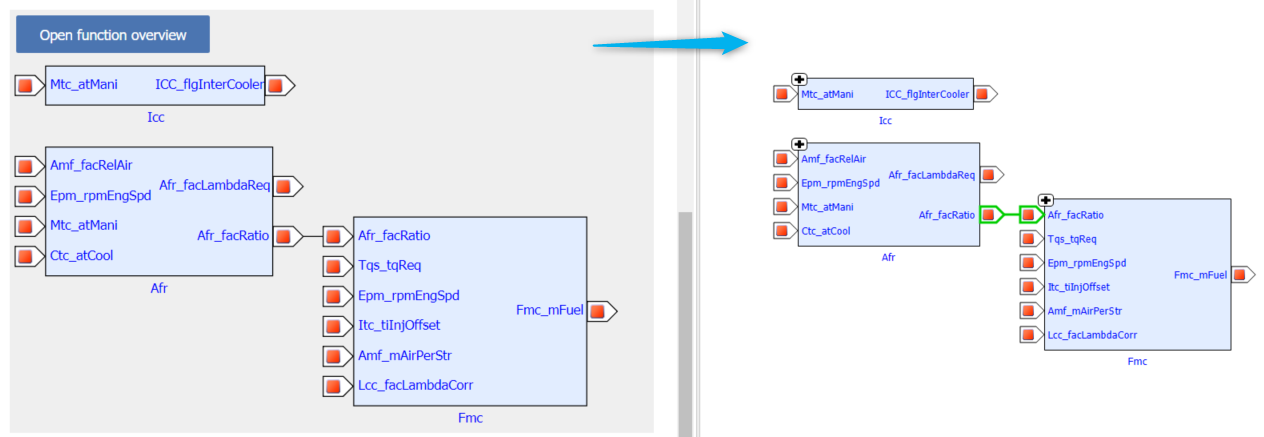
Required changes to achieve this functionality are described in the separate documents RTF format Specification and AsciiDoc format Specification for Directory-Based EHB-CB and in ASAM FSX and Graphics for the ASAM-Based EHB-CB.
|
Creating function overviews with > 30 functions is not advised as all the functions might not fit into canvas. |
Support for Simulink Doc blocks in documentation for Simulink Addon
In Simulink Addon, the content of the Simulink doc block is extracted from the model and added as documentation (AsciiDoc) for the respective subsystem along with its screen-shot.
Support for Simulink truth table block in documentation
In the EHANDBOOK-NAVIGATOR when clicked on the Simulink truth block, it opens a new tab with truth tables(Condition and Action tables)
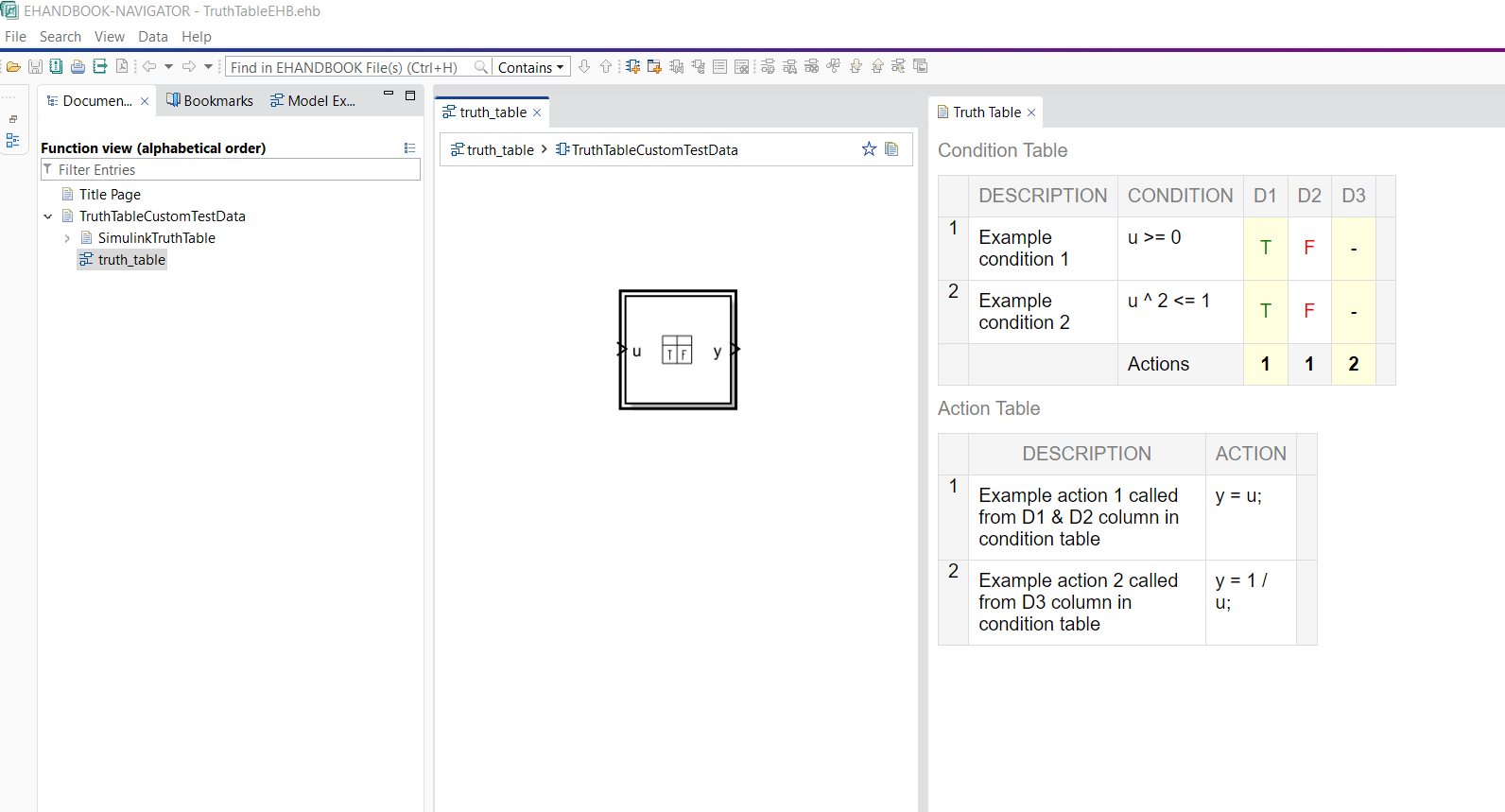
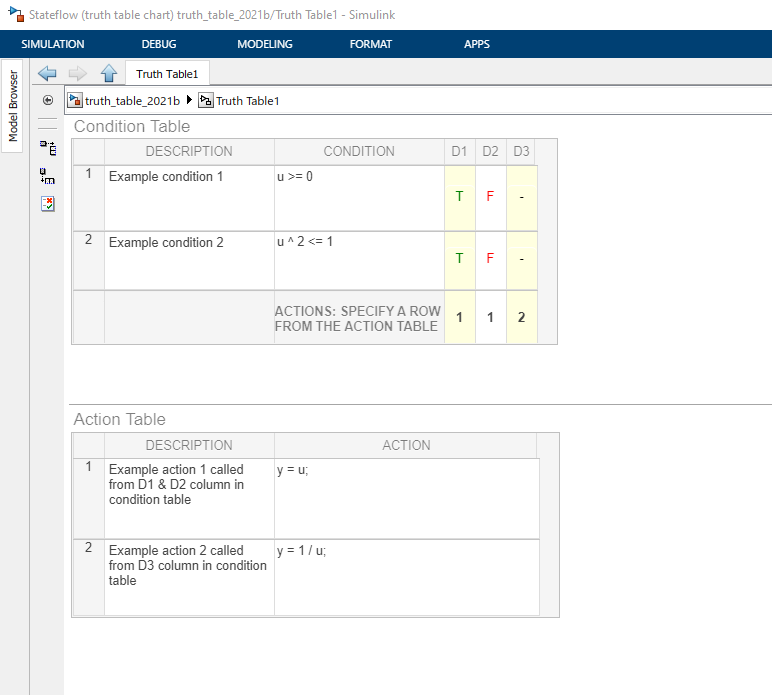
|
Local and Global search is not supported, text is selectable in EHANDBOOK-NAVIGATOR |
Support for Simulink Matlab Function Code block in documentation
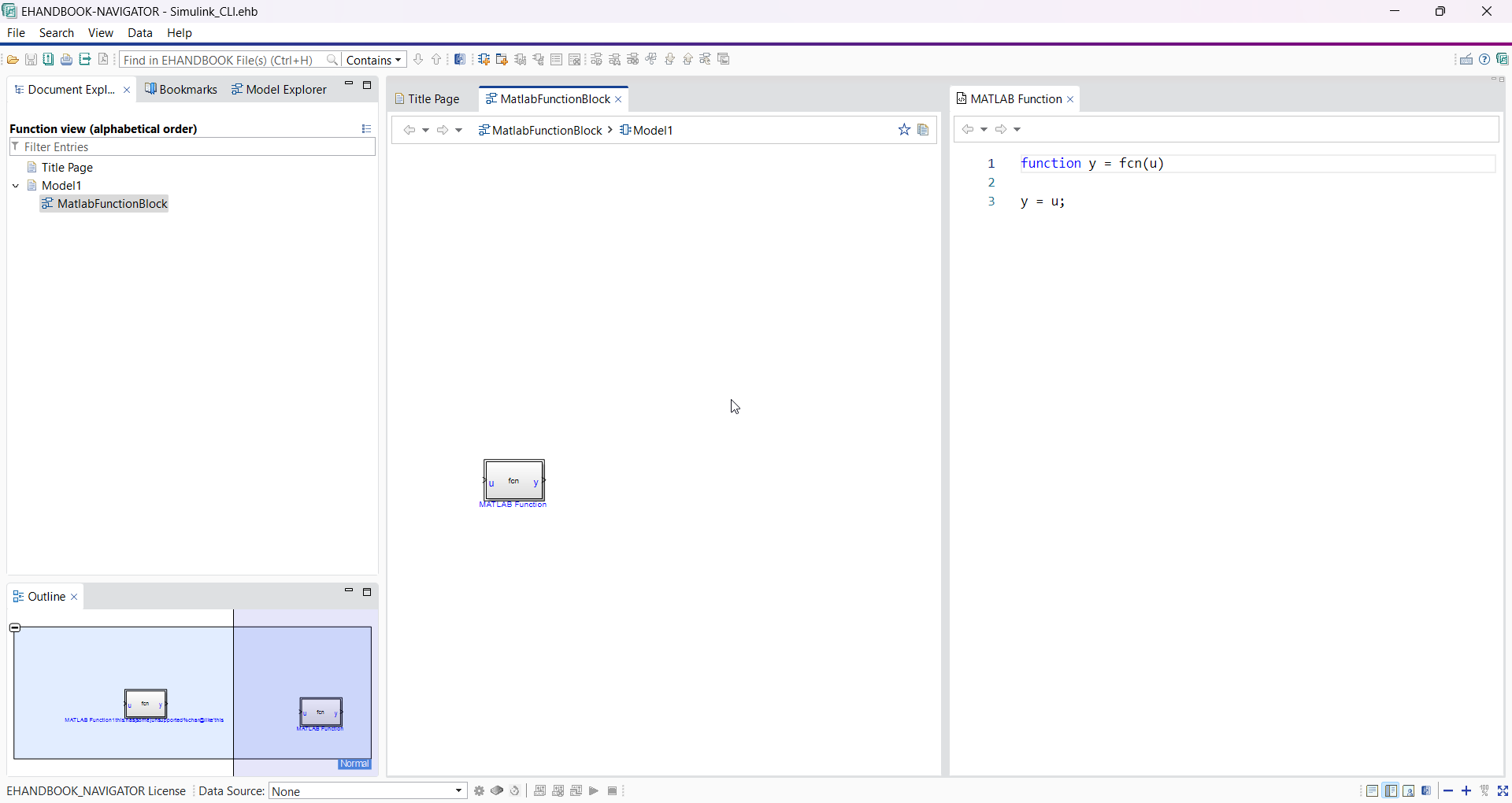
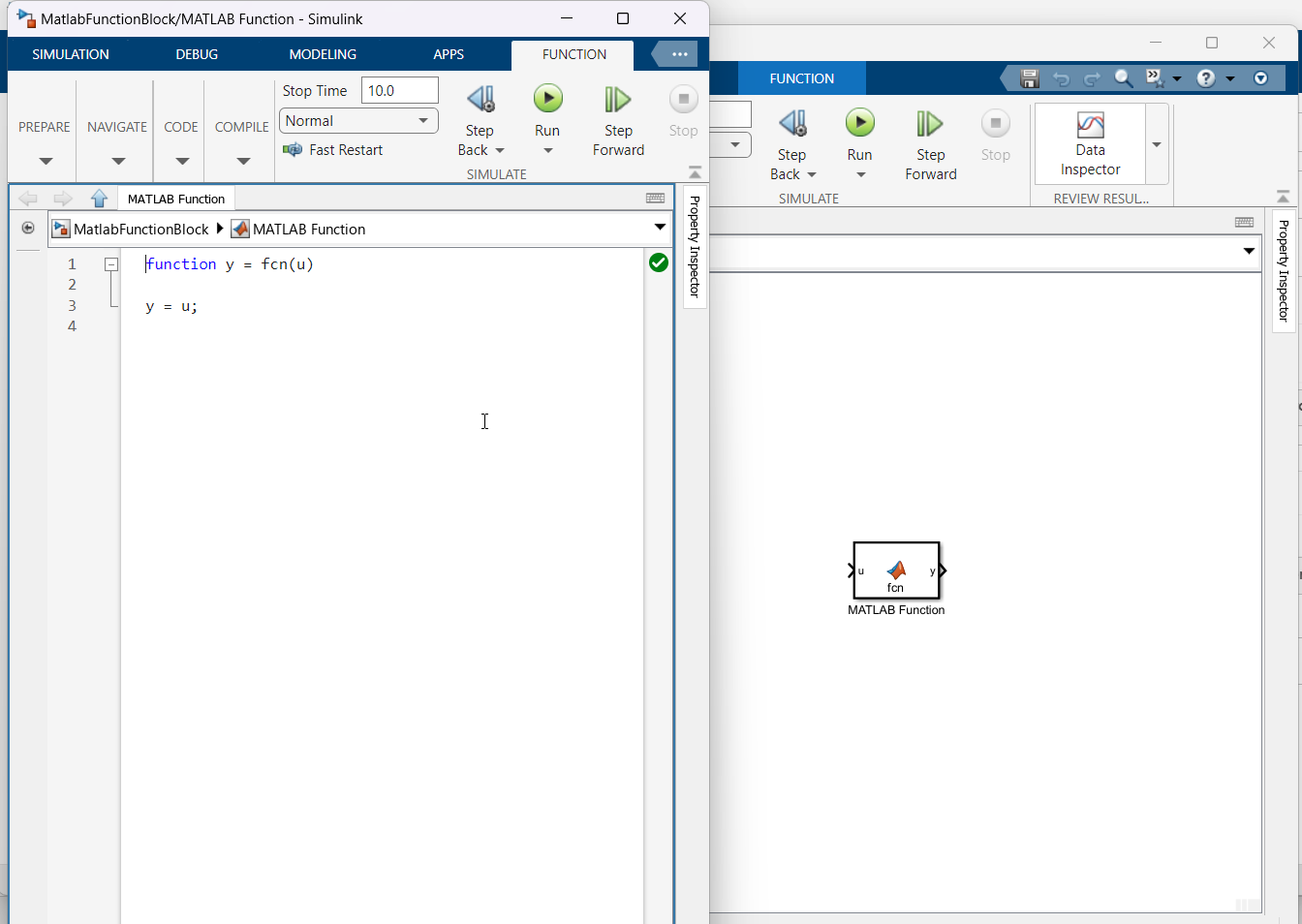
EHandbook supports Matlab function code representation through code viewer. Matlab function code can be opened by clicking on the matlab function blocks from model viewer. Pass command line argument -includeSourceCode to process Matlab function code blocks and to store them in the container. Local search and global search is also supported in Code Viewer.