✨ Wingman Chat

Wingman Chat is the main place to ask questions, review answers, and continue your conversation while working with container content and the EHANDBOOK-NAVIGATOR user guide. Look for the Wingman icon in the icon bar to access the chat view.
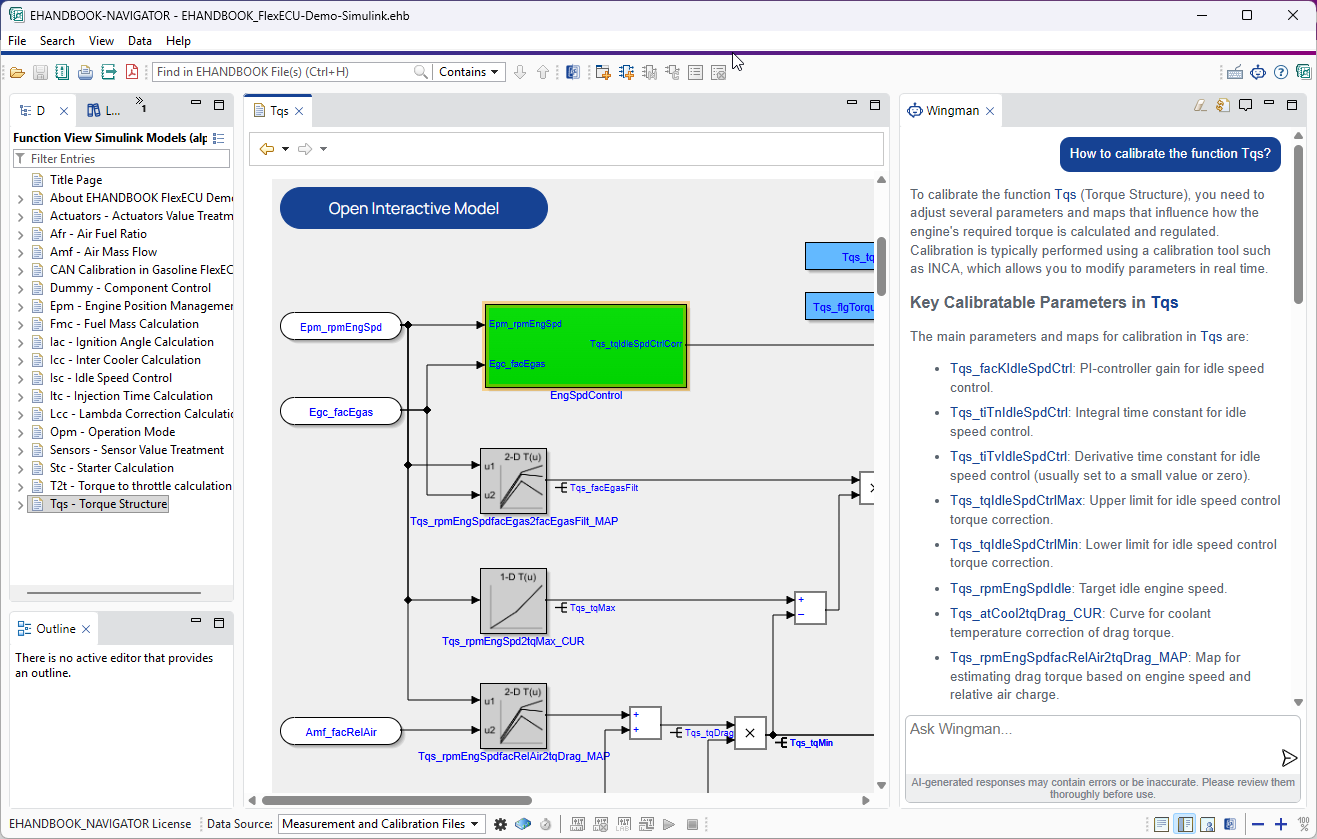
Initial Configuration
Wingman is backed by Productivity Assistant, which must be available for Wingman to operate. Productivity Assistant is installed together with EHANDBOOK-NAVIGATOR, but it can also be used independently with other ETAS products.
To configure the LLM endpoints, open Productivity Assistant. There are several alternatives:
-
Select it from the
Windows system tray, if Productivity Assistant is already running. -
Start it from the
Windows Start menu. -
From
Wingman View, click theWake upbutton to connect to Productivity Assistant. After that, find theShow Productivity Assistantbutton at the top ofWingman Viewand use it to open the Productivity Assistant window.
There, you can find:
-
The
Settingspage to configure a proxy. -
The
Modelspage, where you can create LLM endpoint configurations.
See the Productivity Assistant User Guide for more information.
Indexing Containers
Wingman answers questions based on the currently loaded EHANDBOOK container and the EHANDBOOK-NAVIGATOR user guide.
To prepare an EHANDBOOK container:
-
Open at least one EHANDBOOK container.
-
Automatic indexing of the knowledge base starts and runs in the background. Its duration depends on the container size.
-
Once indexing is complete, the container is marked as enabled in the
EHBsource selector. It is then included in the context of your chat session.
|
Indexing time depends on the container size and complexity. Large containers can require a significant amount of time. The results of this indexing process are stored in your EHANDBOOK-NAVIGATOR workspace. The next time you open the same container, the indexing process is skipped. |
Capabilities and Context
Wingman can access all textual information in the currently loaded EHANDBOOK container and in the EHANDBOOK-NAVIGATOR user guide. Additionally, it has access to details about variables such as measurement signals and calibration parameters, as well as details about functions/software components. Simulink models are also read and understood by the AI, though currently only with a more basic level of understanding.
Wingman responses are grounded in the loaded EHANDBOOK container context and the EHANDBOOK-NAVIGATOR user guide. This helps reduce the risk of irrelevant or hallucinated answers that can occur when generic AI assistants do not have sufficient domain context.
To enable this, Wingman uses a Retrieval-Augmented Generation (RAG) approach that retrieves relevant container and user guide content before generating a response.
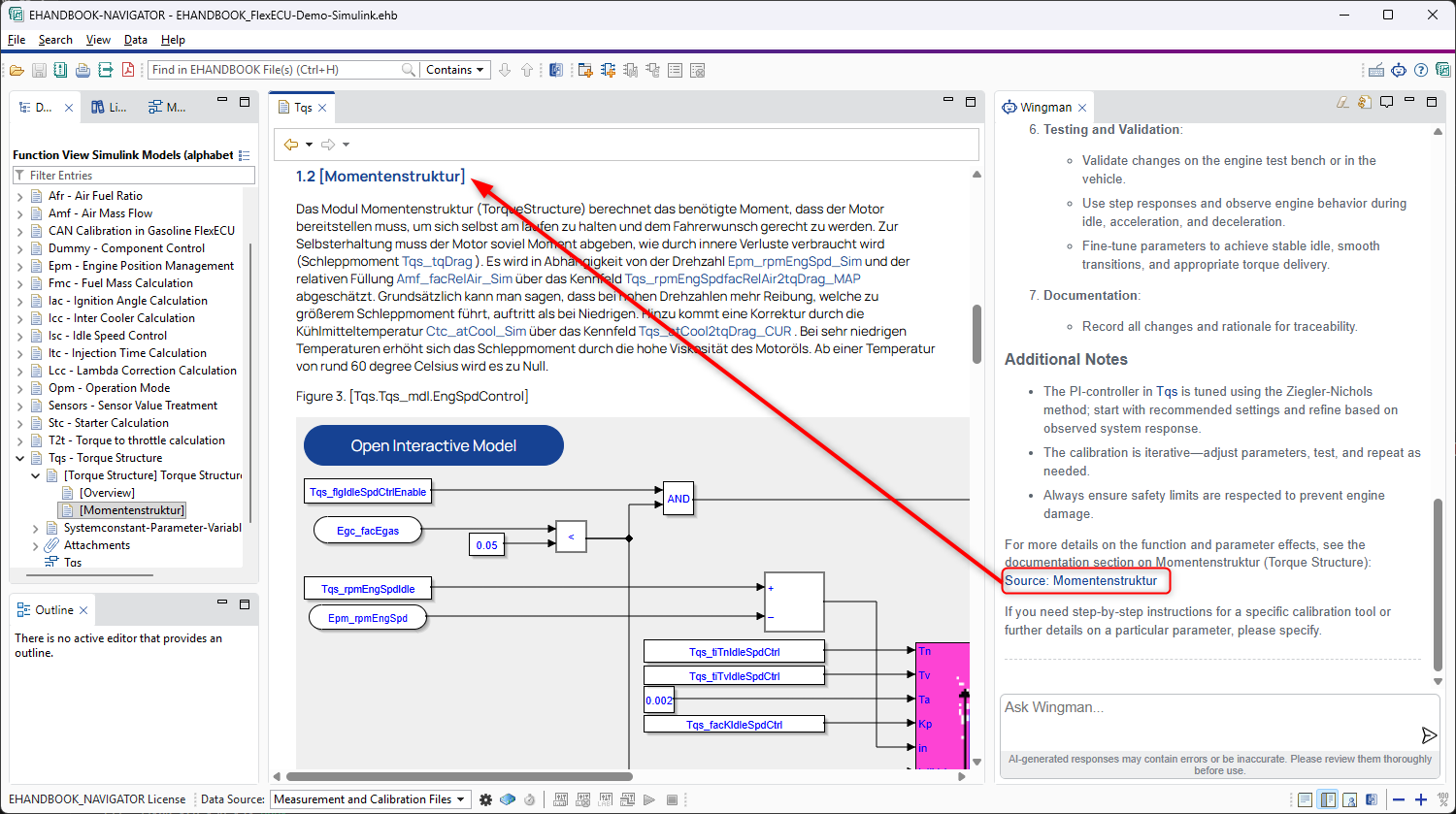
When available, Wingman responses include links to relevant source sections so you can verify information quickly in EHANDBOOK-NAVIGATOR.
Wingman does not have access to information outside the loaded EHANDBOOK container and the EHANDBOOK-NAVIGATOR user guide. It also does not read or interpret images.
For best results, ask specific questions and include function, variable, or subsystem names from your EHANDBOOK container.
|
Being an AI-powered assistant, Wingman may not always provide accurate or complete answers. It serves as a helpful tool for basic searching, exploration, and understanding. For reliable and complete search results, rely on the built-in search functionality instead. Furthermore, you should always verify critical information in the source documentation. |
Label Popup
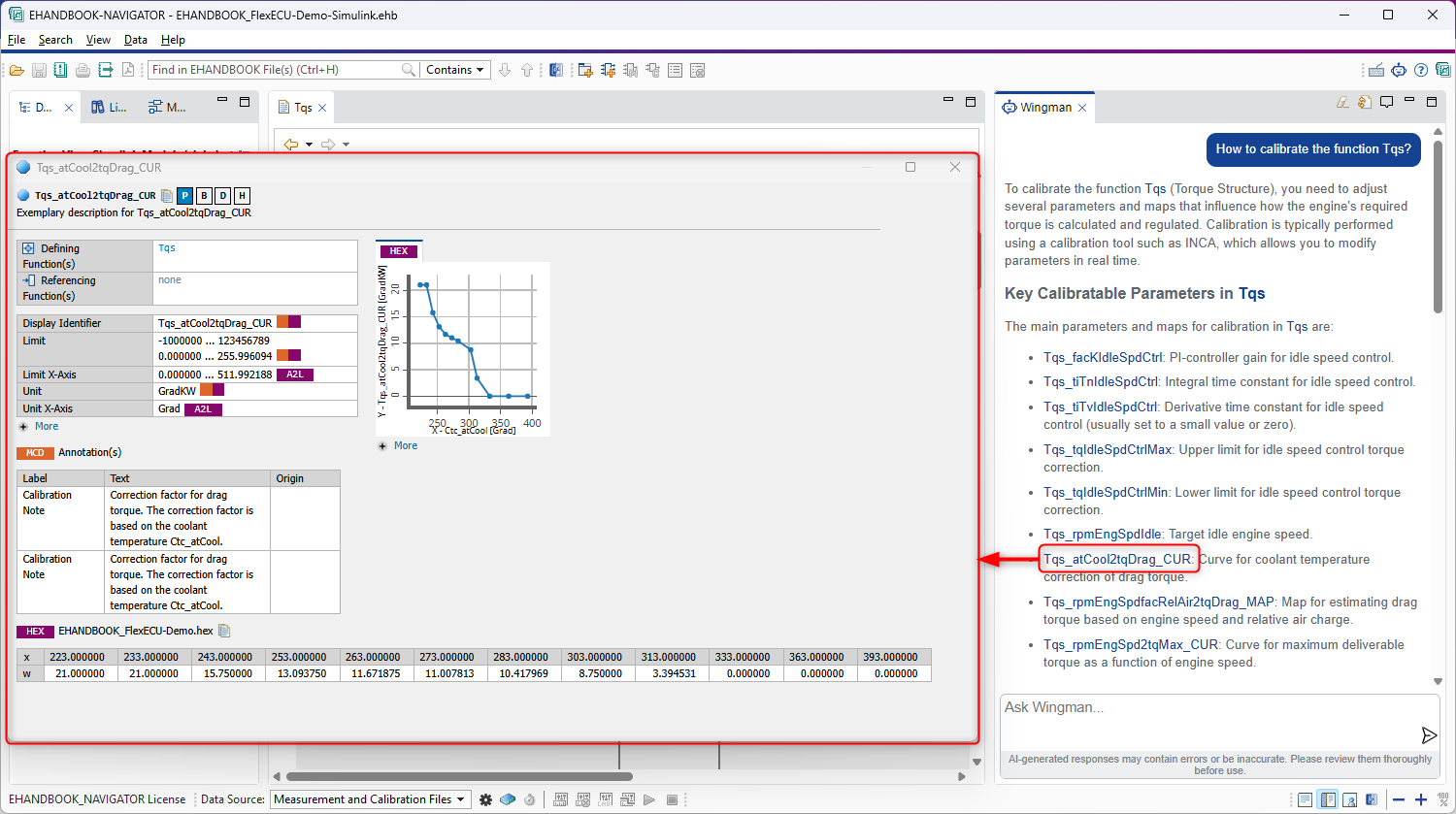
When Wingman generates an answer, it may include labels from the container. Clicking a label in the chat opens a popup with detailed information about that label, such as its type, value, and where it is used in the container. This allows you to quickly explore relevant information without leaving the chat context.
Links to Sources
Wingman may include links to specific sections of the container documentation in its answers. Clicking these links navigates you to the relevant section in EHANDBOOK-NAVIGATOR, allowing you to easily access more detailed information.
Enriching Wingman’s Knowledge with Source Code
You can enrich the assistant’s knowledge by attaching source code for the components in your container. There are two options:
-
If the container includes source code sections, Wingman can find them.
-
You can create a ZIP archive named
src.zipcontaining all source code for your container and attach it to one of the top-level chapters. Wingman will find it and use it in responses.
|
|
|
The approach for adding source code to the EHANDBOOK container is still being developed, so expect some changes in the future. |
Chat Elements
Wingman chat contains the following elements:
-
Conversation area: Displays your prompts and Wingman responses.
-
Prompt input field: Enter your natural-language question.
-
Use Shift+Enter for a new line.
-
Use Arrow-Up/Arrow-Down to cycle through the prompt history.
-
-
Send message: Press Enter or click the send button to submit your prompt.
-
Rebuild knowledge index: Use the refresh icon 🔄 in the top bar to rebuild the knowledge index of all currently loaded EHANDBOOK containers. This is usually not required, so use it only if you suspect the index is outdated.
-
Information box: There are several requirements for enabling Wingman, including a valid license and a configured, reachable LLM endpoint. If there are any more steps for you to complete, they will be displayed (and updated) in the information box right above the chat area. If everything is configured correctly, this box is not visible.