How to Use Navigation History
Procedure
Navigation history records the locations you have visited previously in the EHANDBOOK container. It is similar to the history feature available in a web browser. It records locations containing interactive models and documentation in their respective editors. The number of entries in the history is limited to 50, after which the last entry would be cleared out. Navigation buttons allow you to navigate back and forth within the navigation history.
The system records navigation history in the following scenarios:
-
For the Document Viewer:
-
Clicking on entries in the TOC.
-
Show Documentationfrom Model Viewer. -
through the Label popup.
-
through the Bookmarks.
-
through the ClickPick.
-
Opening a search hit from Global Search.
-
-
For the Model Viewer:
-
Opening an interactive model.
-
Opening a function overview.
-
Navigating in or out.
-
While using the Model Explorer.
-
While using the breadcrumb bar.
-
The system clears the existing navigation history in the following scenarios:
-
For the Document Viewer:
-
When the Document Viewer is closed.
-
-
For the Model Viewer:
-
When the Model Viewer is closed.
-
When an open location is used.
-
When a URI (Uniform Resource Identifier) is entered through the breadcrumb bar.
-
When a function is added/removed/edited from a function overview.
-
Navigating Back
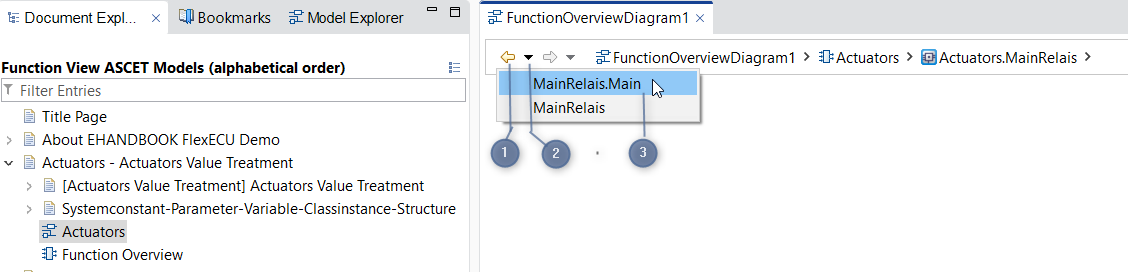
-
Back button
-
Drop down button
-
Prior locations visited
You can navigate to the prior locations one at a time or jump directly to a previous location in the Navigation History. Navigation buttons are enabled after you have explored more than one location.
You can use these navigation buttons are as follows:
-
Click
Backward(1) in the toolbar.
It navigates back to one location at a time. -
Click the drop-down button (2) in the toolbar.
A list of locations (3) visited before the active location is displayed. -
You can select the location you want to navigate from a list of locations (3).
The selected location is displayed.
Navigating Forward
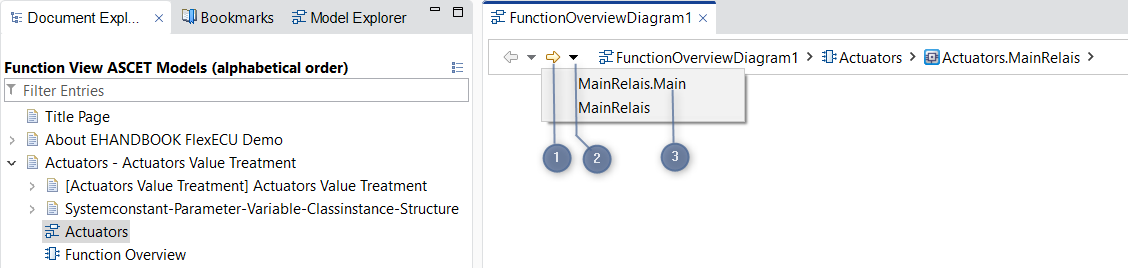
-
Forward button
-
Drop-down button
-
Subsequent locations visited
You can navigate to the subsequent locations one at a time or jump directly to a subsequent location in the Navigation History. Navigation buttons are enabled after you have explored more than one location.
You can use these navigation buttons are as follows:
-
Click
Forward(1) in the toolbar.
It navigates forward to one location at a time. -
Click the drop-down button (2) in the toolbar.
A list of locations (3) visited subsequent to the active location is displayed. -
You can select the location you want to navigate from a list of locations (3).
The selected location is displayed.