How to Export to PDF
Procedure
This feature helps to export the contents of a particular functional component
(FC) to a PDF document.
To export to PDF :
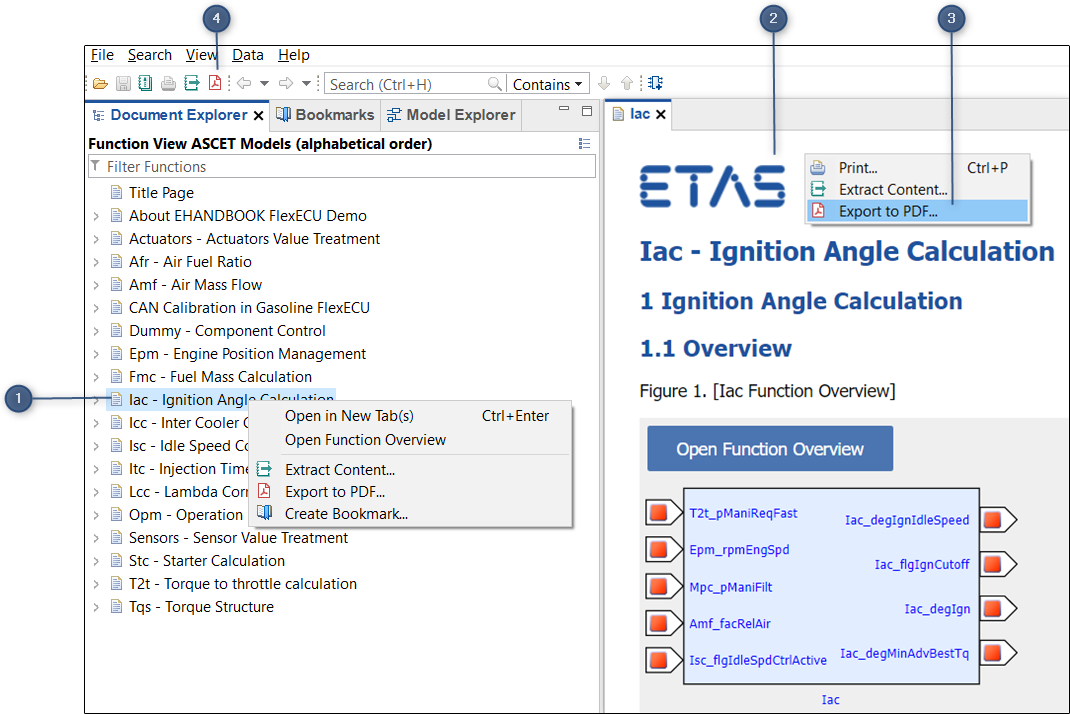
Export to PDF.
-
FC in Document Explorer
-
FC in Document Viewer
-
Context Menu
-
Export to PDF toolbar icon
Perform one of the following steps:
-
In the
Document Explorer, right-click on the required functional component (FC).
<Or> -
Right-click in the
Document Viewer.
A context menu is displayed.
-
Click
Export to PDF…. -
In the
Export to PDFdialog box, select the location, specify the file name and clickSave.
Please note that depending on the size of the contents it takes few minutes to generate the pdf file. -
Once the file is exported, a dialog box is displayed as shown below.
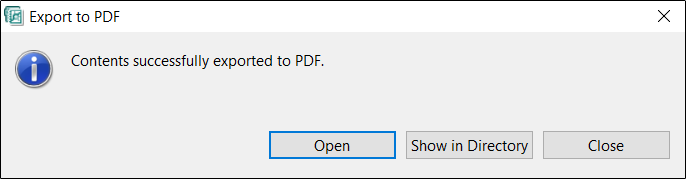
Dialog box:
-
Click
Open
It opens the exported file in a PDF viewer.
<Or>
ClickShow in Directory.
It locates the file in the File System.
<Or>
ClickClose.
It closes the dialog box.
Export to PDF can also be perfomed by clicking in the toolbar or
from the
in the toolbar or
from the Filemenu.
|
Exporting contents of multiple functional components to a PDF document is not possible. |