How to Generate a Container for Your Simulink Model
This guide shows you how to generate an EHANDBOOK container from your Simulink model using the toolbox.
Prerequisites
-
EHANDBOOK Container-Build Toolbox for Simulink installed and verified
-
A Simulink model open in MATLAB/Simulink
-
Valid license configured
Generate a Container: Basic Steps
Step 1: Open Your Simulink Model
-
Launch MATLAB
-
Open your Simulink model file (.slx or .mdl) using File → Open
The model should be displayed in the Simulink editor.
Step 2: Access the Toolbox Menu
-
In the Simulink menu bar, locate the EHANDBOOK Container-Build Toolbox menu
-
Click to open the menu options
If you don’t see this menu, verify that the toolbox is installed (see Installation Guide).
Step 3: Select Generate Container
-
Click Generate Container from the menu
-
A generation dialog appears with the following options:
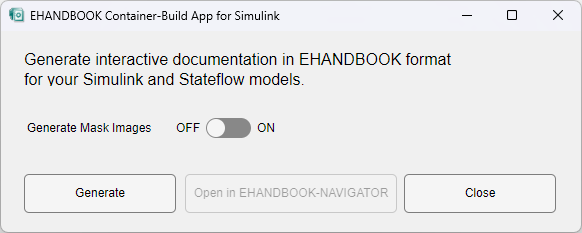
| Option | Purpose |
|---|---|
Model Name |
Name of the Simulink model (read-only, automatically filled) |
Output Location |
Where the .ehb container file will be saved (defaults to model directory) |
Container Name |
Name for the generated container (defaults to model name) |
Include Options |
Checkboxes for what to include in the container |
Step 4: Configure Generation Options
Most users can accept the default settings. However, you can customize:
-
Output location: Change where the container file is saved
-
Container name: Rename the output file if desired
-
Include mask images: Generate visual images of masked subsystems
-
Include interactive models: Include model diagrams (recommended)
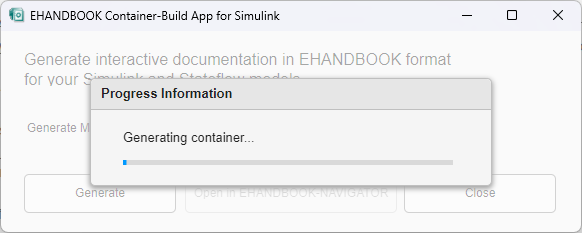
After Generation Completes
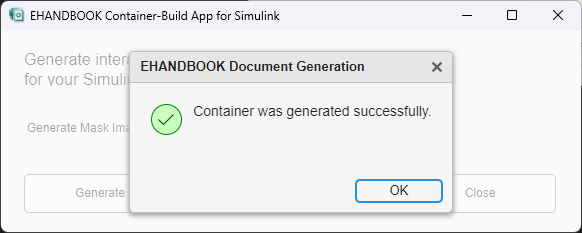
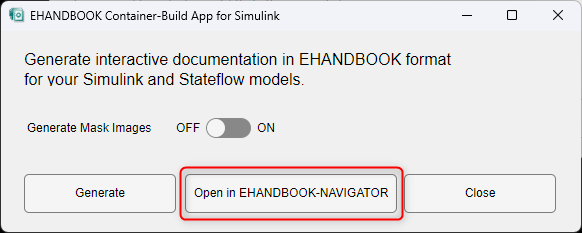
Generation Options Explained
Output Location
By default, the container is saved next to your model:
C:\Projects\MyProject\
  ├── my_model.slx
  └── my_model.ehb
You can specify a different location if:
-
You want containers in a separate folder
-
Multiple models share one output directory
-
You need to organize containers differently from models
Container Name
The container name determines the .ehb filename:
-
Default: Matches your model name
-
Example: Model
ecu_controller.slx→ Containerecu_controller.ehb -
Change if: You want the container name to differ from the model name
Include Mask Images
Masked subsystems in Simulink display as visual blocks. When this option is enabled:
-
Visual images of masked subsystems are generated
-
These images appear in the interactive model
-
Provides more intuitive visualization
-
Increases container size slightly
Recommendation: Keep this enabled unless container size is a concern.
Troubleshooting Generation
Generation Fails with Error
Check the error message in MATLAB console:
-
Syntax error: Verify your model has no errors (use Simulink Check)
-
File access: Ensure output location is writable
-
Model not saved: Save your model before generating
-
Unsupported elements: Some Simulink blocks may not be supported
Advanced: Batch Generation (Multiple Models)
To generate containers for multiple models:
-
Write a MATLAB script that:
-
Opens each model
-
Calls the generate function for that model
-
Repeats for the next model
Example workflow:
models = {'model1.slx', 'model2.slx', 'model3.slx'};

for model = models
    open_system(model);
    % Call toolbox generation here
    close_system(model, 0);
end
Contact support for assistance with batch generation scripts.