How to Import Bookmarks and Model Views
Procedure
To import bookmarks/model views to Library view:
-
Click
Import Bookmarks and Model Views from library fileicon present in the "Library" view.
Import Bookmarks and Model Viewswindow is displayed.
<Or> -
From the
Filemenu, selectImport.
Importwindow is displayed. -
Select
Bookmarks and Model Viewsfrom theEHANDBOOKfolder and then clickNext.
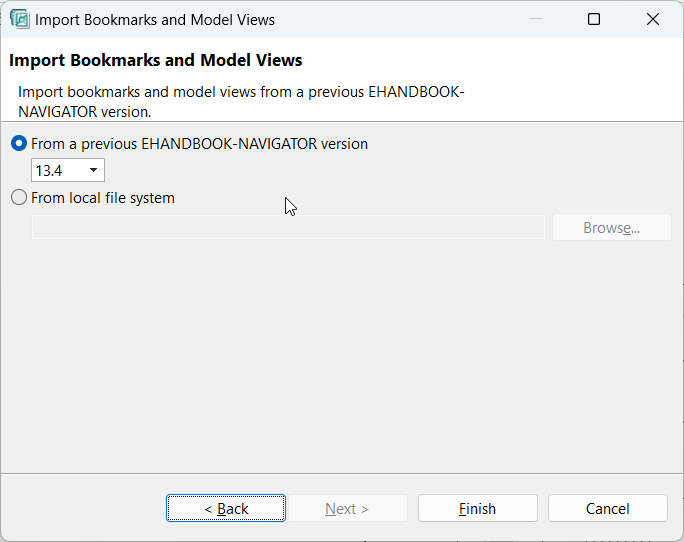
Import Bookmarks and Model Viewswindow is displayed.
-
Click
From a previous EHANDBOOK-NAVIGATOR versionbutton and select the version from the drop-down list.
|
Only bookmarks/model views that you have created in the previous navigator versions are displayed in the drop-down list. |
-
Click
Browseand select the library file (*.ehblib or *.bookmarks) you want to import. -
Click
Finish.
The bookmarks/model views are imported to the "Library" view.
|
Bookmarks/model views are imported into a folder having the name of the *.bookmarks or *.ehblib file. |