How to Extract Content of EHANDBOOK Container
Procedure
This feature helps to extract contents from the currently loaded EHANDBOOK container and generate a new EHANDBOOK container by selecting only the required functions from the existing container.
|
EHANDBOOK container ( |
To extract content to a new EHANDBOOK container:
-
Perform one of the following steps:
-
On the
Filemenu, selectExtract Content….
<Or> -
In the
Document Explorer, right-click on the required topic or subtopic.
Context-menu is displayed. -
Click
Extract Content….
<Or> -
In the
Document
Viewer
, right-click and selectExtract Content….<Or> -
Click
 on the toolbar.
 -
Extract content to a new EHANDBOOK containerwindow is displayed.
-
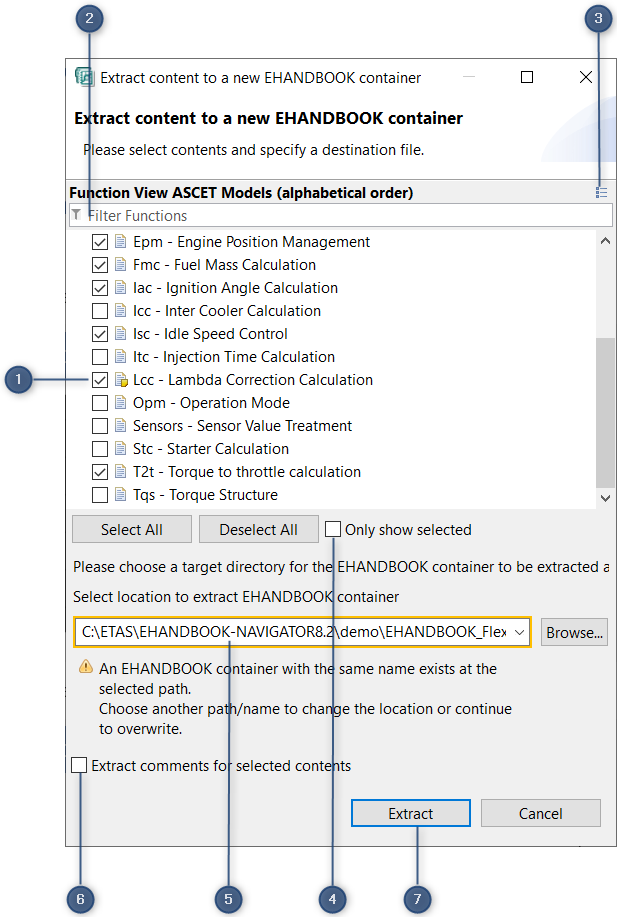
Extract content to a new EHANDBOOK container.
-
Selected functions.
-
Search filter.
-
All tables of contents.
-
Checkbox to show selected functions.
-
Target location.
-
Checkbox to extract comments.
-
Extract container.
-
Select the required function components (FCs).
When you chooseExtract ContentfromDocument ExplorerorDocument Viewer, pre-selected FC’s (1) are shown in theExtract content to a new EHANDBOOK containerwindow. You can also filter the function components (FCs) by typing the text in the Filter (2) which helps to find the function names quickly. -
Click
 (3) to change the Tables of Contents.
To select all function components, clickSelect All. To view only the list of selected function components click the checkboxOnly show selected(4). -
Select or type the target location (5) for extracting the container or click
Browse.
By default loaded container’s location is pre-selected in the target path and the container name is suffixed with_Extract.
|
EHANDBOOK container will not be generated if the name and path of the extracting container is same as the loaded container. EHANDBOOK container will be generated only if the file extension of the extracting container is same as the loaded file extension. |
-
Check the checkbox
Extract comments for selected contents(6) to copy comments to the extracted container.
By default, the checkbox is unselected. -
Click
Extract.
Please note, based on the number of entries and size of the contents, extracting the contents takes some time. -
Once the EHANDBOOK container is extracted successfully, the below dialog
box is displayed.
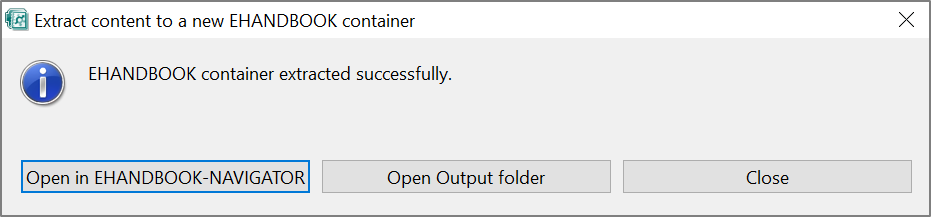
Dialog box.
-
Click Open in
EHANDBOOK-NAVIGATOR.-
It opens the generated container in the EHANDBOOK-NAVIGATOR.
<Or> -
Click Open Output Folder.
It opens the extracted container’s file location.
<Or> -
Click Close.
It closes the dialog box.
EHANDBOOK-NAVIGATOR generates a new container with the extracted functions. The tables of contents of the extracted container contains the extracted functions only.
-