Library Views
Library Explorer
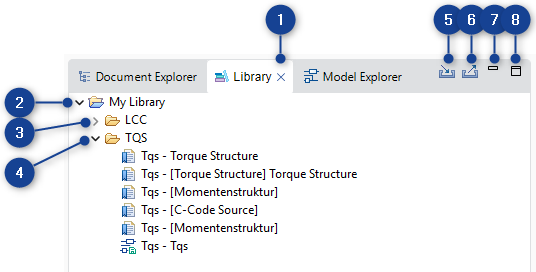
-
Close
-
My Library folder
-
Collapse
-
Expand
-
Import Bookmarks and Model Views
-
Export Bookmarks and Model Views
-
Minimize
-
Maximize
Library feature in EHANDBOOK-NAVIGATOR allows you to store the location of the container topics, subtopics and the interactive models for later retrieval. Topics containing textual content can be bookmarked. Interactive model can be saved as model view. Bookmarks and model views work across multiple TOCs and are independent of the TOC.
Keyboard: Press Up arrow/Down arrow keys to move up and down the tree
structure. Press Right arrow key to expand and press Left arrow key to collapse
the levels within the tree structure. Navigate to the Bookmark or Model View and press Enter to
view the content in the Document Viewer or the interactive model.
Mouse: Click Expand button (3) to expand the levels, and Collapse button (4) to
collapse the levels in the structure. To view the textual content in the Document
Viewer or the interactive model, click the relevant topic.
To close the Library view, click Close (1). Click Minimize (7) or Maximize (8)
to minimize/maximize the Library view.
Import Bookmarks and Model Views button (5) allows you to import bookmarks and model views.
Export Bookmarks and Model Views button (6) allows you to export bookmarks and model views from Library view.
Context Menu
-
Context menu
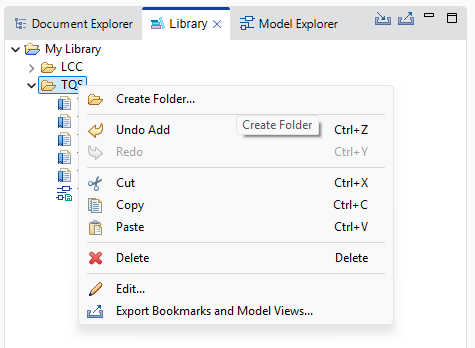
The Context Menu (1) contains the following menu items:
-
Create Folder
Allows you to create a folder in Library view.
This option is displayed in the context menu, only if a folder is selected in Library View. -
Undo
Allows you to undo the last task performed in Library view.
This option is displayed in the context menu, only if any task is already performed in the Library View. -
Redo
Allows you to redo the last task performed in Library view.
This option is displayed in the context menu, only if any task is already performed in the Library View. -
Cut
Allows you to cut a Bookmark, Model View or a folder in Library view.
This option is displayed in the context menu, only if a Bookmark, Model View or a folder is selected in Library View. -
Copy
Allows you to copy a Bookmark, Model View or a folder in Library view.
This option is displayed in the context menu, only if a Bookmark, Model View or a folder is selected in Library View. -
Paste
Allows you to paste a Bookmark, Model View or a folder in Library view. This option is displayed in the context menu, only if a Bookmark, Model View or a folder is copied or cut in Library View. -
Delete
Allows you to delete a selected Bookmark, Model View or a folder in Library view.
This option is displayed in the context menu, only if a Bookmark, Model View or a folder is selected in Library View. -
Edit (F2)
Allows you to edit a selected Bookmark, Model View or a folder in Library view.
This option is displayed in the context menu, only if a Bookmark, Model View or a folder is selected in Library View. -
Export Bookmarks
Allows you to export the selected Bookmark, Model View or a folder to a different location.
This option is displayed in the context menu, only if a Bookmark, Model View or a folder is selected in Library View.