RTF Format Specification
Introduction
The ETAS RTF converter add-on for the Directory-Based EHANDBOOK Container-Build toolchain generates textual and graphical content for EHANDBOOK containers from RTF files.
Typically, one RTF document can be placed in each subdirectory, which normally represents a function component, together with the related model file. The RTF content is converted into the text pane of the function component and describes the functionality of the corresponding model.
This document describes the RTF features supported by the EHANDBOOK Container-Build tool.
Supported Versions and Format
EHANDBOOK supports RTF according to the Rich Text Format specification version 1.9.1, but only a limited subset of its features is supported.
The supported features are described in this document. Microsoft Word 2013 is the recommended tool for creating RTF files. MS WordPad is not supported. Other tools or versions of Microsoft Word may work, but support is not guaranteed by ETAS.
RTF file input is supported only by Directory-Based EHB-CB versions.
The maximum RTF file size is 120 MB. See Other Known Limitations for more information.
Supported RTF Elements
The Microsoft RTF specification supports many types of content. EHANDBOOK supports plain text and standard graphics.
The following RTF features are supported:
-
Paragraphs
-
Chapters
-
Images
-
Model links from RTF
-
Tables
Paragraphs
An RTF paragraph can contain characters, words, and different text representations. Plain text is fully supported and is displayed as paragraph content in the HTML documentation.
The following features are supported within plain text:
-
Text formatting
-
Unicode and language support
-
Bullets and lists
Numbering
EHANDBOOK uses its own numbering system. Therefore, the original numbering of chapters, figure legends, and other numbered references is ignored.
Text Formatting
Text formatting such as color, font, bold, italic, and underline is not supported. Text alignment is also not supported, including alignment within table cells.
Paragraph alignment is not supported because of the intermediate DITA standards. Text must be placed in a single column.
Unicode and Language Support
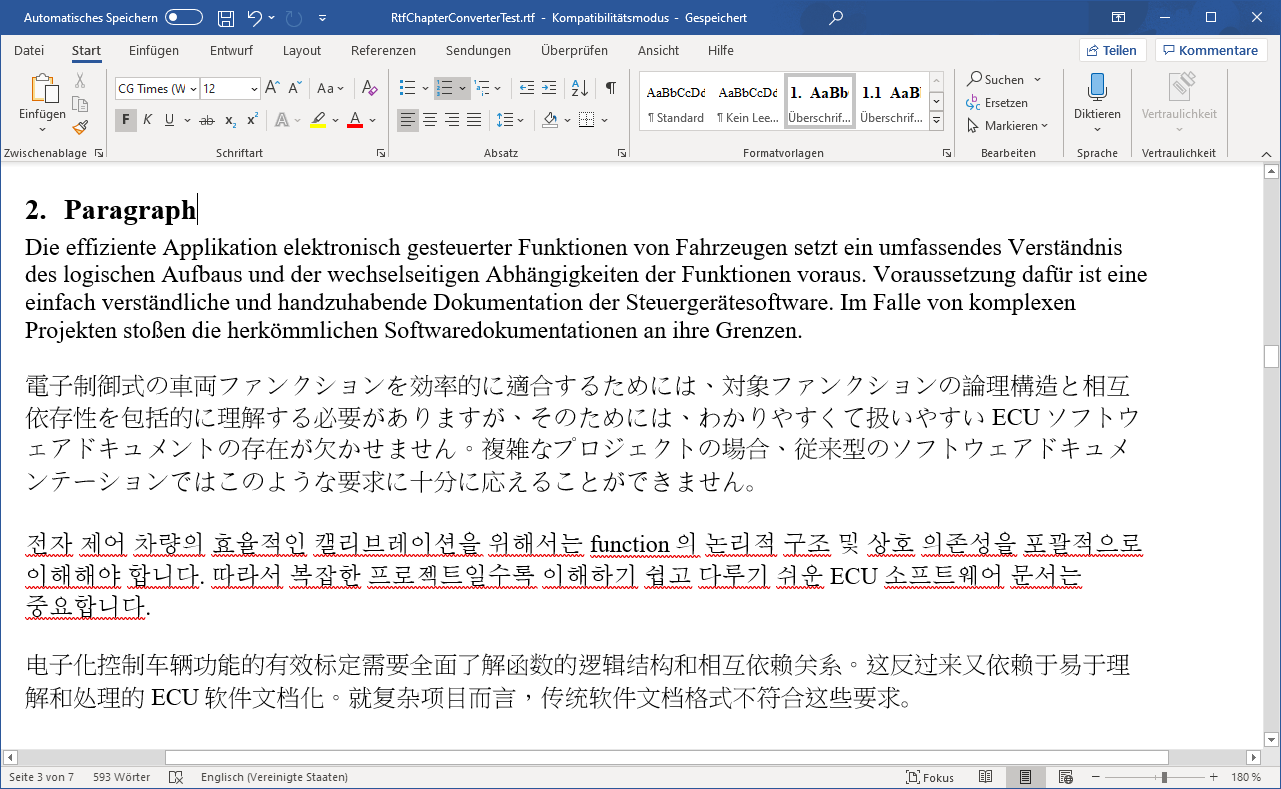
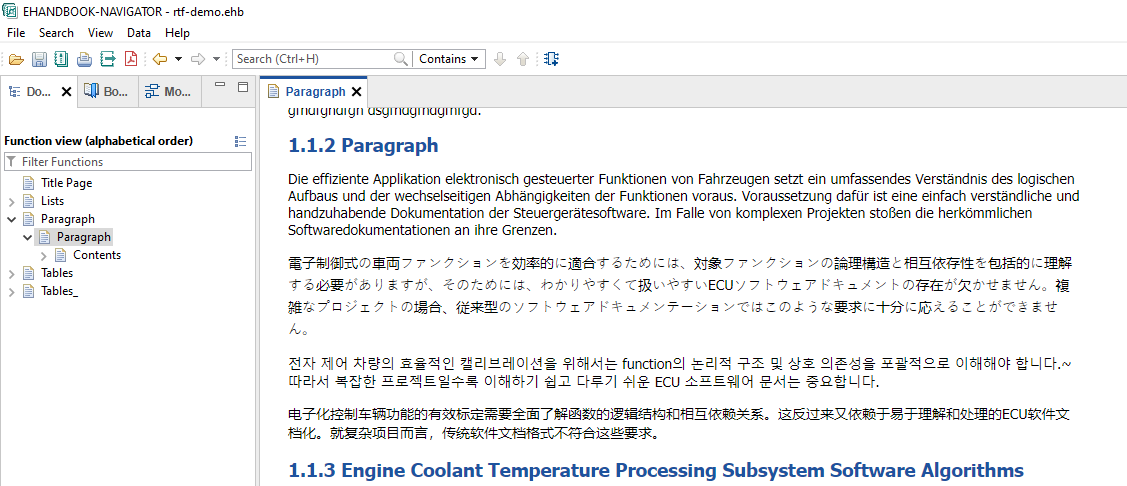
Characters that are not part of the standard ANSI character set are represented as Unicode characters in RTF. These characters allow text in different languages to be represented correctly.
Language support is provided using Unicode identification and standard text conversion libraries.
Input:
Output in EHB-NAV:
Bullets, Numbering and Lists
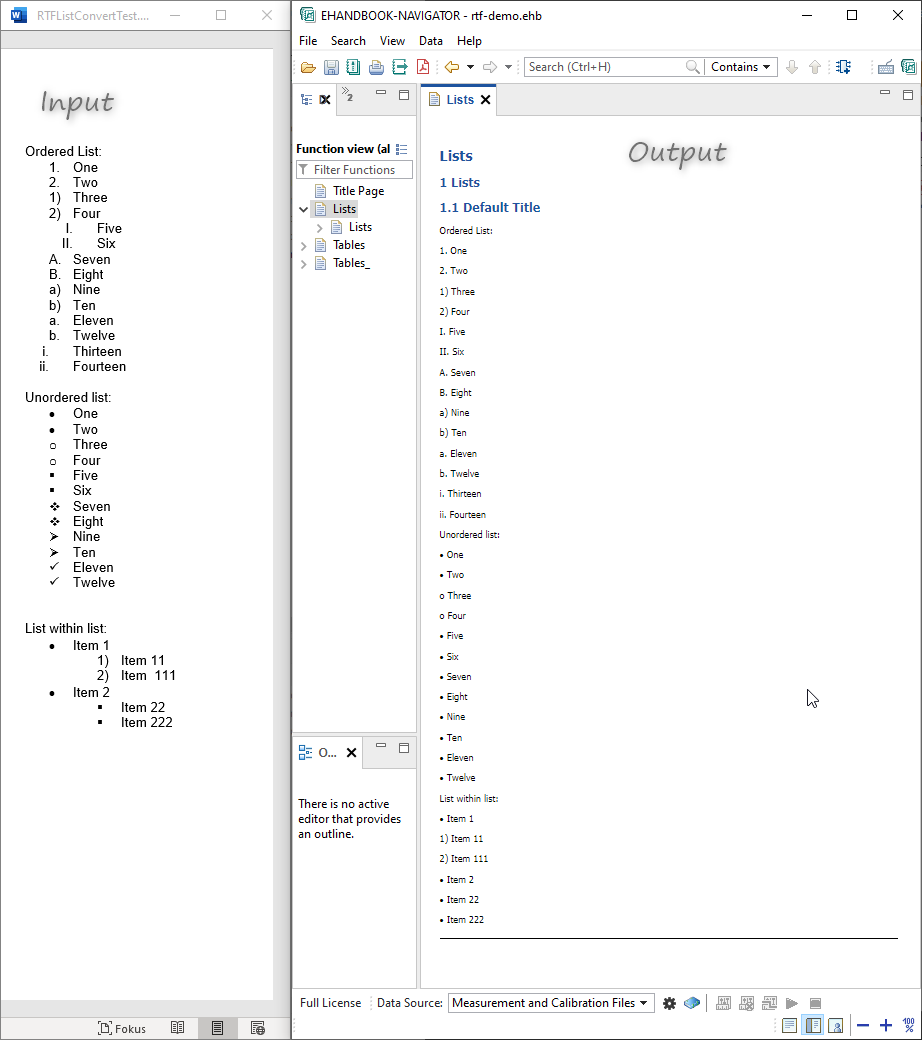
Microsoft provides many types of bullet characters. EHANDBOOK supports numbering in lists. Different bullet characters are converted to a generic symbol, such as • or o, depending on the input.
Lists inside tables are also supported.
The following figure shows a comparison between the input RTF document in Word and the output in EHANDBOOK-NAVIGATOR.
Tables
RTF tables store data in rows and columns. EHANDBOOK supports the following table types:
-
Simple tables
-
Complex tables as unstructured tables
Simple tables contain the same number of cells in each row.
For example:
| SL No. | Name | Last Name |
|---|---|---|
1 |
Tom |
Hanks |
2 |
Ethan |
Hunt |
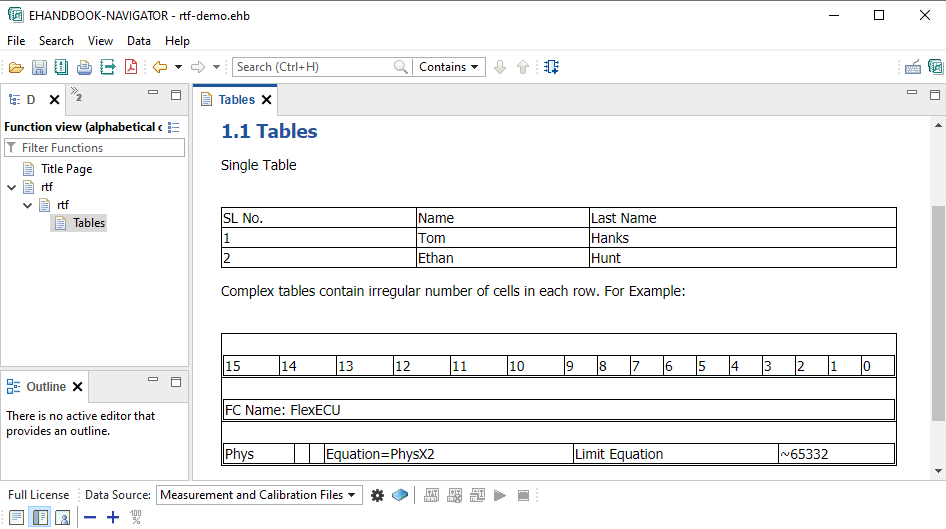
Complex tables can contain different numbers of cells in each row.
For example:
| 15 | 14 | 13 | 12 | 11 | 10 | 9 | 8 | 7 | 6 | 5 | 4 | 3 | 2 | 1 | 0 |
|---|---|---|---|---|---|---|---|---|---|---|---|---|---|---|---|
FC Name: FlexECU |
|||||||||||||||
Phys |
- |
Equation |
Equation=PhysX2 |
Limit Equation |
\~65332 |
||||||||||
Limitations for table support in EHB:
-
Tables must contain more than one cell.
-
Nested tables are not supported.
-
Only plain text is allowed in cells. Other objects, such as images, are not supported.
-
Tables are always displayed with thin frame lines in EHB-NAV, regardless of the table styling in RTF.
-
Text alignment and line breaks may be displayed differently in EHB-NAV compared to the RTF source.
Output example in EHB-NAV:
Chapter Identification
Chapters in RTF documents are identified using heading styles and table of contents information.
First, the RTF table of contents is processed to identify chapter bookmarks. The heading styles and field data are then used to identify subchapters.
The following information is used:
-
Bookmarks from the table of contents
-
Styles that start with
Heading
Bookmarks from the TOC Table
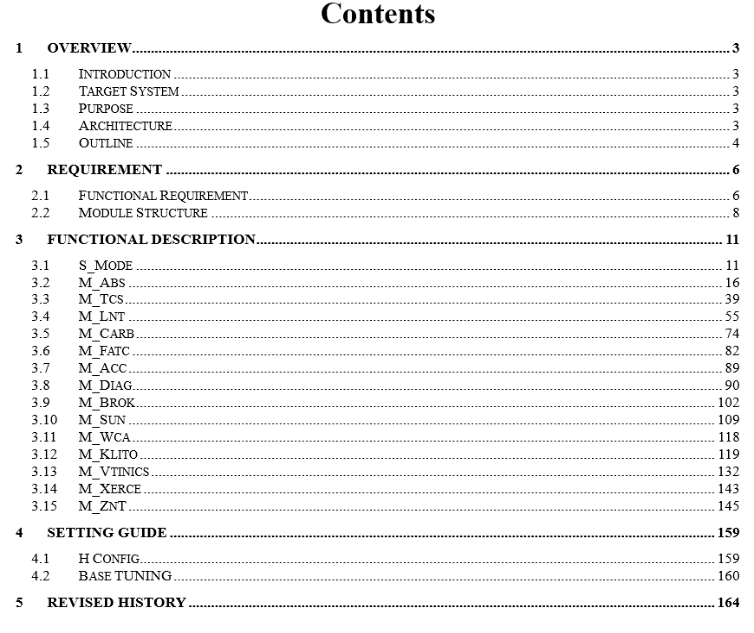
Main chapters in RTF are identified using the table of contents fields in the document.
Example TOC table:
|
If a table of contents is not available, the style of the heading text is used to identify the chapter. |
Text Style for Chapter Identification
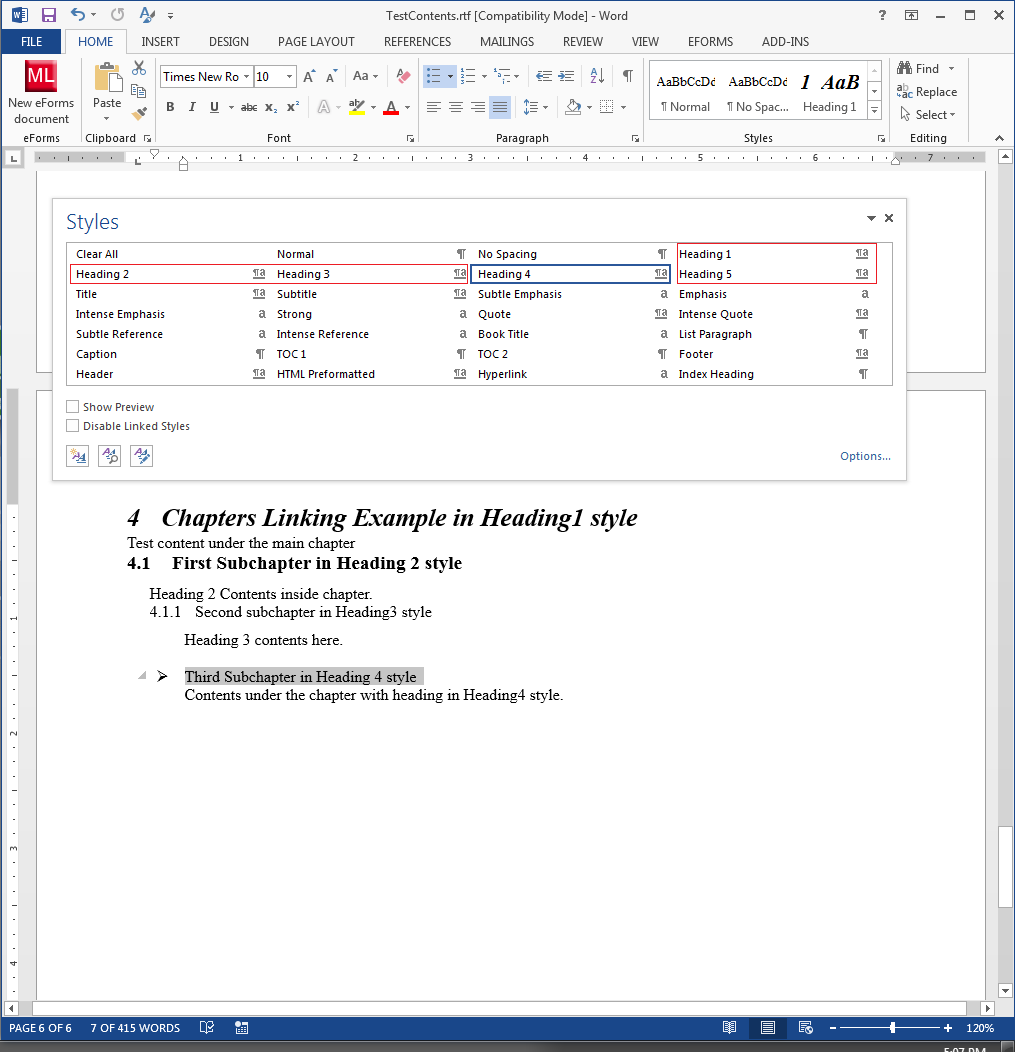
Chapters and subchapters are identified using the style assigned to the heading. A heading is identified when its style starts with the Heading prefix.
These headings are converted to subchapters of their parent chapter.
Input example in an RTF file:
Output in EHB-NAV:
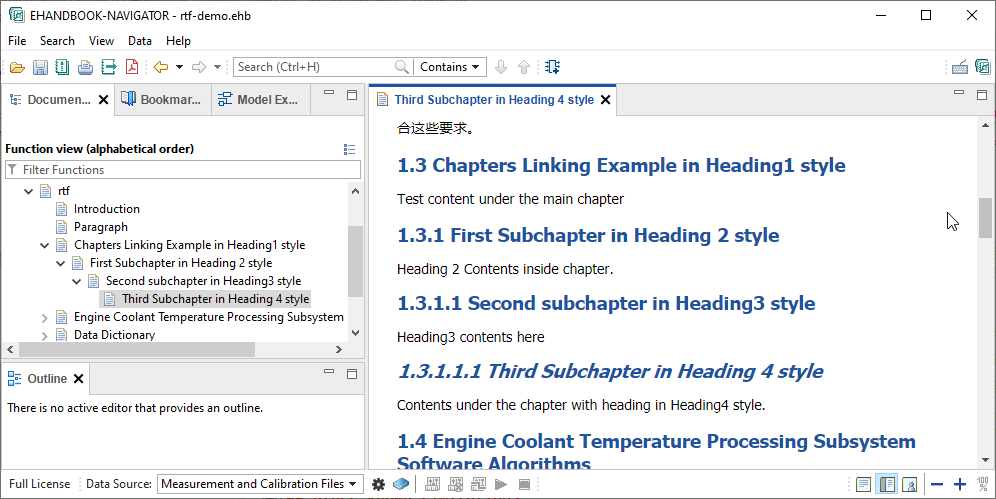
Image Handling and Linkage
Static Images
RTF supports different image formats that can be embedded in a document. EHANDBOOK currently supports:
-
Joint Photographic Experts Group (JPEG)
-
Portable Network Graphics (PNG)
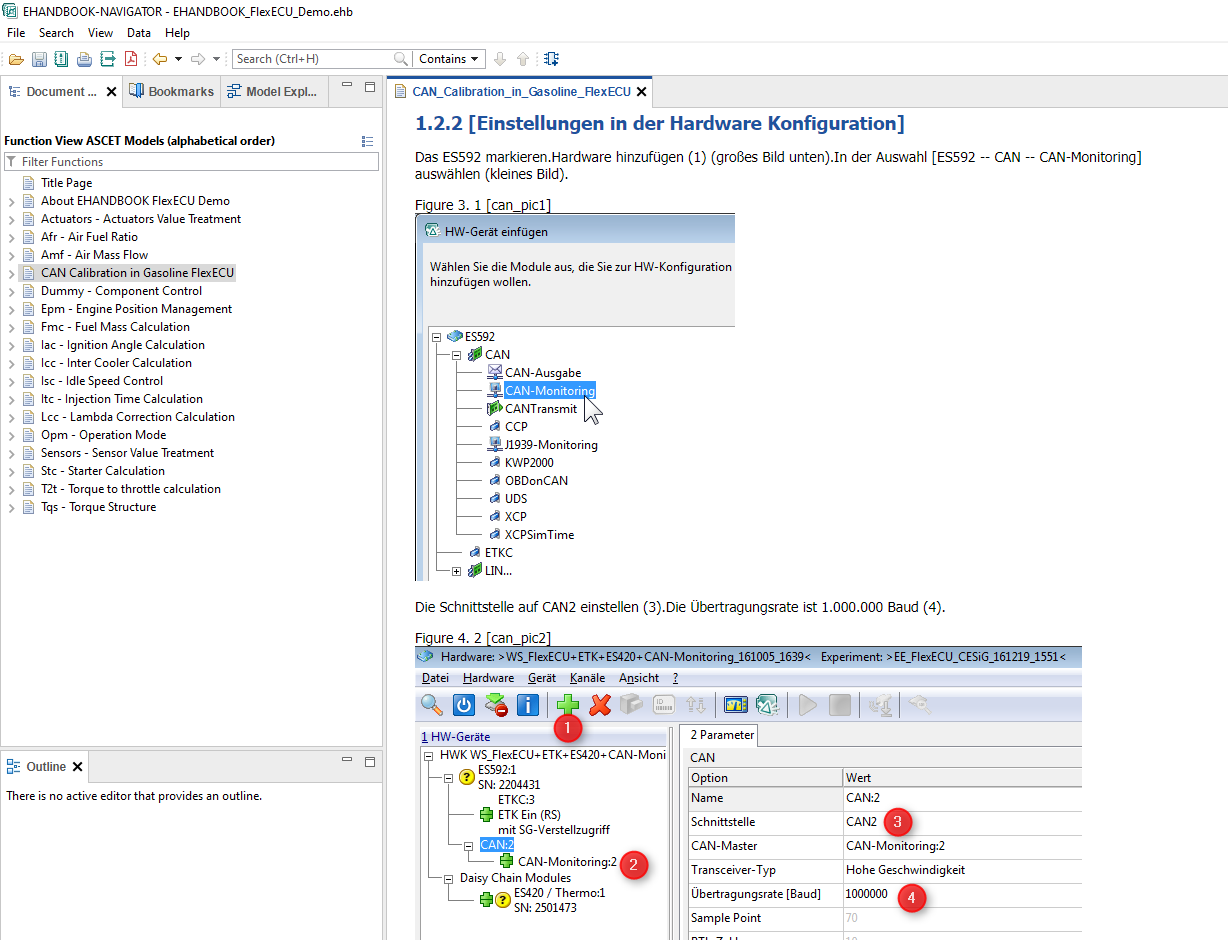
Windows Metafile (WMF) and Enhanced Metafile (EMF) are supported only when they contain plain, unscaled, and unmodified images. Text, formulas, and other elements may not be displayed correctly in EHB-NAV.
EMF and WMF images are converted to PNG format using standard SWT interfaces for EHB-NAV.
Interactive Model Linking from RTF
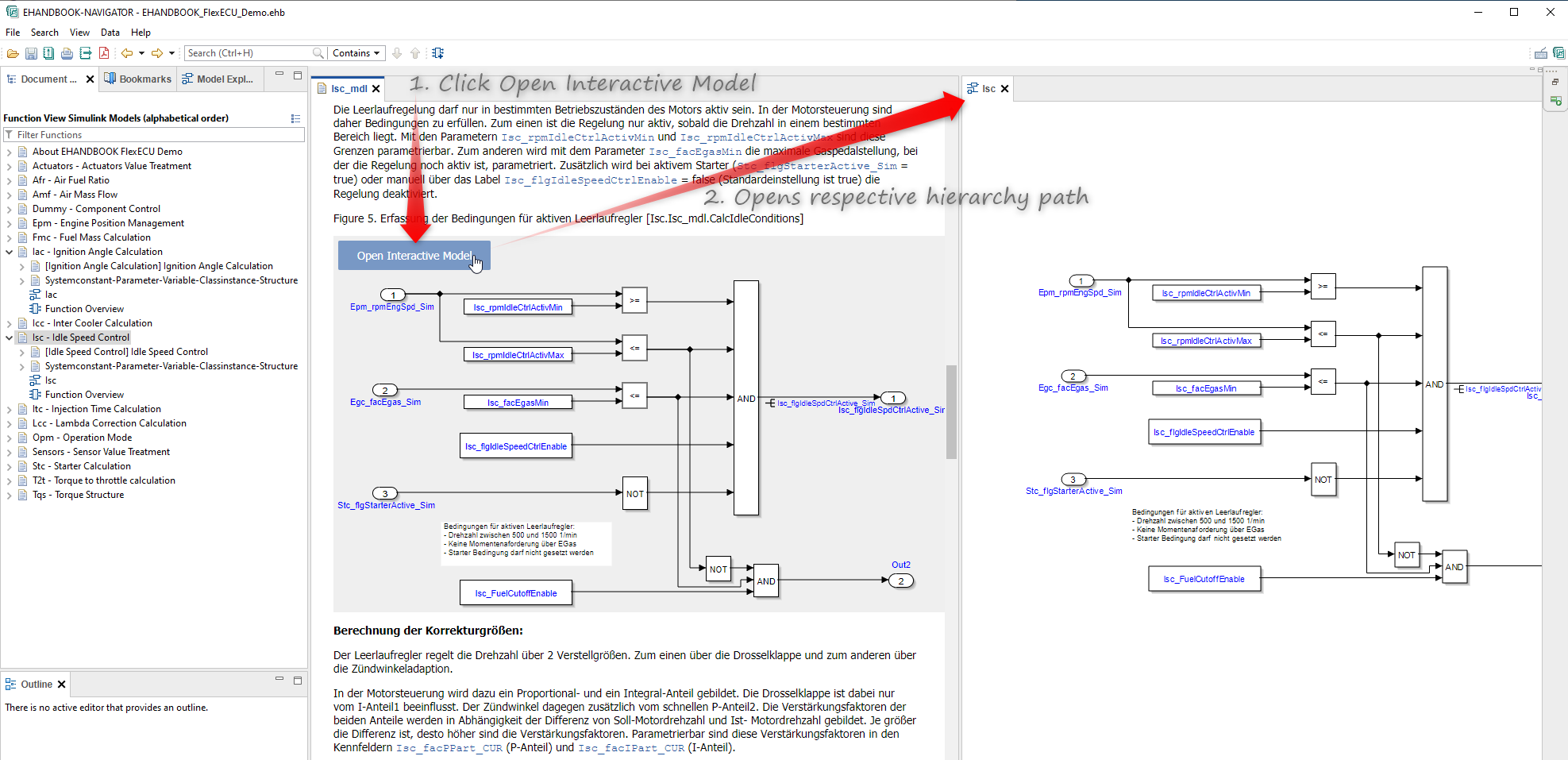
EHB provides a link between model figures in RTF documents and their corresponding model hierarchy in the functional component (FC). The link works in both directions.
In EHB-NAV, the model figure is displayed with an Open interactive model button in the text pane. Clicking this button opens the corresponding model hierarchy in the model explorer.
The Show in Documentation option in the model explorer navigates back to the model figure in the text pane.
Model Linking with Embedded Images
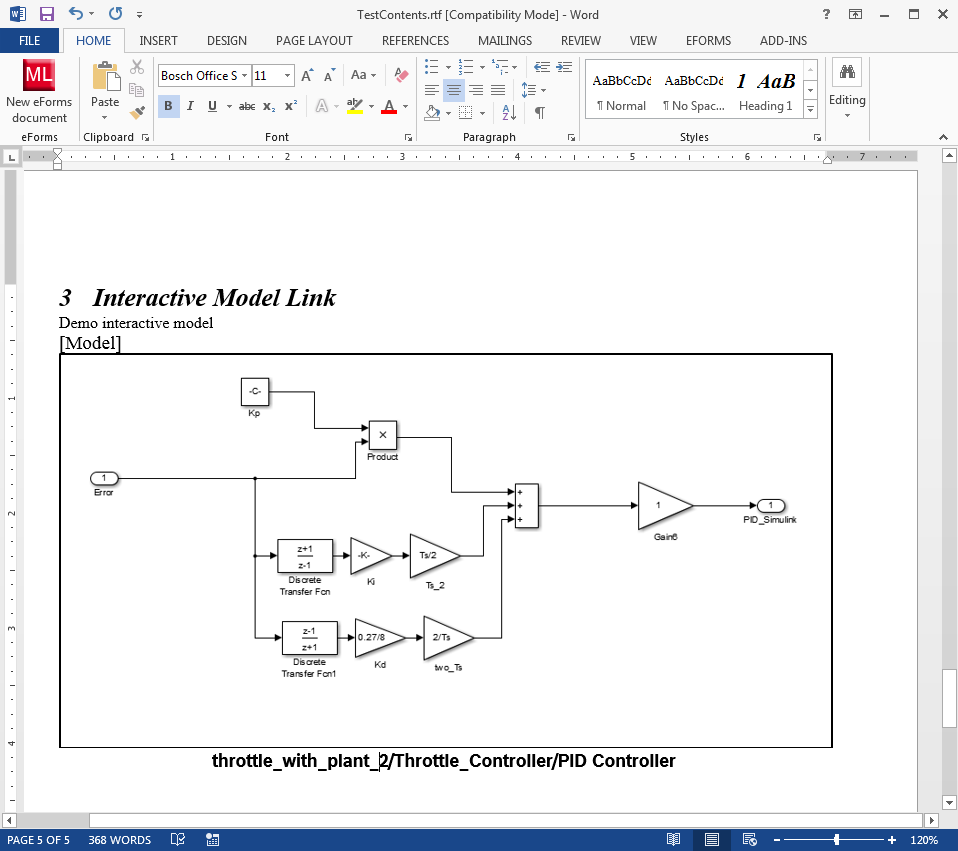
In this case, the model figure is embedded directly in the RTF document. The following information is required to create the link:
-
Model image identifier keyword
[Model] -
Model snapshot image
-
Model hierarchy path below the image, with the text style set to
Caption -
The exact hierarchy path of the model from which the image was created
This works for ASCET and Simulink models.
|
The total length of the sub-hierarchy path and model name is limited to one text line. If necessary, reduce the font size to fit the text on one line. |
|
The model hierarchy path is not verified by the EHB-CB tool. If the specified model link path is invalid, no link is created. |
RTF input sample for the EHB-NAV view shown above:
Model Linking with Images Generated by EHB-CB
In this case, EHB-CB generates the model figure from the interactive model and places it in the EHB-NAV text pane using the RTF content.
Advantages:
-
No manual model screenshot generation is required.
-
Model figures do not need to be updated when the model changes.
-
ClickPic is supported for model navigation from the EHB-NAV text pane.
-
The RTF document remains smaller because model images do not need to be embedded.
To generate the image and create the model link, use the following syntax in the RTF.
For ASCET or Simulink models:
-
Model image identifier keyword
[ehbmodelref] -
Model hierarchy path directly below the image, with the text style set to “Caption”
-
The exact hierarchy path of the model from which the image was created
Constraints for the model path:
If a Simulink model refers to another model file, such as a library, the model path must start from the beginning of the library file.
For C code:
-
Model image identifier keyword
[ehbmodelref] -
C-filename.c/SubFunctionNamedirectly below the image, with the text style set to “Caption”
Constraints for C code:
-
Only the top-level subfunctions of the C file can be defined and selected for the graphic.
-
All model elements are shown in an unexpanded view.
-
The C file or model must be in the same location as the RTF file.
-
Depending on the code size, the interactive model image may be too large to display fully in the text pane and may be reduced to fit.
|
The total length of the sub-hierarchy path and model name is limited to one text line. If necessary, reduce the font size to fit the text on one line. |
|
The model hierarchy path or subfunction name is not verified by the EHB-CB tool. If the specified path is invalid, no image or link is created. |
Function Overview Images
The RTF converter can display a Function Overview Diagram in the textual content of the container. EHB generates this diagram to show all inputs and outputs of a module and provides a link to its interactive model.
Define the location in the RTF document using the following format. The generated image is inserted into the existing text flow at that location.
Definition in the RTF document:
[ehbfunctionoverview-begin]

    List of function names separated by comma (`,`)

[ehbfunctionoverview-end]
The function names must match the function component folder names that contain the metadata Excel file.
Example:
[ehbfunctionoverview-begin]

    Actuators,Amf,Afr

[ehbfunctionoverview-end]
To include all functions in the documentation, use the following format:
Definition in the RTF document:
[ehbfunctionoverview-all]Text In-lining
The RTF converter can include additional text content, such as C code source files, in the container.
The location is defined by the [ehbinline] keyword followed by the file name. The file content is inserted into the existing text flow.
In principle, any text file can be included.
Definition in the RTF document:
[ehbinline] filenameExample:
[ehbinline] codename.cConstraints:
-
The file content is displayed as plain text only.
-
The source file must be in the same location as the RTF file.
Unsupported Content
The EHB-CB tool currently does not support the following content:
-
OLE – Object Linking and Embedding
These are objects embedded in an RTF document from another source, such as Excel, PowerPoint, or equations. The tool displays a warning when such objects are found.
-
Diagram Objects (DO)
These are complex images that contain shapes and text. They are currently not supported.
-
Headers and Footers
These are removed during RTF conversion because EHB-NAV provides its own header and footer styling for documentation.
-
Watermarks
Watermarks, such as background images on every page, are not supported. Remove these images before the build process.
-
Documents in Review State or with Revisions
MS Word allows users to track and review text changes. This functionality is not supported.
-
Hyperlinks and Bookmarks
|
RTF supports many other types of data as defined in the Microsoft RTF specification. If a feature is not mentioned in this document, it is not currently supported for conversion to EHB. |
Other Known Limitations
Figure Title
For each graphic embedded in the RTF document, an additional title with a figure number is generated and displayed centered in EHB-NAV.
For small graphics placed inline with text, the result may be difficult to read.
File Size Limit
Due to heap memory constraints in EHB-CB, an RTF document is limited to 120 MB.
If the file is larger than 120 MB, it is excluded from container generation and an error message is written to the log file.
To avoid this limitation and improve performance and version handling, ETAS recommends using model linking instead of embedding model images.
See Interactive Model Linking from RTF for more information.