How to Work with Model Comments
Procedure
Comments are also available for interactive models and function overviews.
You can add comments to all blocks that can be extended, which is indicated by the plus icon in the upper left corner.
Using the context menu on these blocks, you can create a comment and directly enter text. Links can also be added and will be recognized, as well as lists other formatting options using Markdown.
|
Only one comment can be linked to each block. |
-
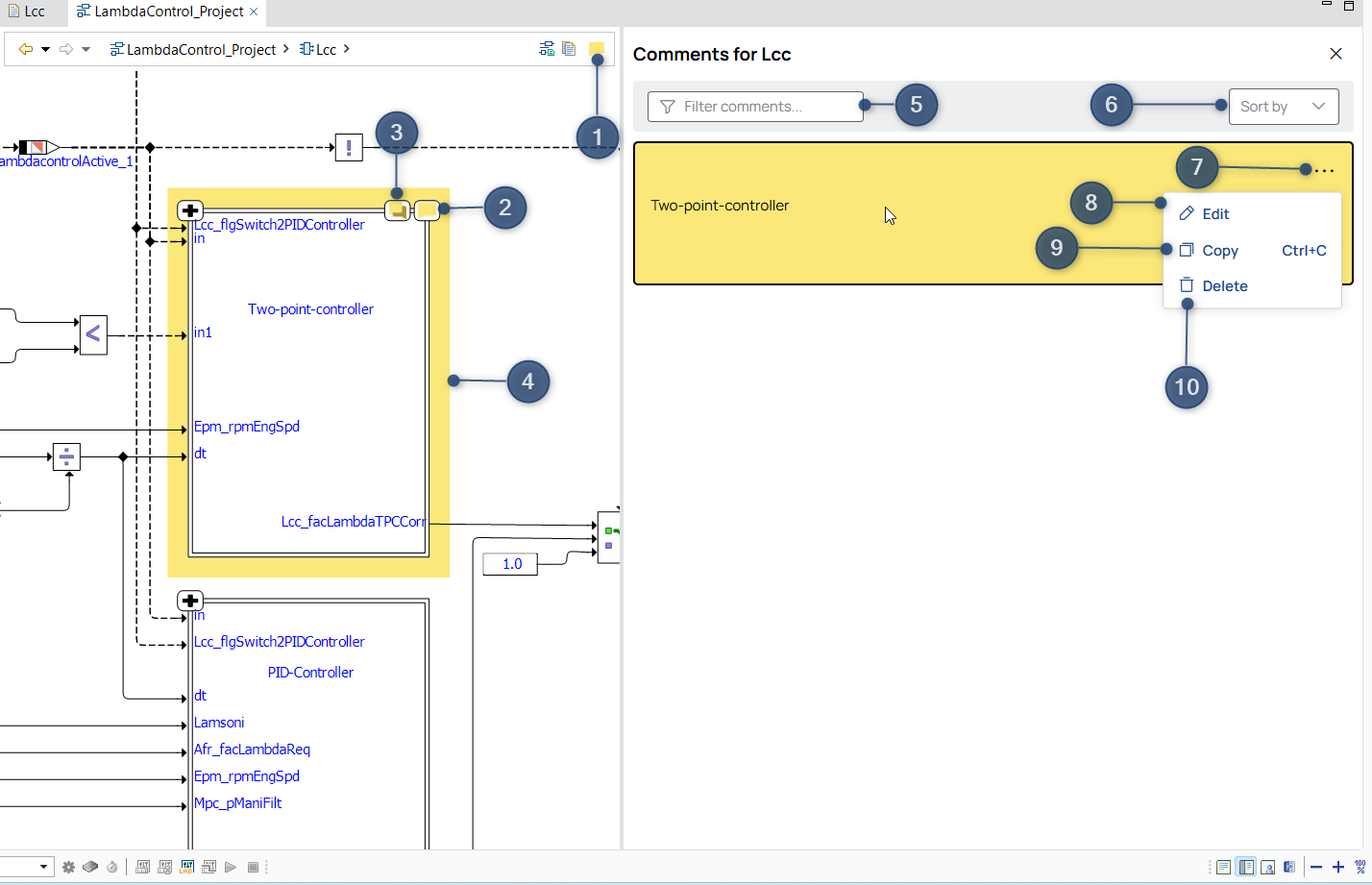
Open / hides the comment area
-
Indicator for a comment corresponding to this block
-
Indicator for a nested comment within this block
-
Highlighted block corresponding to the selected comment in the comment area
-
Filter the comments
-
Sort the comments by creation or modification date, resp.
-
Menu offering further options
-
Edit the content (Double-clicking on the comment also activates edit mode)
-
Copy the content to clipboard
-
Delete the comment
To identify corresponding blocks and comments:
Hovering over a comment highlights the corresponding block in the model. Vice versa, clicking the little comment icon next to a block highlights the corresponding comment, while double-clicking allows for immediate editing.
For exporting and importing see How to Work with Comments.