How to Customize the Container-Build Toolbox for Simulink
The EHANDBOOK Container-Build Toolbox for Simulink can be customized by modifying the MATLAB scripts and configuration files that the toolbox uses. This guide shows you how to access, understand, and modify these files.
Prerequisites
-
EHANDBOOK Container-Build Toolbox for Simulink installed
-
MATLAB Add-on Manager access
-
Basic familiarity with MATLAB scripts or configuration file formats (JSON)
-
Text editor for editing scripts and JSON files
Step 1: Locate the Toolbox Installation Folder
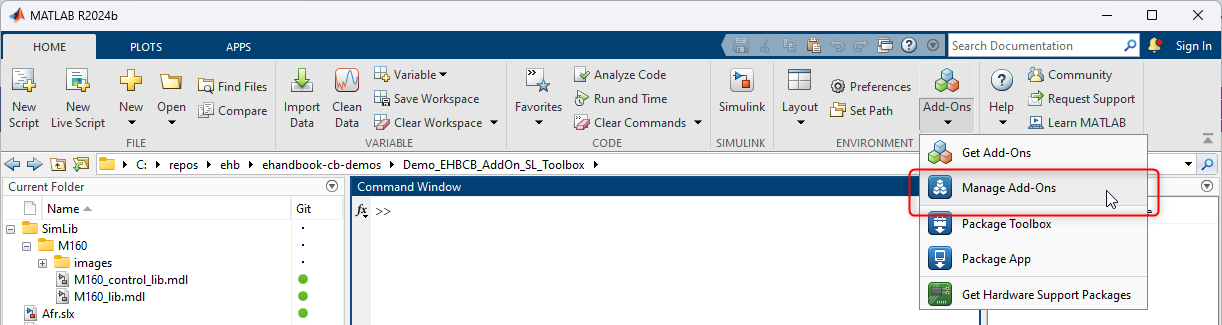
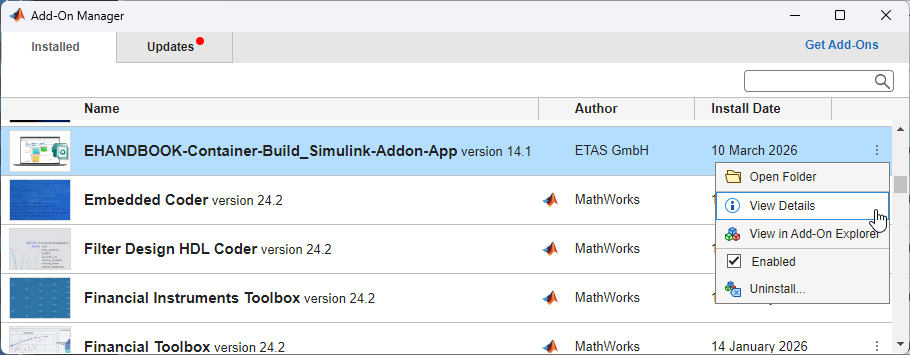
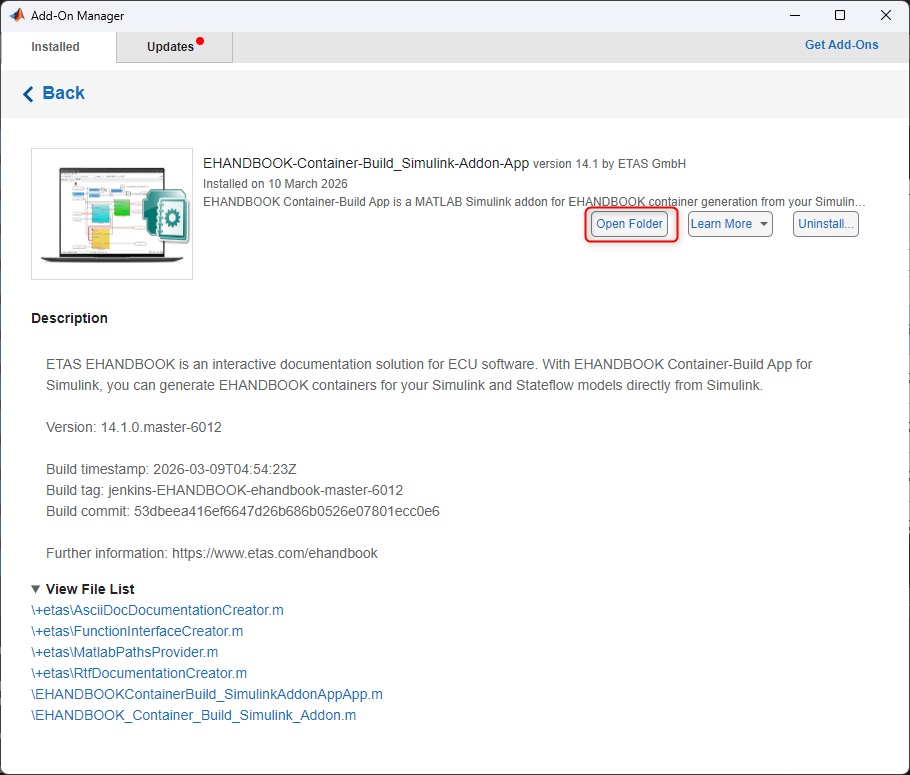
Step 2: Open the Toolbox Folder
Once you’ve found the toolbox in the Add-on Manager, you can open its installation folder.
Step 3: Understand the Toolbox File Structure
The toolbox folder contains several components that control its behavior.
The ETAS Folder
Inside the toolbox installation folder, look for a folder named etas. This folder contains the core customization files:
| File/Folder | Purpose |
|---|---|
MATLAB scripts |
Core scripts that generate the container documentation |
AsciiDoc generator script |
Creates documentation in AsciiDoc format |
RTF generator script |
Creates documentation in Rich Text Format |
Function interface script |
Handles function definitions and interfaces |
Path collection script |
Collects and organizes MATLAB paths |
Configuration files (JSON) |
Metadata table and Simulink view configuration |
Step 4: Edit the Toolbox Scripts and Configuration Files
Now that you’ve located the files, you can customize them. The following sections show common customization scenarios.
Common Customizations
Customization 1: Change Documentation Headings
If you want to modify the headings generated in the documentation:
-
Locate the AsciiDoc documentation generator script (usually named something like
asciidoc_generator.m) -
Open it in a text editor
-
Search for heading definitions (look for
===or====patterns) -
Modify the heading text as needed
-
Save the file
-
The next time you generate a container, your new headings will appear in the documentation
Example:
% Original heading
heading = "=== System Overview";

% Modified heading
heading = "=== System Architecture and Overview";
Customization 2: Adjust Metadata Table Configuration
To customize how metadata is organized and displayed:
-
Locate the metadata configuration JSON file (usually named
metadata_config.jsonor similar) -
Open it in a text editor
-
The JSON file defines which fields appear in metadata tables
-
Modify field names, ordering, or visibility
-
Save the file
Example JSON structure:
{
  "metadata_fields": [
    {
      "name": "signal_name",
      "display": "Signal Name",
      "visible": true
    },
    {
      "name": "data_type",
      "display": "Data Type",
      "visible": true
    }
  ]
}
You can:
-
Change
"display"value to rename how fields appear -
Set
"visible": falseto hide fields that aren’t needed -
Reorder fields by moving JSON objects up or down in the array
Customization 3: Modify Simulink View Configuration
To customize how Simulink models are processed:
-
Locate the Simulink view configuration file (usually named
simulink_view.json) -
Open it in a text editor
-
Common customizations include:
-
Diagram rendering options
-
Model hierarchy depth limits
-
Block visualization preferences
-
-
Modify the settings as needed
-
Save the file
Customization 4: Change RTF Output Formatting
To customize the RTF (Rich Text Format) output:
-
Locate the RTF generator script (usually named
rtf_generator.mor similar) -
Open it in a text editor
-
Look for formatting definitions (font, size, colors)
-
Modify as needed
Example:
% Original: Times New Roman, 12pt
font_name = 'Times New Roman';
font_size = 12;

% Modified: Arial, 11pt
font_name = 'Arial';
font_size = 11;
Testing Your Customizations
After modifying scripts or configuration files, test your changes:
Testing Procedure
-
Generate a test container with your modifications (see How to Generate a Container)
-
Check the output to verify your changes took effect
-
If something went wrong:
-
Check MATLAB console for error messages
-
Verify your edits have correct syntax
-
Restore from your backup copy if needed
-
Correct the error and try again
-
Validation
For JSON files, validate your syntax:
-
Use an online JSON validator if you’re unsure
-
Look for common mistakes:
-
Missing commas between JSON elements
-
Unclosed brackets or braces
-
Mismatched quotes
-
For MATLAB scripts:
-
Check for MATLAB syntax errors
-
Ensure variable names are consistent
-
Verify file paths are correct
Reverting Changes
Advanced Customizations
For more complex customizations, you may need to:
-
Understand MATLAB script structure and syntax
-
Understand JSON file structure and validation
-
Understand how the scripts interact with MATLAB and Simulink
-
Debug scripts using MATLAB’s debugging tools
For assistance with advanced customizations, contact ETAS support.
Best Practices
Documentation
Document your customizations:
-
Add comments to modified scripts explaining your changes
-
Keep notes about why you made each modification
-
Document the toolbox version you customized
Version Control
Keep your customizations organized:
-
Use version control (Git) to track changes
-
Maintain a separate folder for your customized scripts
-
Create a master copy of original files for reference
Troubleshooting
Changes aren’t taking effect
-
Verify you saved the file
-
Restart MATLAB to reload scripts
-
Check that you edited the correct file
-
Verify the file is in the correct location
Related Topics
-
How to Generate a Container for Your Simulink Model — Generate containers with your customizations
-
Toolbox Features Reference — Understand all toolbox capabilities