How to Convert an A2L File Encoding
Overview
The EHANDBOOK-NAVIGATOR allows to load an A2L file and generates an EHANDBOOK container or to load an A2L file and display the measurement information and calibration information. An A2L file should comply with ASAM standard encoding which is ISO-8859 or UTF-8-BOM. Any other encoding may cause issues when displaying textual information, especially the description. Most difficult situation is when the encoding is mixed in the A2L file, e.g. Shift_JIS for Japanese text and Windows-1252 with German umlauts. In this case the encoding can be converted into UTF-8-BOM which support all characters, German or Japanese.
Procedure
To convert the encoding of an A2L file:
-
On the File menu, select
Convert A2L File Encoding…
Convert A2L file to EHANDBOOK containerdialog box is displayed.
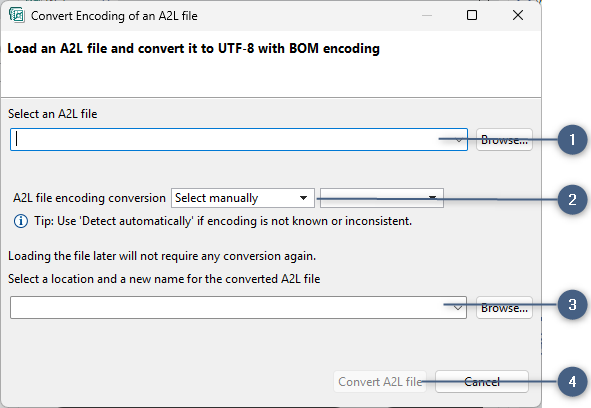
Convert A2L file encoding to UTF-8 with BOM dialog box.
-
A2L file selection
-
A2L file encoding conversion options
In case the automatic encoding detection reports the wrong encoding and you want to override the source encoding -
Specify the location and name of the container
-
Convert A2L file
-
Select the previously loaded A2L file from the "Select A2L file" drop-down menu or click
Browseto select it. -
After selecting an A2L file the encoding of the content is placed in the drop-down menu. By default, the highest encoding confidence level (e.g. ISO-8859-1) is pre-selected. If the encoding is not known or it is not consistent for the whole file then choose Detect automatically (2). This option handles mixed encodings but takes much more time.
-
Select or type the location where to place the converted A2L file or click
Browseto select the different file.
By default, the location is selected where the A2L file exists and the name of the A2L is preset with a similar file name. You can change the name of the A2L file by editing it in the text box (3). -
Click
Convert A2L file. Please note that it takes few minutes to convert it. The progress bar is displayed. -
Once the file is converted, a dialog box is displayed as shown below.
-