How to Create Interactive Graphics and Function Overviews
This page covers interactive graphics features, function overview diagrams, and cross-domain signal mapping.
ClickPic
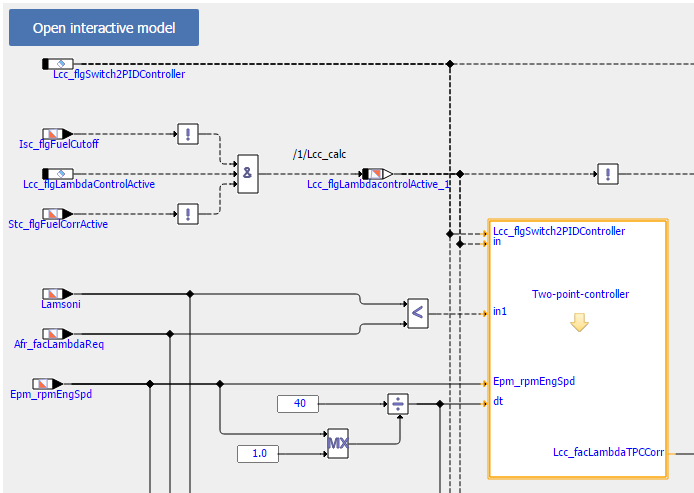
EHANDBOOK Container-Build is capable to generate graphics out of a model and link it with its corresponding interactive model hierarchy. In addition, these graphics are linked between each others in the Function Documentation Window in EHB-NAV, the so called ClickPic navigation feature. To visualize these graphics, some special keywords have to be added in the text source files.
RTF input files:
[ehbmodelref]
Model hierarchy path in text style of type "Caption"
AsciiDoc input files:
ehbmodelref::model_path[image_title]
ASAM input files:
In FSX, the FIGURE’s <SHORT-NAME> for the model graphic contains the model hierarchy path directly in a mandatory format i.e. "X.Y.Z".
More details about this can be found in ASAM FSX and Graphics.
To allow EHB-CB generated graphics and ClickPic containers must be generated by using the command parameter -gensvg, otherwise this feature will not work!
NOTICE
Incomplete, wrong or differing representation of model screenshots and interactive models from source data.
During the conversion of ASCET models, Simulink/Stateflow models or C-Code to interactive models and/or SVG graphics, the generated outputs may differ from the original model visualizations. As C-Code is written in textual form while interactive models are graphical diagrams, the semantic and interpretation can differ.
The following deviations between the model and the EHANDBOOK Container content may occur:
-
Missing or wrong graphics
-
Wrong targets on linked graphics
-
Wrong model links
-
Wrong model hierarchy links
-
-
For C-Code visualizations, different interpretations and semantics
Possible root causes of these deviations are:
-
Link specification in input text does not match to model hierachy path
-
Referenced model/source files are missing
-
Matlab connection for mask generation in Simulink was broken,
-
EHB-CB tool error due to internal error or unsupported source content
-
Technical limitations, especially for representing C-Code as graphical visualization
To identify deviations:
-
Check the entries in the log file of the generated EHANDBOOK Container for Warnings and Errors
-
Check the links between SVG graphics and interactive models in the EHANDBOOK Container
It is the responsibility of the creator of the EHANDBOOK Container to check the log files generated by EHANDBOOK Container-Build and to check the outputs for wrong model references and initiate the correction in the sources.
To ensure consistency and mitigate limitations:
-
Check the release notes and the known issues of EHANDBOOK Container-Build as well as EHANDBOOK-NAVIGATOR.
-
Compare the C-Code source code with the its graphical representation in EHANDBOOK-NAVIGATOR.
Function Overview Diagram
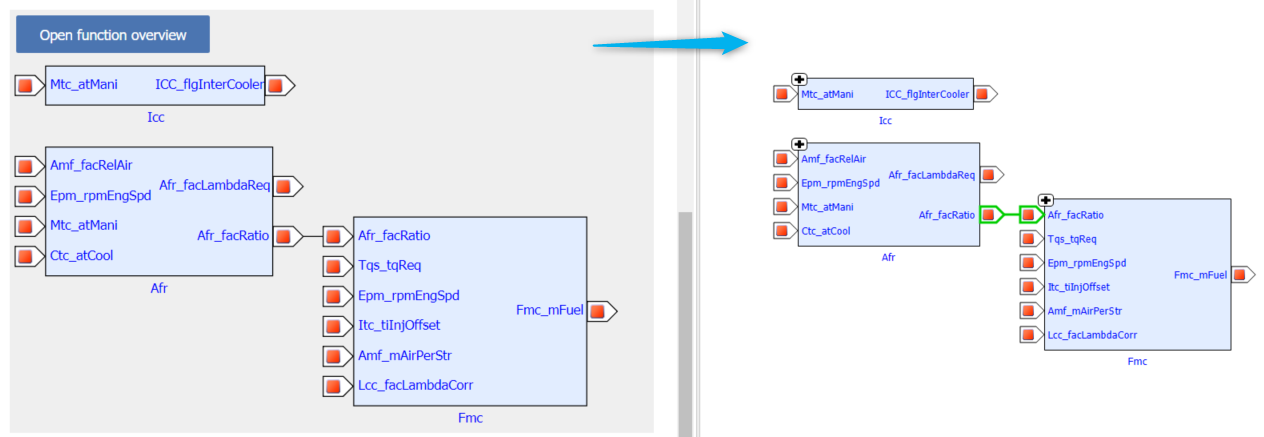
EHB-CB is capable to generate a Function Overview Diagram with all input- and output signals automatically. Besides one single function, there are also multiple functions possible, showing the dependency and relation between them.
The generated Function Overview diagram will appear in EHB-NAV in the Function Documentation Window with a new navigation button named "Open function overview". On click of this button, the model explorer tab opens with combined Function Overview of the functions appearing the image.
The separate chapters Function Overview Diagram in the TOC of EHB-NAV are generated by default without any additional configurations during container generation, independent of this feature.
Required changes to achieve this functionality are described in the separate documents RTF format Specification and AsciiDoc format Specification for Directory-Based EHB-CB and in ASAM FSX and Graphics for the ASAM-Based EHB-CB.
|
Creating function overviews with > 30 functions is not advised as all the functions might not fit into canvas. |
Mapping signals across domain
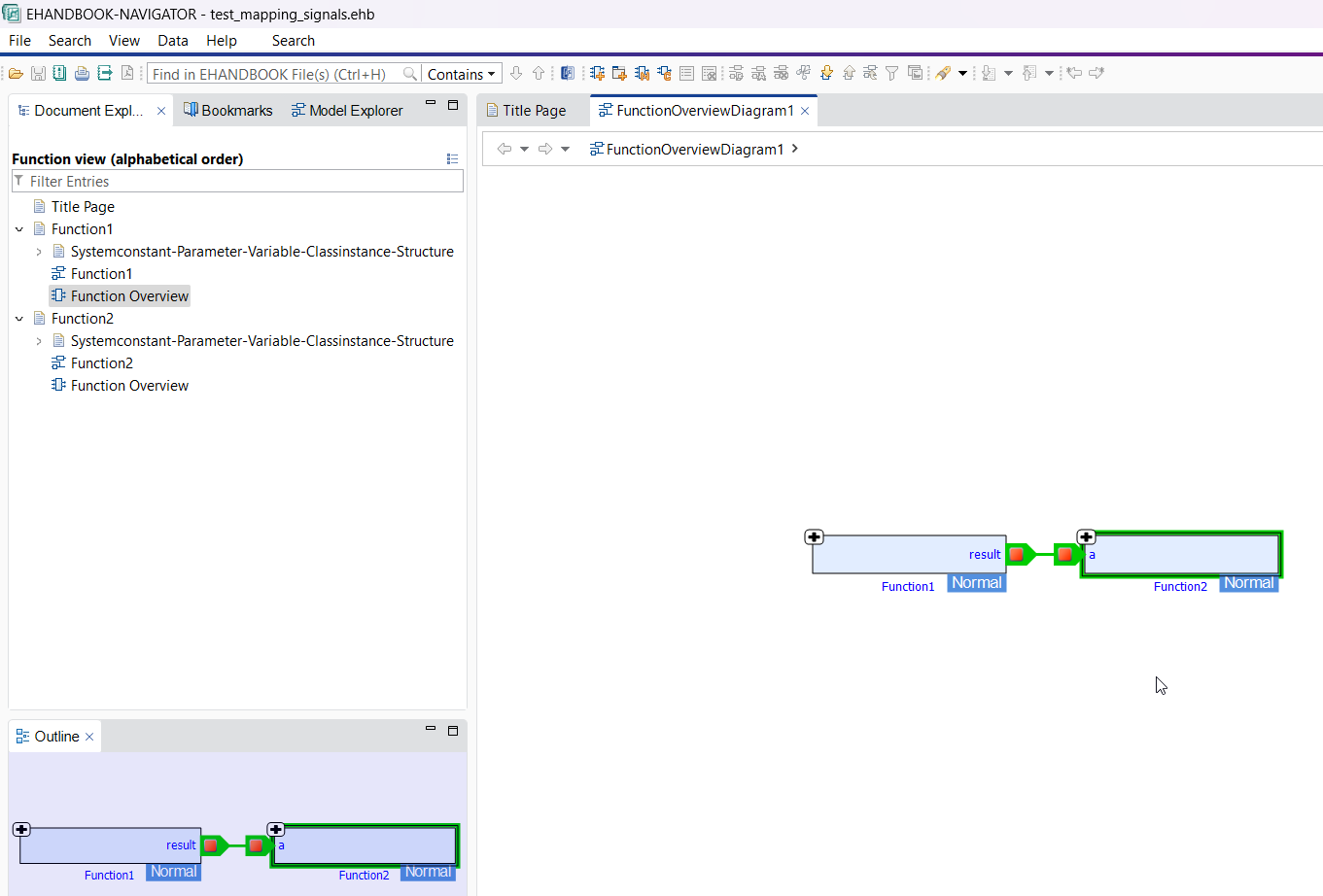
At EHANDBOOK, it is possible to establish communication between components across domains like AUTOSAR and MSR. To visualize these connectors in the function overview of the NAVIGATOR, a mapping file is processed during the container generation.
Generate EHANDBOOK Container
To generate an EHANDBOOK Container which connects components from different domain, you have to pass the following arguments to eHandbookCB.exe
-
-i <path to input folder> specifies the sources that shall be converted.
-
-o <path to output folder> specifies where the EHANDBOOK Container shall be generated to
-
-n <name> name for the EHANDBOOK Container file that will be generated
-
-componentconnectormappingfile "<Mapping file path>" specifies the path of the mapping file
Sample Command
C:\Program Files\ETAS\EHANDBOOK-Container-Build\eHandbookCB.exe ^
-i "<path to input folder>" ^
-o "<path to output folder>" ^
-n "<name>"^
-componentconnectormappingfile "<Mapping file path>"
The mapping file is passed via command line argument "-componentconnectormappingfile".
The mapping file is expressed in .json or .csv format and contains details of connecting signals between functions of different domains.
Mapping file specification
The following listing shows an example for the syntax of the JSON mapping file.
You can download the file from here.
{
  "connectionType": "CONNECTOR_ONLY",
  "connectors": [
    {
      "exported": {
        "port": "result",
        "component": "Function 1"
      },
      "imported": {
        "port": "a",
        "component": "Function 2"
      }
    }
  ]
}
In the above JSON file:
-
connectionTypedefines the strategy used to establish connections between components. TheconnectionTypeattribute defines how connections between components are established.
| Value | Description |
|---|---|
|
Connections are created for connectors defined in json file along with default connections |
|
Connections are created only for connectors defined in json file. |
If the connectionType attribute is omitted or not defined, the default value CONNECTOR_AND_NAME_BASED is applied automatically.
|
JSON mapping files without the |
|
The |
-
connectorsis an array containing individual connector mappings. -
Each connector mapping consists of
exportedandimportedobjects that specify the source and target ports and components. -
exportedPort: Name/Package path of the port which is exported from the source component.
-
exportedComponent: Name/Package path of the exporting component.
-
importedPort: Name/Package path of the port which is imported into the target component.
-
importedComponent: Name/Package path of the importing component.
Connector resolution across multiple containers
When multiple EHANDBOOK containers are loaded simultaneously, connector mappings are resolved independently for each container. For connector-based mappings, a connection is established only if all of the following conditions are satisfied:
-
No connector-based connection is established between components belonging to different containers when one container uses
CONNECTOR_ONLYand the other usesCONNECTOR_AND_NAME_BASED(or noconnectionTypeis defined). -
At least one of the connector ports (source or target) belongs to the same container as the connector definition.
The following listing shows an example for the syntax of the CSV mapping file. You can download the file from here.
| exportedPort | exportedComponent | importedPort | importedComponent |
|---|---|---|---|
result |
Function 1 |
a |
Function 2 |
Using either of the above JSON or CSV specification, functions from different domains can be connected.