About
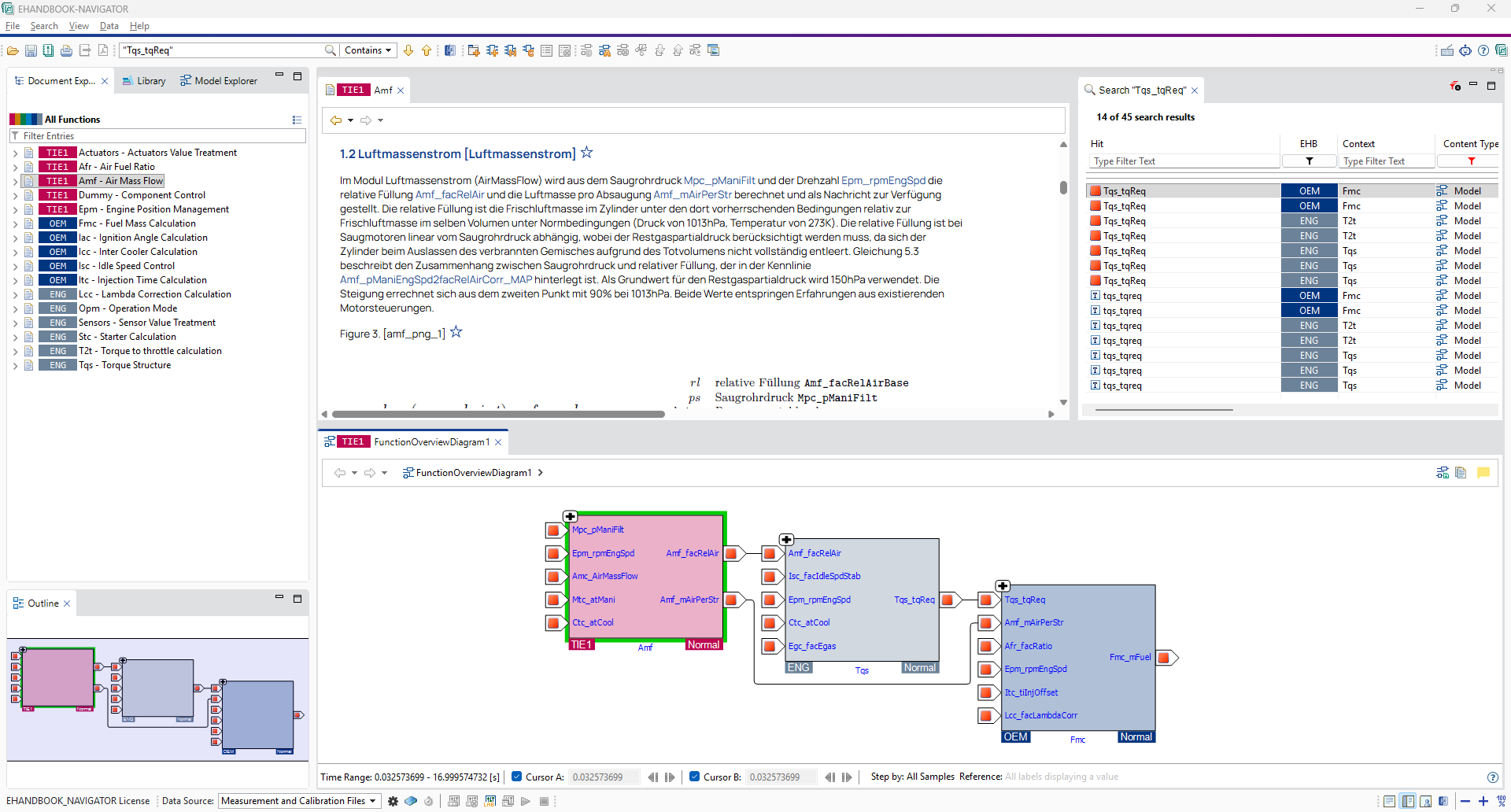
ETAS EHANDBOOK-NAVIGATOR is an innovative product that provides interactive documentation for engineers working on all functional aspects of a modern ECU. EHANDBOOK-NAVIGATOR complements other development tools by giving engineers access to the information they need to understand an individual function or the overall ECU system and to perform tasks such as measurement and calibration.
The main purpose of EHANDBOOK-NAVIGATOR is to help users:
-
Find the right information quickly within large volumes of documentation.
-
Understand information more easily by combining textual content with interactive models.
-
Complete engineering tasks more efficiently with the support of documentation and tool features, for example by identifying root causes of calibration errors through dependency analysis in interactive models.
Features
EHANDBOOK-NAVIGATOR provides the following key features:
Support for multiple EHANDBOOK files
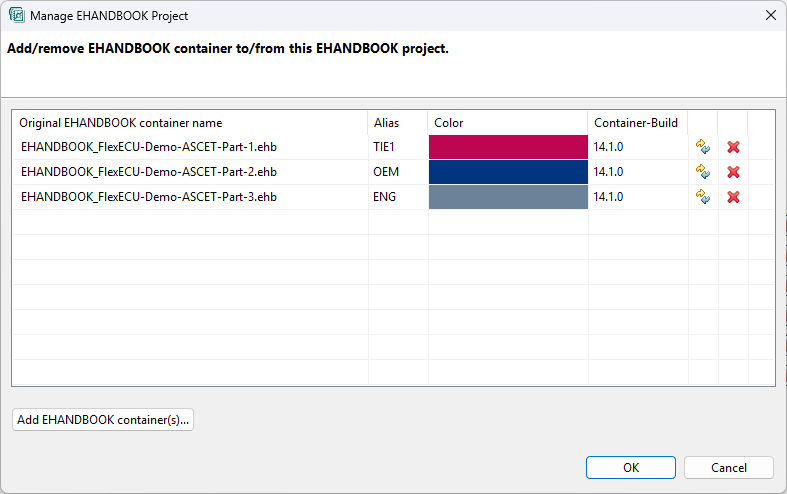
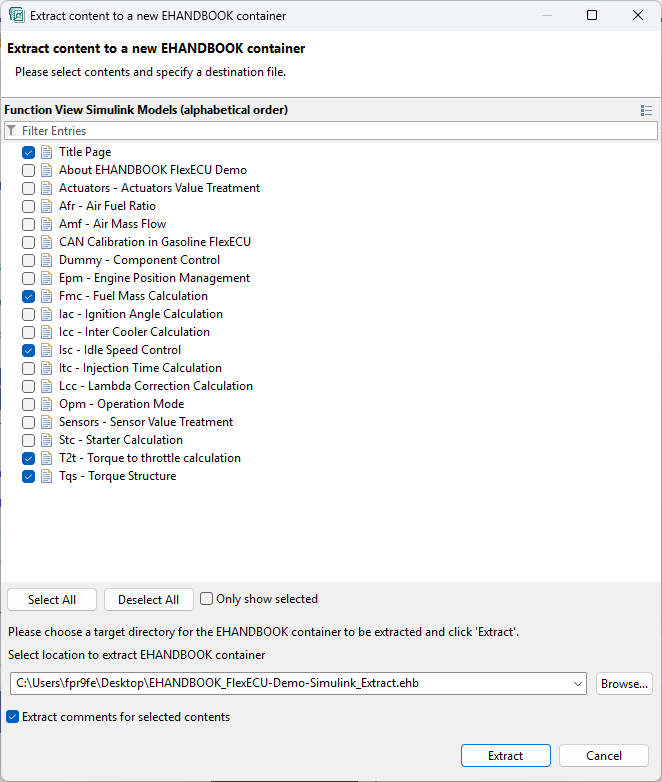
EHANDBOOK-NAVIGATOR can load and combine multiple EHANDBOOK files. This allows you to add more than one EHANDBOOK container to a project and work with all relevant content in a single environment.
Flexible documentation structures
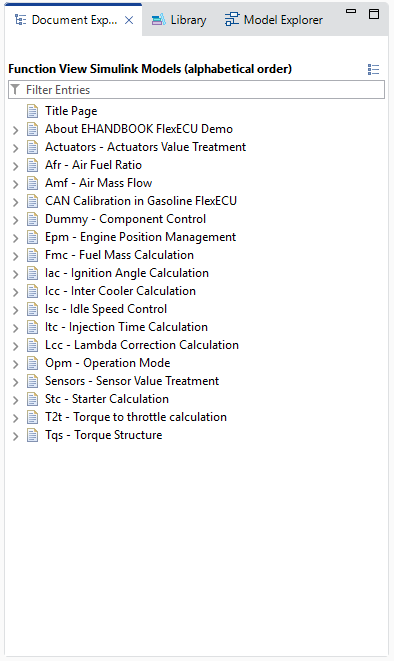
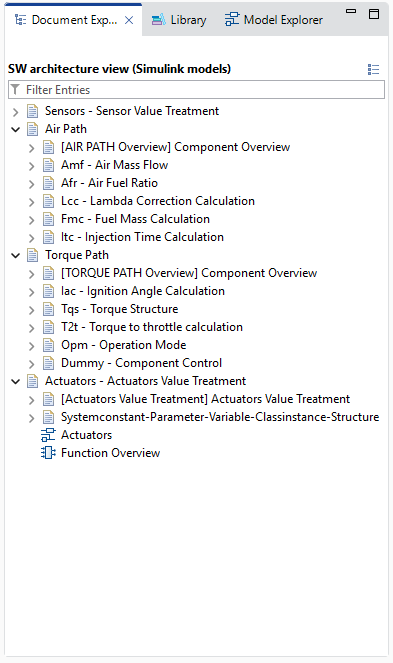
EHANDBOOK containers can include multiple predefined documentation views. A documentation view is a predefined table of contents (TOC) that presents content tailored to a specific target group. For example, calibration engineers can select a view that contains only the content relevant to a calibration package, while system architects can select a view that shows how functions are organized in the software architecture.
Interactive models
The integrated Model Viewer in EHANDBOOK-NAVIGATOR lets you explore ASCET block diagram models, Simulink models, and C-Code-derived models. You can navigate within a model and across hierarchy levels. Auto-layout functions create clear and seamless model views, and nested models can be flattened where required.
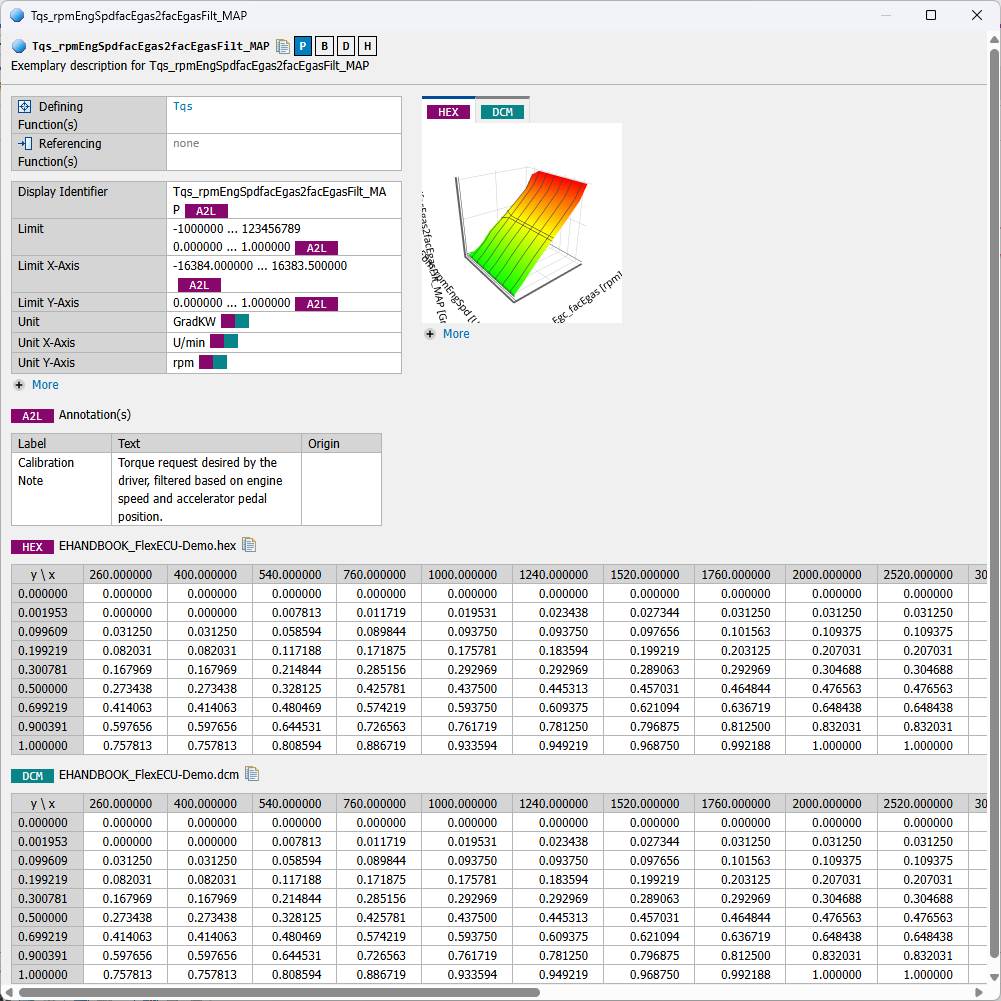
Label pop-up
The Label pop-up displays metadata for labels and other elements in Function Overview diagrams, interactive models, and SVG images, as well as values for calibration parameters. For curves and maps, the Label pop-up also provides the corresponding 2D/3D plots.
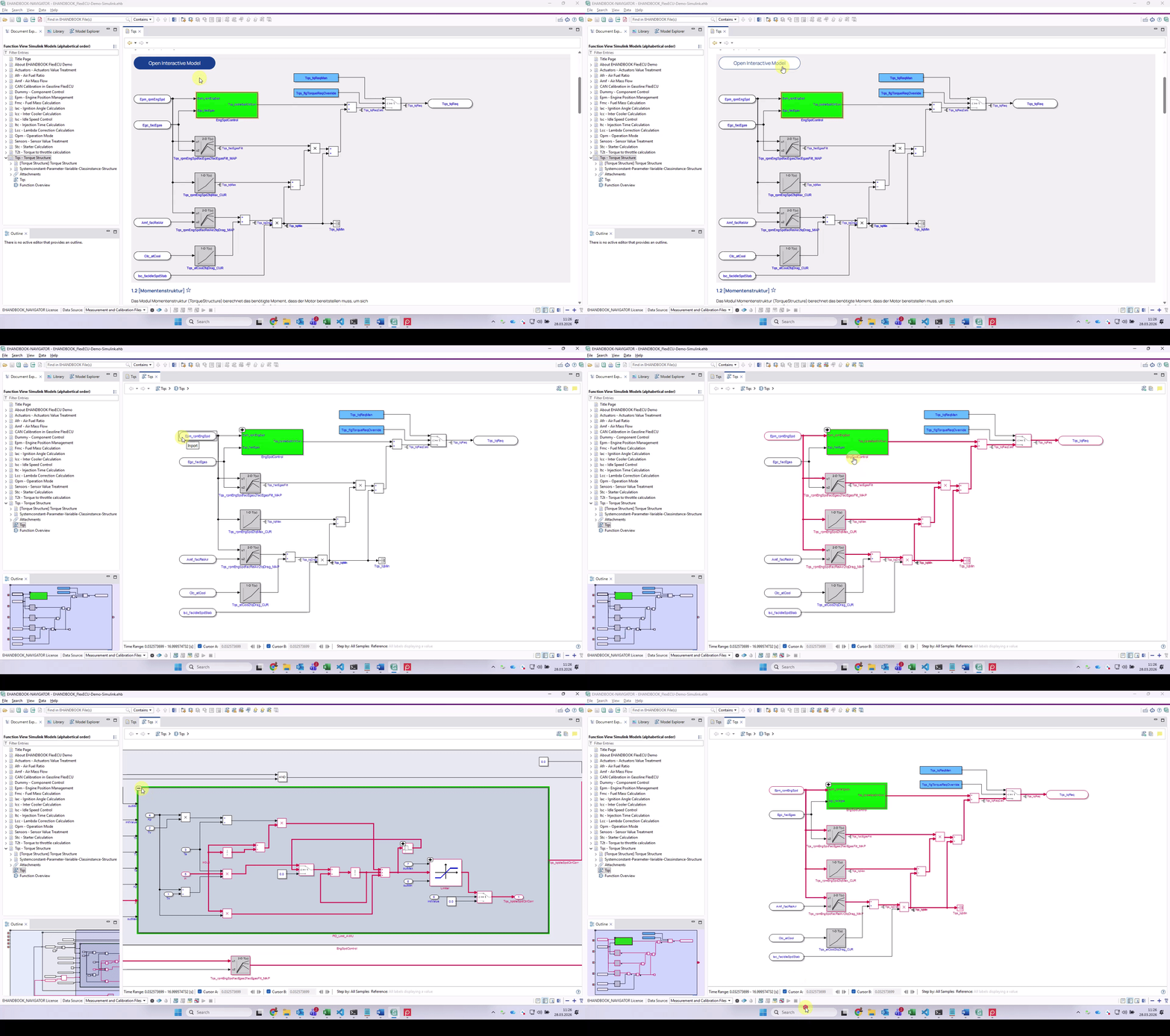
Seamless function wallpaper
Seamless function wallpaper supports navigation from a Function Overview directly to interactive models in the same window. It provides a seamless connection between Function Overviews and Function Specifications (ASCET/Simulink) or Function Implementations (C-Code).
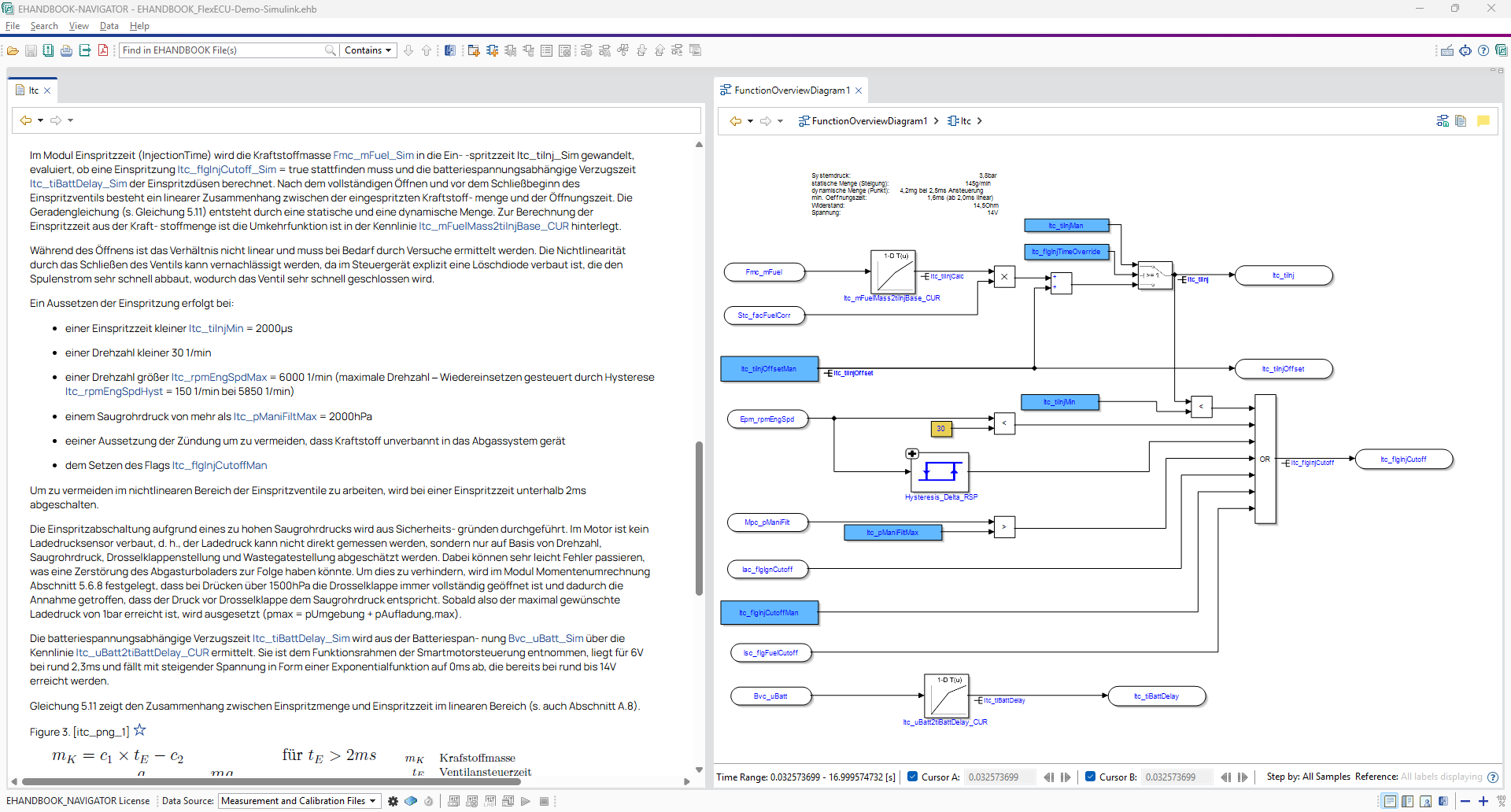
Function documentation
While exploring interactive models, you may need to view the related documentation. EHANDBOOK-NAVIGATOR allows you to open the corresponding content in the Document Viewer. This is supported for ASCET block diagram models, Simulink models, and C-Code-derived models, including navigation across hierarchy levels.
Semantic search
The Search feature helps you navigate large amounts of documentation efficiently. You can search precisely for semantic information in documentation content and interactive models. Semantic information includes measurement variables, calibration parameters, and system constants that are tagged in the EHANDBOOK container. Search results are grouped by semantic category and highlighted in the displayed content.
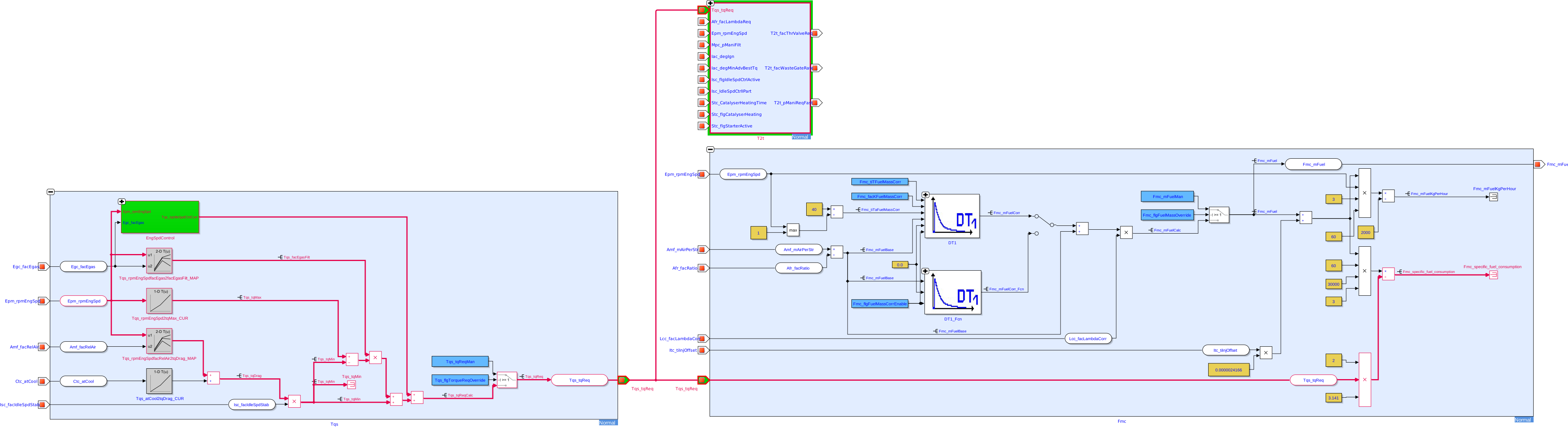
Dependency Analysis Service
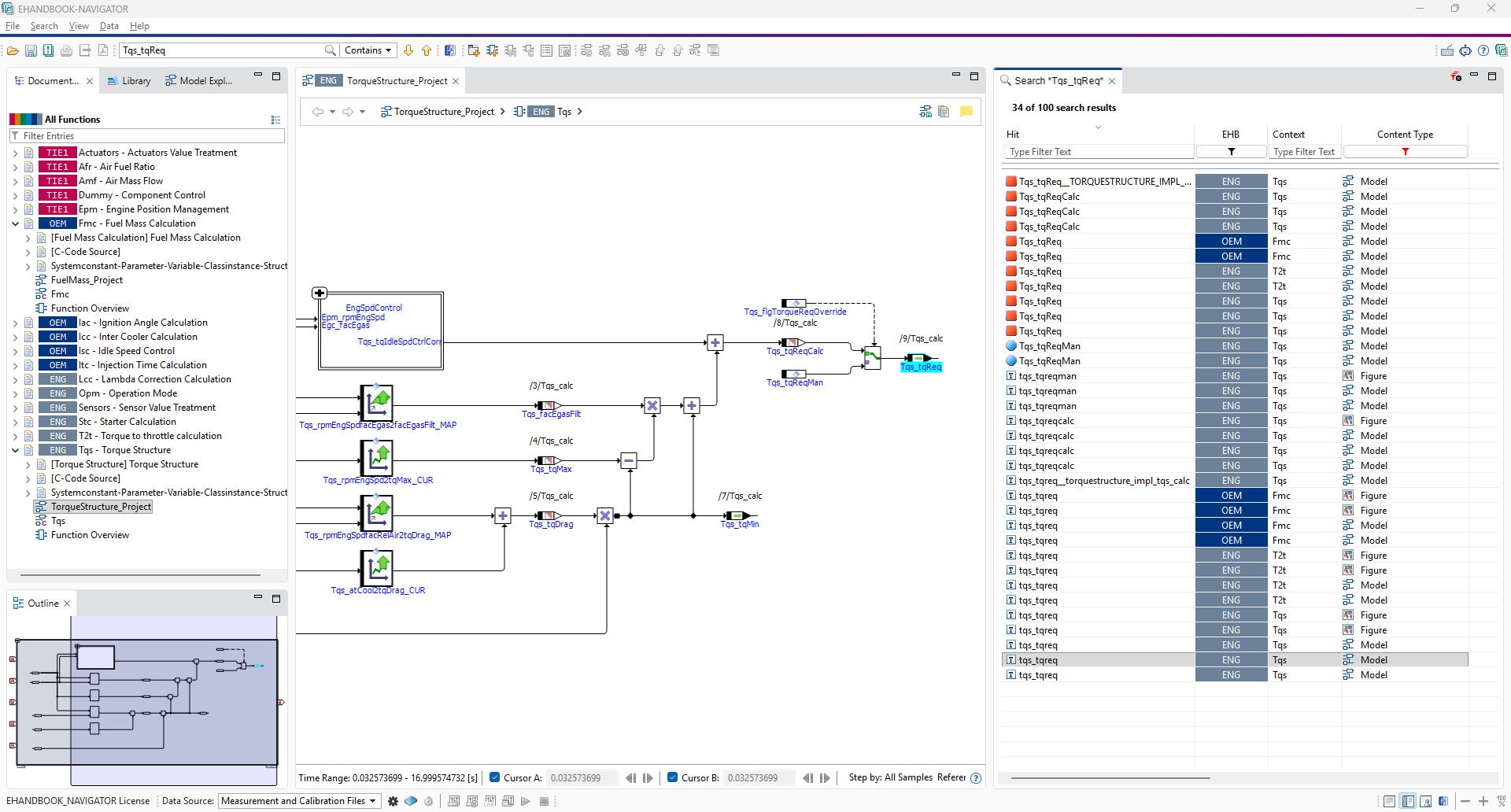
EHANDBOOK-NAVIGATOR allows you to determine dependencies between blocks in interactive models, for example inputs and outputs of functions, calibration parameters, and measurement variables. The service is available for ASCET block diagram models, Simulink models, and C-Code-derived models. Wherever applicable, it also works across hierarchy levels, for example when connections in a subhierarchy are followed in a block diagram. Both highlighting and hiding of blocks and connections are supported. Highlighted blocks and components are shown in red, while hidden blocks and components are shown in grey.
![][Dependency analysis highlights signal flows in the interactive model](_images/about/highlight_signal_flows.svg)
Interoperability with INCA
EHANDBOOK-NAVIGATOR allows you to establish a connection to a running INCA experiment. This gives you an integrated view of the algorithm specification of a function, for example an ASCET block diagram, together with the values measured in the INCA experiment. Measurement variables and calibration parameters from a running INCA experiment can be displayed directly in the interactive model in the Model Viewer.
You can also configure which measurement variables and calibration parameters shown in the interactive model should display values. Starting the visualization and stopping the measurement of an INCA experiment directly from EHANDBOOK-NAVIGATOR are also supported. EHANDBOOK-NAVIGATOR can also help you prepare the initial setup at your desk even when no hardware is connected to INCA. Once the setup is ready, you can connect the system to the hardware device and execute the experiments.
![][Interoperability with INCA: Values from a running INCA experiment are displayed directly in the interactive model within the Model Viewer of the EHANDBOOK-NAVIGATOR](_images/about/interoperability_with_inca.png)
Visualization of offline measurement
EHANDBOOK-NAVIGATOR can combine documentation with previously recorded measurement values and their timestamps. In contrast to live visualization, where time advances at a constant pace, for example one sample every 250 ms, offline visualization allows the calibration engineer to move back to the point before an unexpected value occurred and investigate the cause. Based on this analysis, the engineer can adjust calibration values or report a defect to the ECU software developer.
Two cursors, Cursor A and Cursor B, are available for offline measurement analysis. You can also load calibration and measurement files such as .a2l, .hex, .s19, .dcm, .cdfx, .xml, .dat, .mf3, and .mf4 to display related data in the Label pop-up, including limits, data types, and values for calibration parameters. The Measurement and Calibration Files functionality in EHANDBOOK-NAVIGATOR allows calibration engineers to work with previously recorded data, for example data recorded with INCA. This helps them gain a better understanding of functions and signal flows.
![][Visualization of offline measurement: The calibration engineer can load measurement files (.dat/.mf3/.mf4) to display/view the recorded data in the interactive models. He can also load calibration files (.a2l and .hex/.s19/.ptp) to display/view the data (such as lower and upper limit](_images/about/annotation_of_measurement_data.png)
MDA 8
Measure Data Analyzer 8 (MDA 8) is an ETAS product for visualizing and analyzing measurement data. You can connect EHANDBOOK-NAVIGATOR through the MDA 8 configuration. The Connect feature in MDA 8 starts EHANDBOOK-NAVIGATOR, opens the corresponding documentation file (*.ehb), and supports navigation between the hierarchy model and the model image of an ASCET/Simulink model in the Document Viewer for the currently loaded measurement file.
You can also request the documentation for a signal from MDA 8 within the currently loaded documentation. EHANDBOOK-NAVIGATOR then performs a global search for that signal and displays all occurrences in EHB. In addition, you can continue your analysis in EHANDBOOK-NAVIGATOR after updating the measurement file in MDA 8.
ClickPic
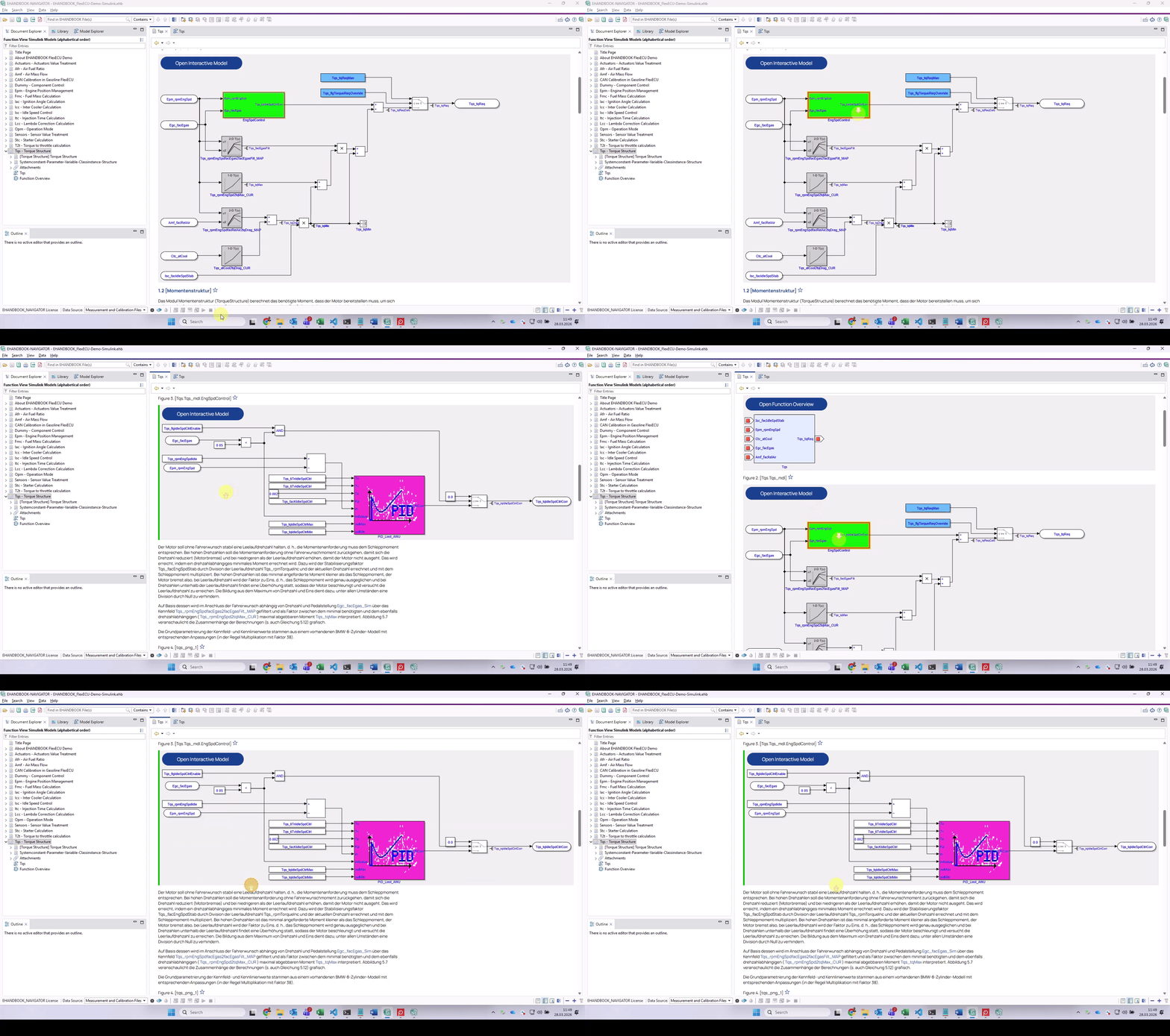
ClickPic helps you navigate quickly between a hierarchy model and the corresponding model image of an ASCET/Simulink model in the Document Viewer.
Virtual Connections
Virtual connections are highlighted in interactive models, including ASCET, Simulink, and C-Code-derived models, as well as in Function Overview diagrams.
History
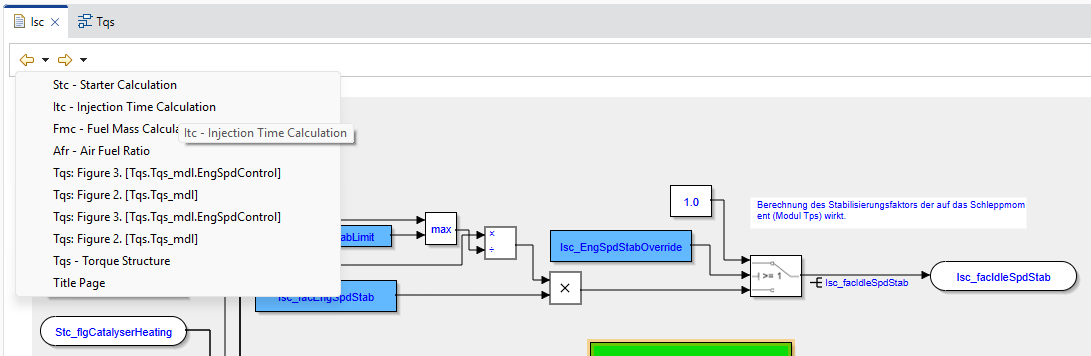
EHANDBOOK-NAVIGATOR keeps a record of recently viewed topics and models while you explore the content of an EHANDBOOK container. This gives you a list of previously visited locations and allows you to return to them whenever needed. The history is cleared when a new container is loaded.
Printing
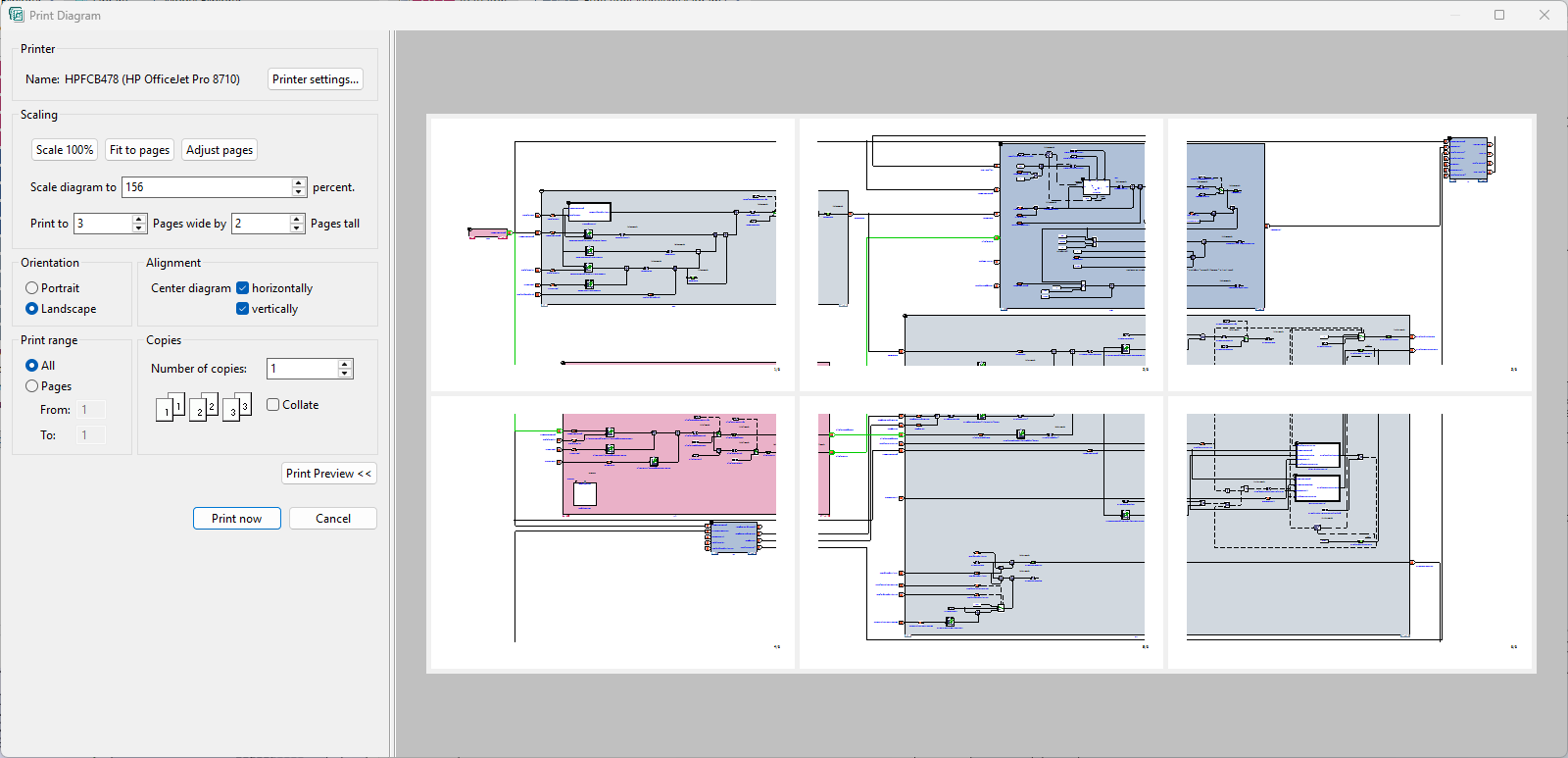
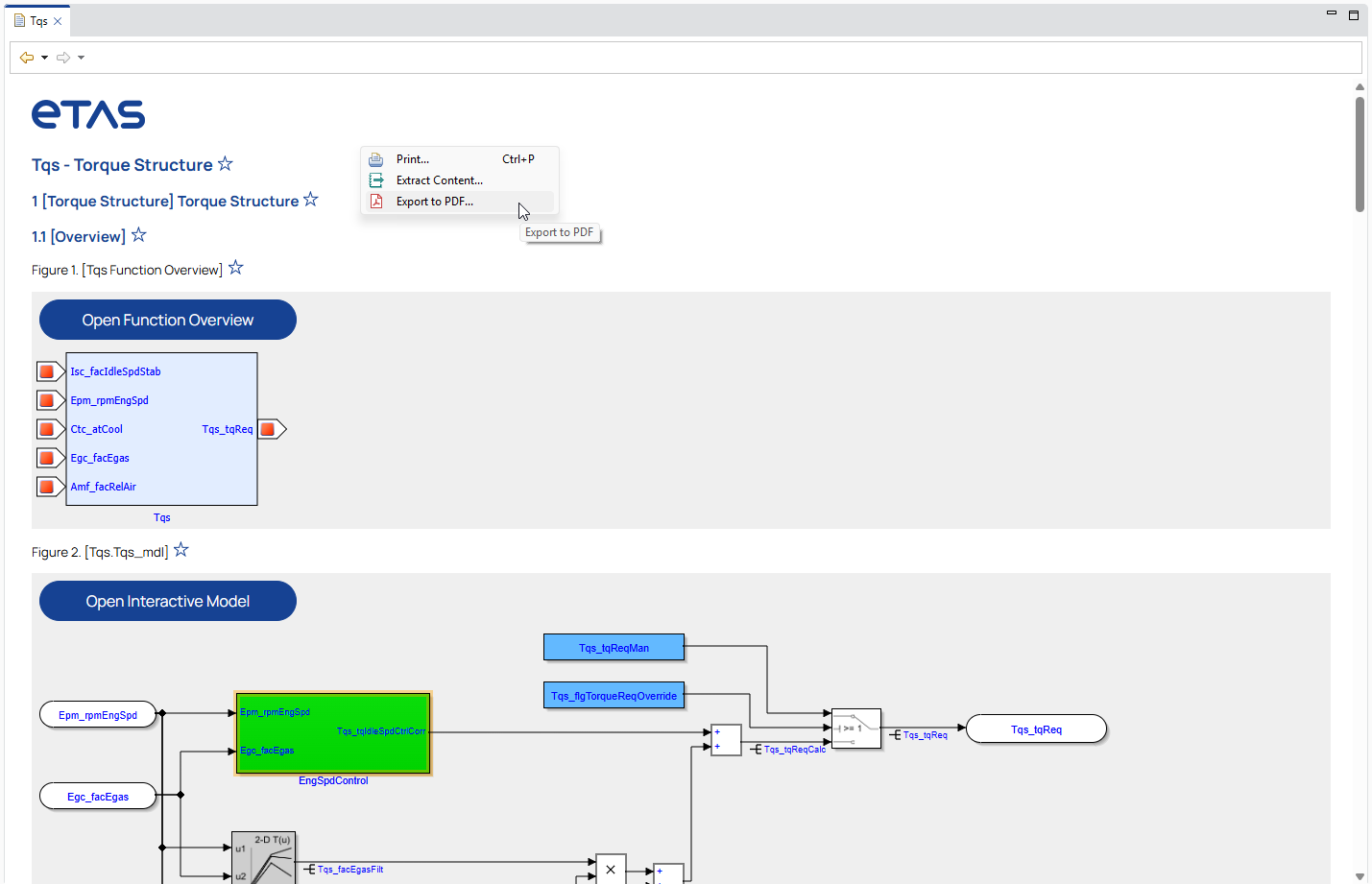
EHANDBOOK-NAVIGATOR allows you to print both documentation content and interactive models. Before printing, you can adjust the page setup as required, including scaling, page orientation, page size, and margins.
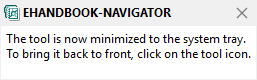
Display in System Tray
EHANDBOOK-NAVIGATOR can be configured to remain available in the Windows System Tray when you close the product.
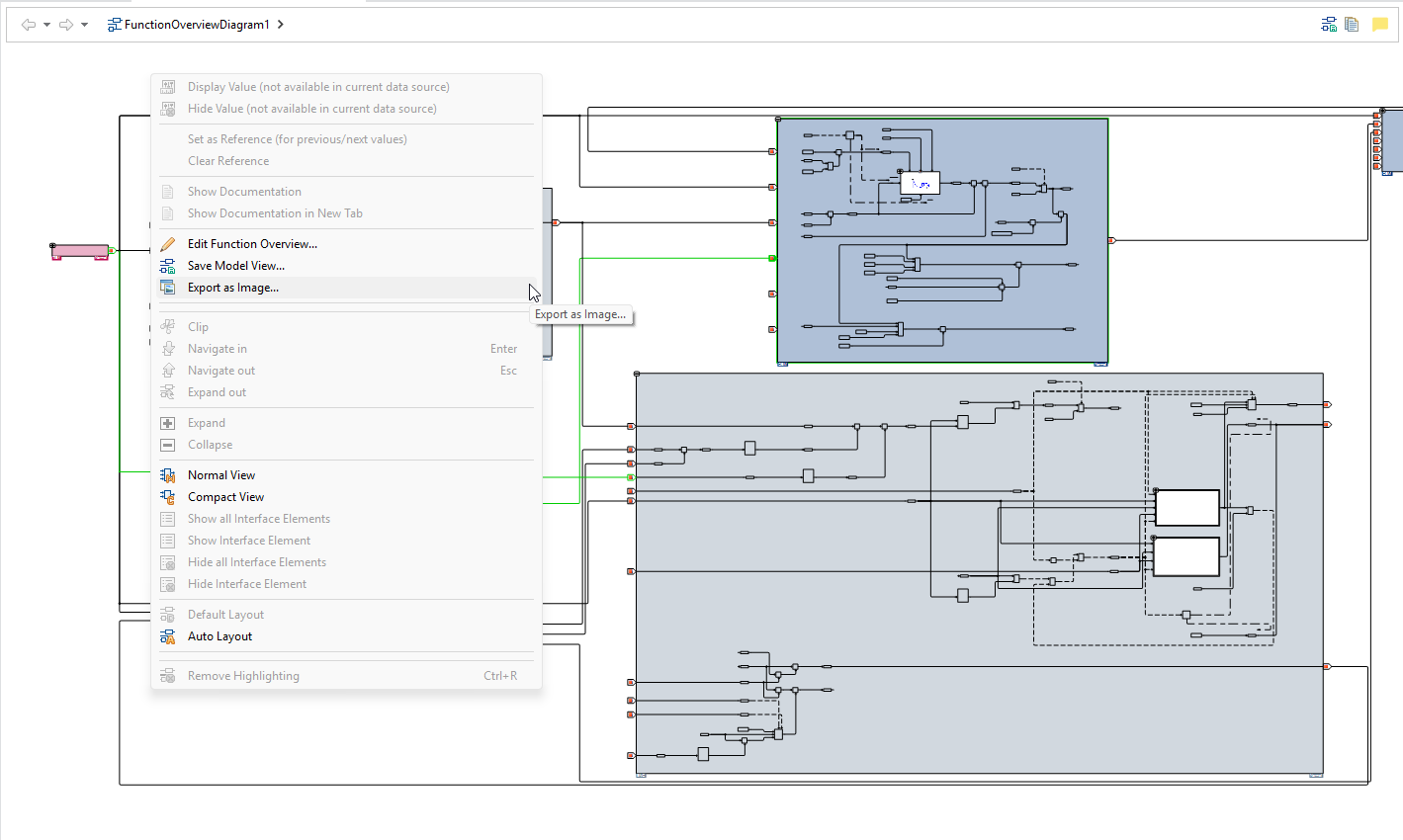
Export as image
EHANDBOOK-NAVIGATOR allows you to export the selected model or Function Overview diagram as an image.
Display values for highlighted paths in interactive models
EHANDBOOK-NAVIGATOR displays label values only for highlighted signals. This helps you focus on the values that are relevant to the current analysis.
Linking of hardware devices
EHANDBOOK-NAVIGATOR supports linking hardware devices either to a single device or to multiple devices. This is required when visualizing labels and values received from INCA or from a measurement file.
Benefits
With EHANDBOOK-NAVIGATOR, you can perform a wide range of engineering tasks more efficiently. Key benefits include:
-
Fast and precise access to information, especially for measurement variables and calibration parameters.
-
The ability to switch documentation views for task-specific navigation.
-
Better understanding of ECU software and functions through graphical, interactive models.
-
Bookmarks and Model Views for saving the locations of container topics, subtopics, and interactive models for later use.
-
Comments for specific areas in the Document Viewer. These comments can also be imported from another container and copied to the clipboard for use in other applications.
-
Easy navigation across hierarchy levels in complex ASCET block diagram models, Simulink models, and C-Code-derived models.
-
Metadata details for labels and other elements in Function Overview diagrams, interactive models, and SVG images in the Label pop-up. For curves and maps, the corresponding information is also available in the 2D/3D view.
-
A seamless view of hierarchically nested functions through flattened hierarchy levels, supported by built-in auto-layout algorithms.
-
Built-in analysis algorithms for calculating and highlighting dependencies in interactive models. This helps users understand the relationships between calibration parameters and measurement variables.
-
Support for debugging ECU software and functions by displaying live values for measurement variables and calibration parameters from a connected INCA experiment.
-
The ability to use previously recorded data for offline measurement visualization through Measurement and Calibration Files.
-
Support for loading measurement files such as
.dat,.mf3, and.mf4to display recorded data in interactive models. -
Support for loading calibration files such as
.a2l,.hex,.s19, and.ptpto display data such as limits, data types, and values for calibration parameters in the Label pop-up. -
Connectivity between MDA 8 and EHANDBOOK-NAVIGATOR, which helps calibration engineers inspect values and refer to the loaded documentation at the same time.
-
The ability to open signal documentation in EHANDBOOK-NAVIGATOR so that values and related documentation can be viewed together.
-
The option to transfer a measurement file from MDA 8 to EHANDBOOK-NAVIGATOR and continue the analysis with the same measurement data. This improves understanding of how the two applications work together.
-
Proper display of the Model Viewer and Function Overview diagrams when the high screen resolution setting is enabled during installation.
-
Support for variant-coded labels.
-
Improved search functionality that also finds labels in nested hierarchies of interactive models.
-
Display of the short name of a label in the Model Viewer.
-
Annotation of values for scalar parameters and system constants, which improves readability and understanding.
-
Support for the
STRUCTUREdata type in Simulink models, enabling end-to-end signal flow across two ECU functions via labels. -
A toolbar function for creating a new Function Overview diagram and editing it later if required.
-
A warning dialog for external links that lets users decide whether to open the URL in the default browser or file handler, or copy the link for another purpose.
-
A navigation bar that helps users move through models quickly.
Privacy Disclaimer
Please note that personal data is processed when using EHANDBOOK-NAVIGATOR. As the controller, the purchaser is responsible for ensuring that these processing activities comply with Article 4 No. 7 of the General Data Protection Regulation (GDPR/EU). As the manufacturer, ETAS GmbH is not liable for any mishandling of this data.