How to Load an A2L File
Overview
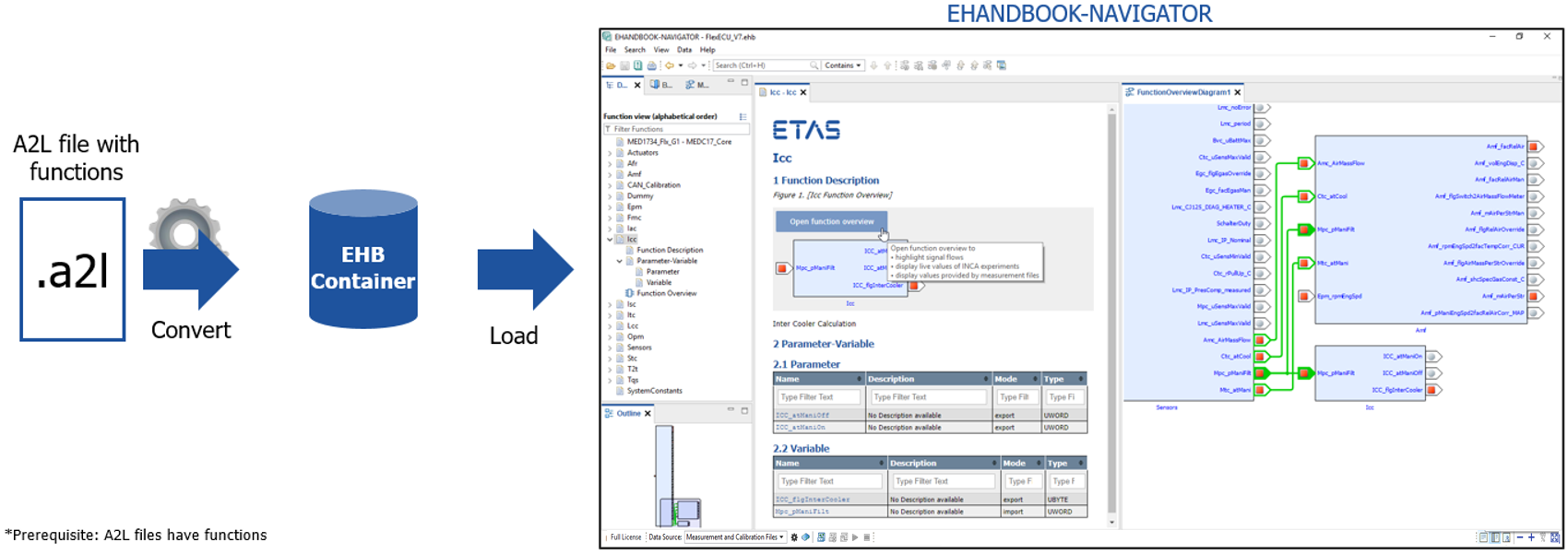
The EHANDBOOK-NAVIGATOR allows to load an A2L file and generates an EHANDBOOK container. An A2L file should comply with ASAM standard and it should have the valid Functions.
Procedure
To load an A2L file:
-
On the File menu, select
Create EHANDBOOK File from A2L File…
Generate EHANDBOOK File from A2L Filedialog box is displayed.
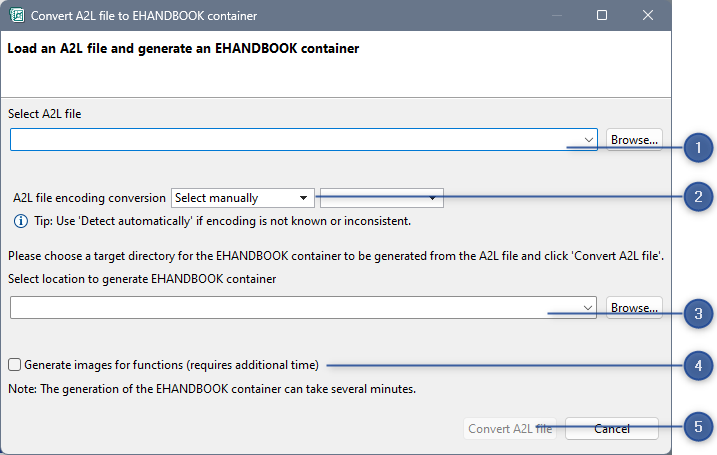
Generate EHANDBOOK File container dialog box:
-
A2L file selection
-
A2L file encoding conversion options
-
Specify the location and name of the container
-
Checkbox to generate images
-
Convert A2L file
-
Select the previously loaded A2L file from the "Select A2L file" drop-down menu or click
Browseto select it. -
After selecting an A2L file the encoding of the content is placed in the drop-down menu. By default, the highest encoding confidence level (e.g. ISO-8859-1) is pre-selected. If the encoding is not known or it is not consistent for the whole file then choose Detect automatically (2).
-
Select or type the location to generate the EHANDBOOK container or click
Browseto select the different file.
By default, the location is selected where the A2L file exists and the name of the A2L is considered as the container name with.ehbextension. You can change the name of the container by editing it in the text box (3). -
Check the checkbox (4) to generate the images for functions.
Please note that this takes several time to generate the images. By default, the checkbox is unselected. -
Click
Generate EHANDBOOK file. If the same name already exists in the specified path, then EHANDBOOK- NAVIGATOR prompts either to change the location or overwrite the file. An A2L file converts it into an EHANDBOOK container. Please note that it takes few minutes to convert it. The progress bar is displayed. -
Once the file is converted, a dialog box is displayed as shown below.
-
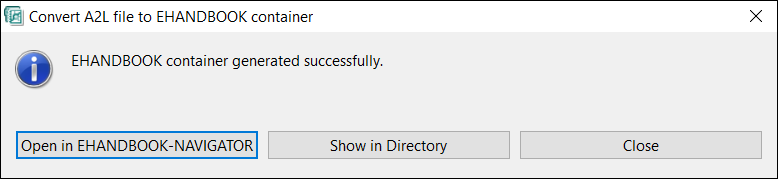
Dialog box:
-
Click
Open in EHANDBOOK-NAVIGATOR.
It opens the generated container in the EHANDBOOK-NAVIGATOR.
<Or> -
Click
Show in Directory.
It locates the file in the File System.
<Or> ClickClose.
It closes the dialog box.
The progress bar is displayed which displays the loading status.
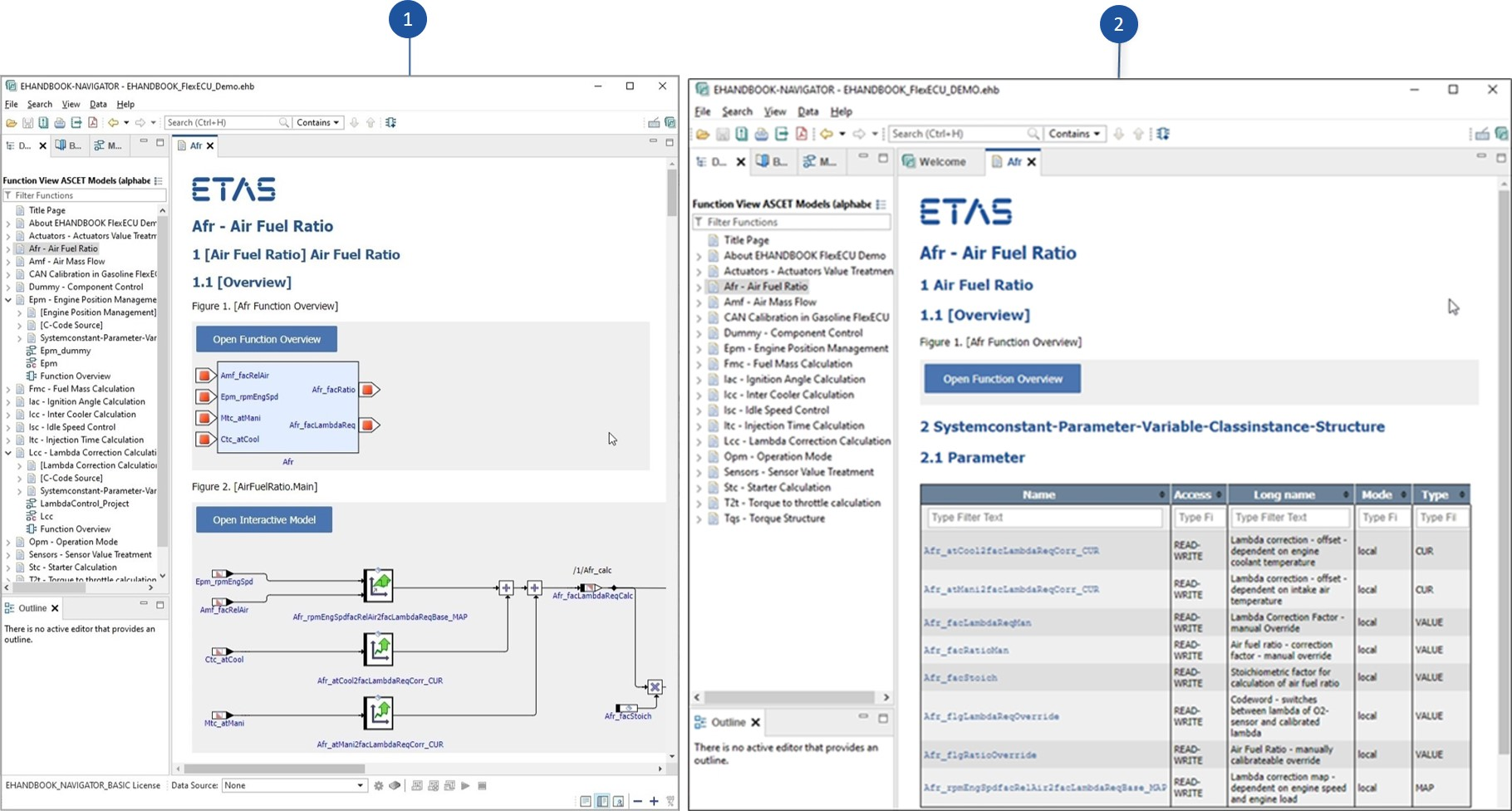
-
Images generated for functions
-
Images are not generated for functions
When you check the checkbox to generate images for functions, the images are
generated which helps to visualize the preview of the images before opening
itself, but it takes some time to generate the images during A2L conversion. You
can open the functions by clicking Open function overview.