How to Define Alias and Color in Manage Project
Procedure
EHANDBOOK-NAVIGATOR allows you to define the alias names in the Manage EHANDBOOK Project dialog box.
You can also change the color of the flag.
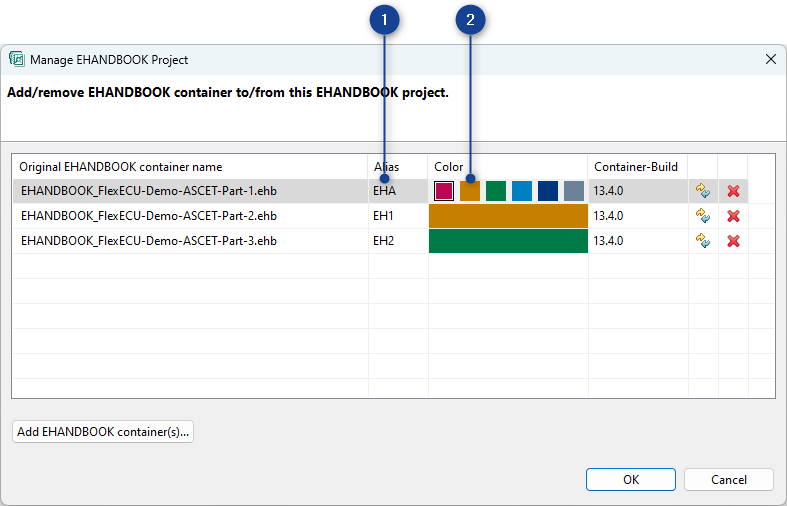
-
Defining the alias name of the file
-
Changing the color of the file
Define the alias names of the EHANDBOOK file
The Alias name of the EHANDBOOK file contains minimum of 2 characters and
maximum of 5 characters. The characters must contain either the upper case
characters (A to Z) or numbers (0 to 9) or the combination of both. The Alias
name should be unique.
To define the alias names, follow the steps below:
-
Click on the
Aliascell in the dialog box and change the name.
The changed name is updated.
Change the color flag of the EHANDBOOK file Follow the steps to change the color flag of the EHANDBOOK file.
-
Click on the "Color" cell of the container.
The predefined colors are displayed. -
Choose any of the predefined color.
The selected color is assigned for that particular file.
Inspect EHANDBOOK Container-Build version The column "Container-Build" contains the version of Container-Build which was used to create the EHANDBOOK file.