EHANDBOOK Container-Build Usage in General
EHANDBOOK Container-Build offers two modes of operation: a GUI- or a command-line mode. To simplify the first usage, the GUI-mode only provides the most important input configuration parameters. If more parameters are required or the integration in an automated build process is needed, we recommend using the command-line mode.
|
After container generation, check the console messages and the log file for error or warning messages and examine the container content for completeness and accuracy. Follow the latest safety advice documents, delivered as separate documents within the EHANDBOOK Container-Build package. |
For detailed usage information, refer to:
EHANDBOOK Container-Build Usage in GUI Mode
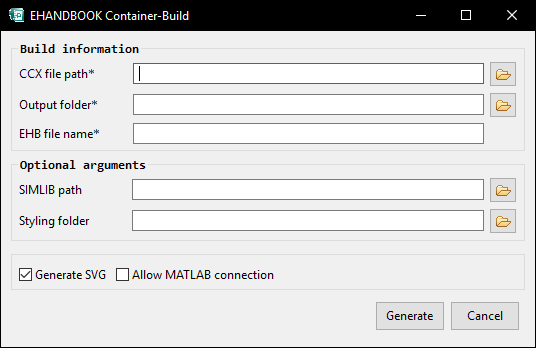
If the tool is executed without any command line parameter, just by double click on eHandbookCB.exe, a small GUI-window will appear. Here now, the major input parameters (but not all) can be specified in an interactive way. Mandatory entries are marked with a '*'. The intention of this feature is to simplify test and evaluation purposes.
ASAM-Based GUI Mode:
|
To enable this GUI in the standard EHB-CB tool, -Dasam.cb=true has to be added in the ehandbookCB.ini file, located in the same folder as the eHandbookCB.exe. |
Directory-Based GUI Mode:
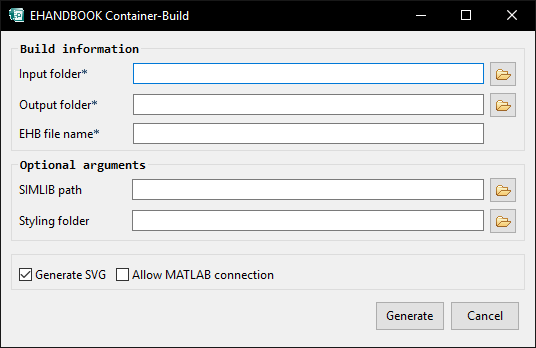
Type in the mandatory information:
-
Input location (Dir based): Select the top most folder, which contains the input files
-
CCX file path (ASAM-Based): Select the path to the ASAM CCX file
-
Output folder: Specify the output directory, where the container will
be generated. Of course, this directory should be separated
from the input location!
|
GUI Mode is supported only for Windows Operating System. |
-
EHB file Name: Defines the name of the EHANDBOOK container, file extension .ehb is added
Optional arguments:
SIMLIB path: Path outside of the input folder to exactly one root directory to all Simulink libraries used by the models in the input folder.
Styling folder: Location of folder containing the styling information (title page, fonts, company logo etc…). If nothing is specified, a default title page is generated.
Generate SVG: Enables auto generated model screenshots, if text input files are configured accordingly. See Click Pic for more details.
Allow MATLAB connection: Use MATLAB for enhanced rendering of Simulink models. Matlab has to be installed on the PC. When this option is set, the container generation takes considerable more time.
For more details on the input arguments, see the command line list.
Start the generation by pressing the ‘Generate’-button. After processing, the generated container is available then in the directory specified as output folder.
Container Debugging and Content Checking
If no container is generated, because of a fatal error, a log file in the output folder is written by the EHB-CB tool. In all other cases, irrespective of an error occurred or not, a log file with the name of the container (ContainerName.log) is placed next to the container and also inside the container. The included log file can be read by opening the container in EHB-NAV and using the menu Help→Export Log Files… .