How to Load Multiple EHANDBOOK Files Through File Explorer

Procedure

EHANDBOOK-NAVIGATOR allows you to select multiple EHANDBOOK files by holding <Ctrl> key in the File Explorer and opens those files in it. When multiple files are selected, EHANDBOOK-NAVIGATOR displays Open EHANDBOOK files dialog box and offers you to create either a new project or add those files to the currently opened project.
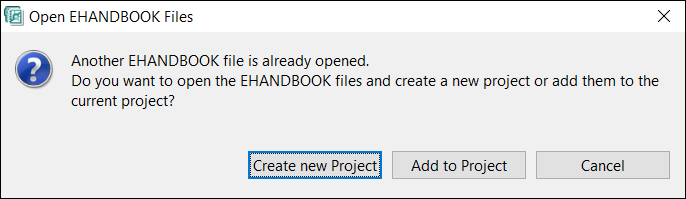
Open multiple EHB Files Dialog

When you click Create new Project, it closes the already opened file or a project and displays Manage EHANDBOOK Project dialog box. Click OK to create a new project.

When you click Add to Project, then Manage EHANDBOOK Project displays. Click OK to add those files along with the files in the currently opened EHANDBOOK project.

Refer to How to Manage Multiple EHANDBOOK Files for more details on manage EHANDBOOK project.

By default, EHANDBOOK-NAVIGATOR displays the list of 5 EHANDBOOK files/projects which were loaded previously. The count can be changed in the Preference page. The last loaded container is listed at the top.

NOTICE

Container content may have been changed externally while viewing the container in the EHANDBOOK-NAVIGATOR!

The container format is an open format, where XML files are grouped in a ZIP archive. The XML files can be changed although the container is in use.

Affected container contents will be changed or displayed incorrectly in the EHANDBOOK-NAVIGATOR. The following information can be affected when changing the source files:

  • documentation texts

  • documentation structure

  • interactive models

Therefore, always check the container in the EHANDBOOK-NAVIGATOR for wrong, missing or incomplete content by validating that the container content corresponds to the ECU documentation source before you start working.

Before working with a container:

  • Open the container in the EHANDBOOK-NAVIGATOR.

  • Validate that the content of the container corresponds to the ECU documentation source.

  • If you find model deviations, wrong, missing or incomplete content, contact the producer of the container to fix this errors.