How to Manage Multiple EHANDBOOK Files
Procedure
EHANDBOOK-NAVIGATOR supports to load and combine multiple EHANDBOOK files. In order to work with EHANDBOOK-NAVIGATOR easily with all the content, more than one EHANDBOOK container can be added to an EHANDBOOK project.
Creating or Modifying an EHANDBOOK Project
Manage Project feature in the File menu helps you to load one or more EHANDBOOK containers.
|
It is also possible to load a single EHANDBOOK container even before creating a
project by clicking on Open icon on the toolbar or by pressing |
To load the container(s):
-
On the File menu, click
Manage Project…
<Or> -
Click
 on the toolbar.
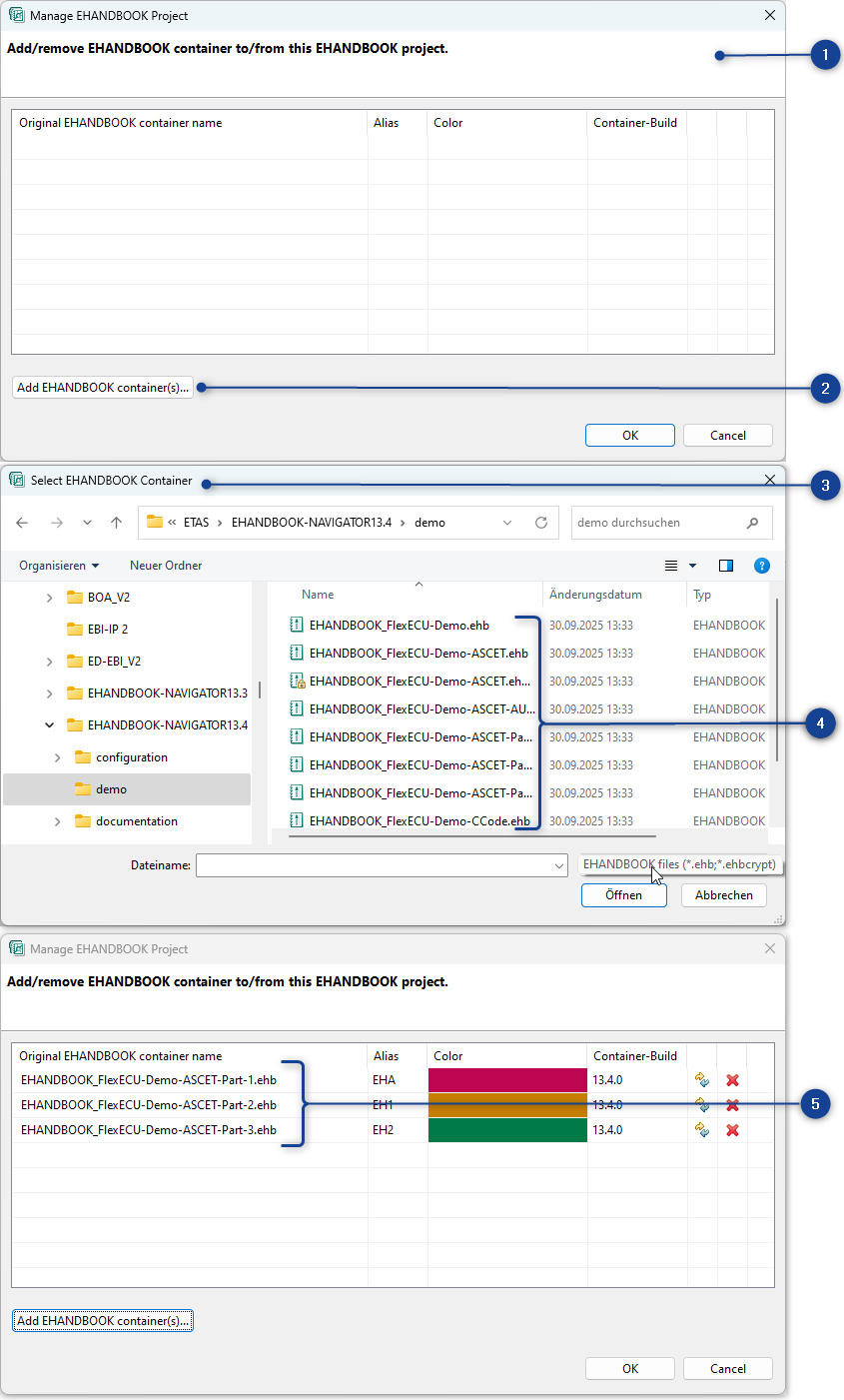
Manage EHANDBOOK Projectdialog box is displayed. -
Click
Add EHANDBOOK File(s)… -
Select EHANDBOOK File windowis opened to select the EHANDBOOK file (s). -
Select the file(s) which is(are) of
.ehbor.ehbcryptextensions. You can choose one or more file at a time. -
Click
Opento load the selected file(s). -
The selected file(s) are displayed in the
Manage EHANDBOOK Projectdialog box
-
Manage EHANDBOOK Project dialog box
-
Add the EHANDBOOK files
-
Select EHANDBOOK File dialog box
-
EHANDBOOK files selection
-
Selected EHANDBOOK files in the Manage EHANDBOOK Project dialog box