Compare Containers
The Compare functionality in EHANDBOOK-NAVIGATOR allows you to compare two EHANDBOOK containers side by side seamlessly. It helps you to identify differences in content, ensure accuracy, and maintain consistency across documents and document versions. With user-friendly navigation and customizable options, it simplifies the review process.
License information
To use the Compare functionality in EHANDBOOK-NAVIGATOR, you need an AddOn license. For further information, see the License Feature Overview
Comparison levels
Tree view comparison
The EHANDBOOK containers are structured using the Table of Contents (TOCs). The Compare functionality identifies differences between the ToCs of the two containers and displays them in a structured tree view. This visual representation helps you grasp the overall organization and navigate easily through topics and subtopics.
The tree view uses icons and arrows to represent changes visually:
Icons Indicating Changes:
-
Unchanged
 : Icon indicates there is no change in the chapter.
 -
Added
 : Icon indicates new topics or sections introduced in the right container.
 -
Removed
 : Icon denotes content present in the left container but has been removed in the right one.
 -
Modified
 : Icon shows entries present in both containers but whose content has been modified.
 -
Error
 : Icon indicates an error occured during the comparison of topics.
Arrows Indicating Changes:
-
Unchanged
 : Arrow indicates there is no change in the chapter.
 -
Added
 : Arrow indicates the chapter or a sub-chapter of it, has been added.
 -
Removed
 : Arrow indicates the chapter or a sub-chapter of it, has been removed..
 -
Modified
 : Arrow indicates the chapter or a sub-chapter of it, has been modified..
 -
Filtering for changes: The tree view can be filtered to focus on specific types of changes.
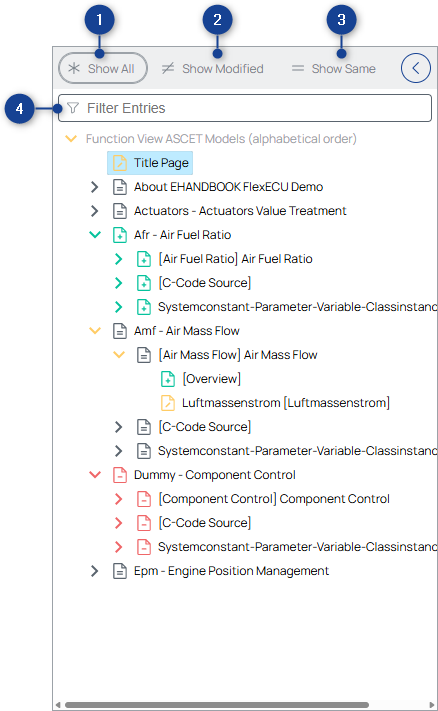
-
All Content: To display all the content.
-
Modified Content: To display the entries that either
-
have been removed from the left-hand side container
-
have been added to the right-hand-side container
-
or contain modified content.
-
-
Same Content: To only display entries that are identical in the right-left container.
-
Text Filter: Filter the entries by typing the text in the Filter field.
-
Helps to find a certain entry quickly.
-
The wildcard search such as '*' or '?' where the wildcard character(s) is(are) substituted by any of the possible characters is supported as well.
-
For e.g., ct displays all the possible set of entries which contains 'ct' in it.
-
Similarly, '?' is used to replace a character. For e.g., ?ct? displays all the possible set of entries which contains 'ct' by adding any single character before and after 'ct'.
-
-
Filter Differences: Click on settings button (5) to open the settings panel. The following filter options are available:
-
Ignore Whitespace: Hides differences that consist only of whitespace changes.
-
Text changes: Shows or hides text differences.
-
Table changes: Shows or hides table differences.
-
Image changes: Shows or hides image differences.
-
-
Progress bar and cancel button: The progress bar (6) at the top indicates the percentage of comparison that is completed at that point in time. This also provides you the option to cancel the comparison in progress.
-
Progress icon: The progress icon (7) on the compare tree indicates that the comparison is yet to be completed for that particular FC. The icon disappears as soon as the comparison of the FC is complete.
-
Collapse Button: The collapse button (8) allows you to collapse the tree view, providing a larger view of the content.
How to Use the Compare Functionality
-
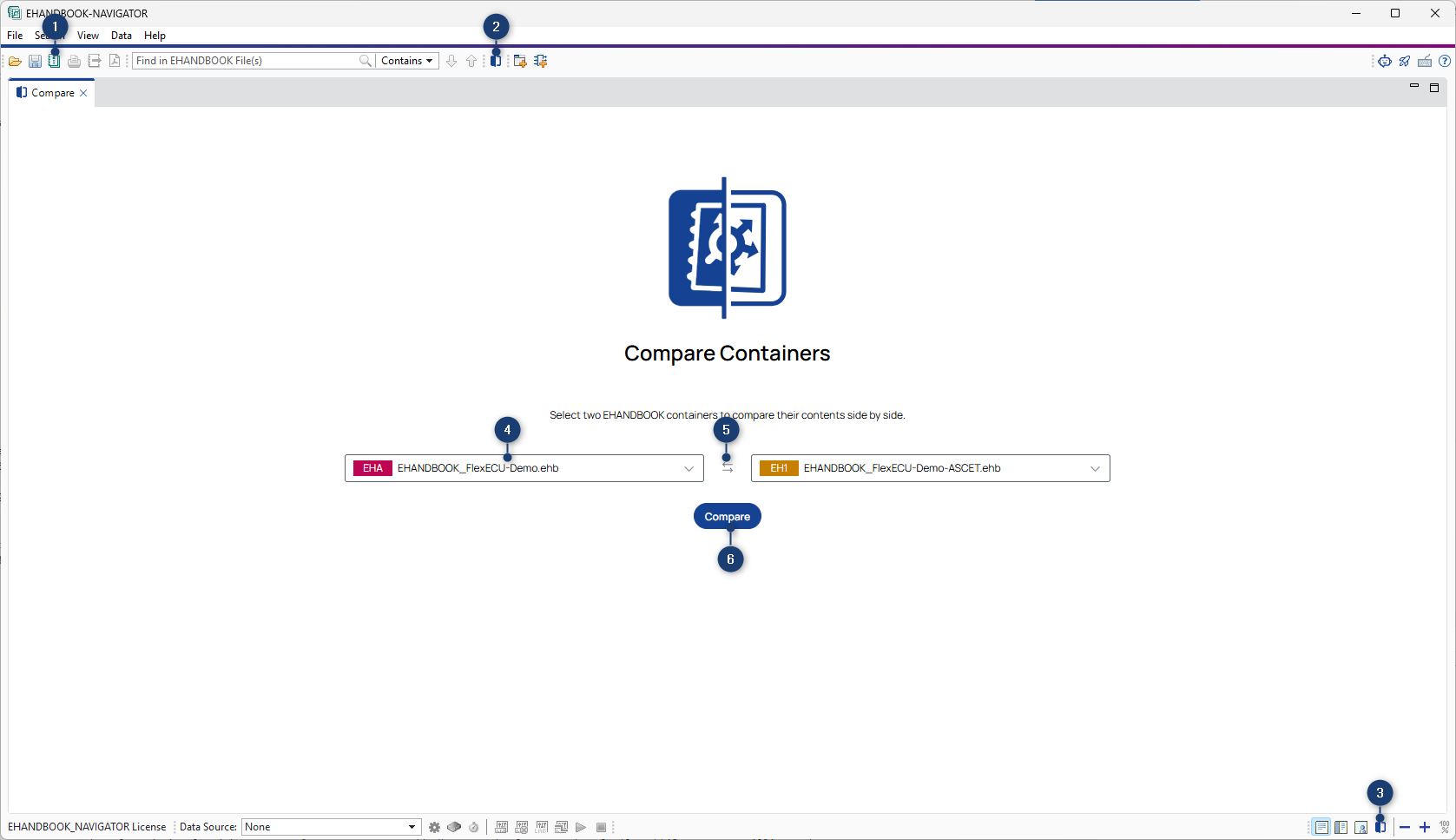
Load or choose EHANDBOOK Containers: First, ensure that both EHANDBOOK containers you wish to compare are already loaded in the ETAS EHANDBOOK-NAVIGATOR by opening the
Manage Project…dialog (1). Alternatively, EHANDBOOK containers can be chosen without being part of an EHANDBOOK project using the optionChoose EHANDBOOK Container…inside the dropdown menus (4). -
Open the "Compare" perspective: It can be opened via the View menu (2) or use the button (3) in the main toolbar.
-
Select Containers: Utilize the dropdown menus (4) at the top of the comparison perspective to select the two EHANDBOOK containers you want to compare. The left container will be treated as a reference, and differences will be marked accordingly.
-
Start the comparison: When you click the Compare button (6), the comparison will start.
-
Swap compared Containers: If you want to swap the currently compared containers (left and right), you can use the Swap button (5). This will exchange the containers and update the comparison.
-
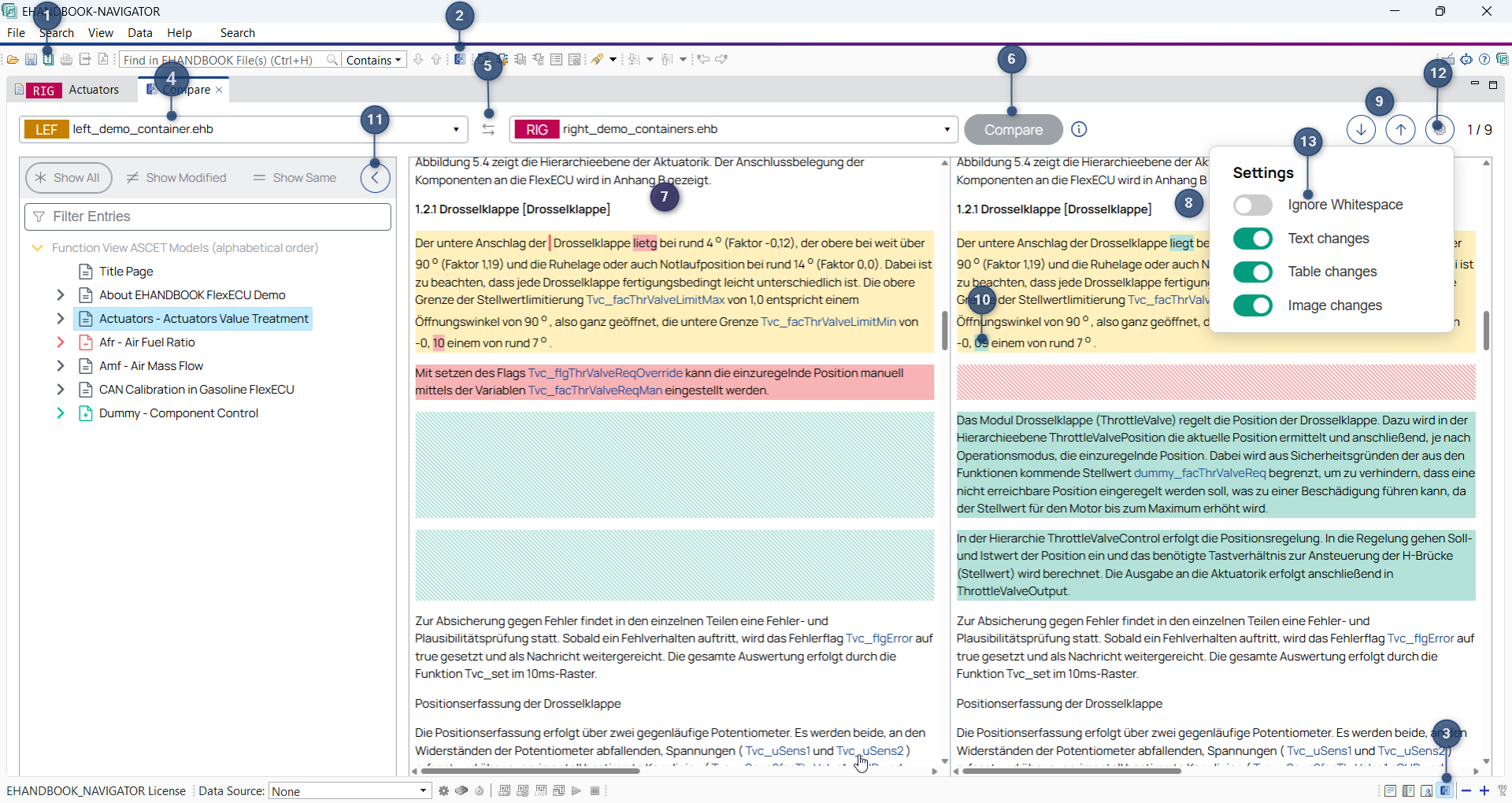
View the TOC: After first step of comparison is done, the Tree View will automatically display the TOC for both containers, showcasing their respective structures. The visual markers and icons will help you quickly recognize which topics or subtopics have been added, removed, or modified.
-
Explore Textual Differences: Click on any entry in the TOC to open the split-screen viewer. The left panel (7) will show the content from the left EHANDBOOK container, while the right panel (8) will display the content from the right container. Review the marked changes in the text to understand the modifications made.
-
Filter Differences: Click on settings button (11) next to the filter entries to open the settings panel. The following filter options(12) are available:
-
Ignore Whitespace: Hides differences that consist only of whitespace changes.
-
Text changes: Shows or hides text differences.
-
Table changes: Shows or hides table differences.
-
Image changes: Shows or hides image differences.
-
-
Navigate Through Differences: Use the navigation buttons (9) in the split-screen viewer to move through the marked and grouped differences in the opened chapter. This feature allows you to review changes one group at a time, ensuring a thorough examination of the content on both sides. The currently examined differences on both sides will be highlighted by an added border(10). Right to the navigation buttons you will see the total amount of difference and total number of marked difference in the group. Additionally all the differences in the marked group are all highlighted for a quick and visible focus (13).
-
Resizing handle: If you prefer a larger viewing area for the textual comparison, you can adjust the width of the tree View. This will give you a more spacious view, allowing you to focus entirely on the content.
-
ClickPic: Compare also supports clickpic functionality.For more details on clickpic ClickPic
Textual comparison
You can open the content of the two compared containers by clicking on any entry in the tree view. The contents will be displayed side-by-side with synchronized scrolling. Text content in lists, tables, paragraphs and topics are compared and displayed. EHANDBOOK will always display the content as it is in the respective container. If the content is unmodified, both sides will look the same. If the entry has been added in the right container, its content will only be visible on the right side, while the left side remains empty. On the other hand, if the content has been removed, it will only be visible on the left side, while the right side remains empty. If the TOC entry is available on both sides but is not identical, the differences will be marked using a colored highlighting as follows.
-
Red: content has been removed
-
Green: content has been added
-
Yellow: content has been modified
|
If an entry in the treeview is not clickable, the entry does not have a content of it’s own. |
Image Comparison
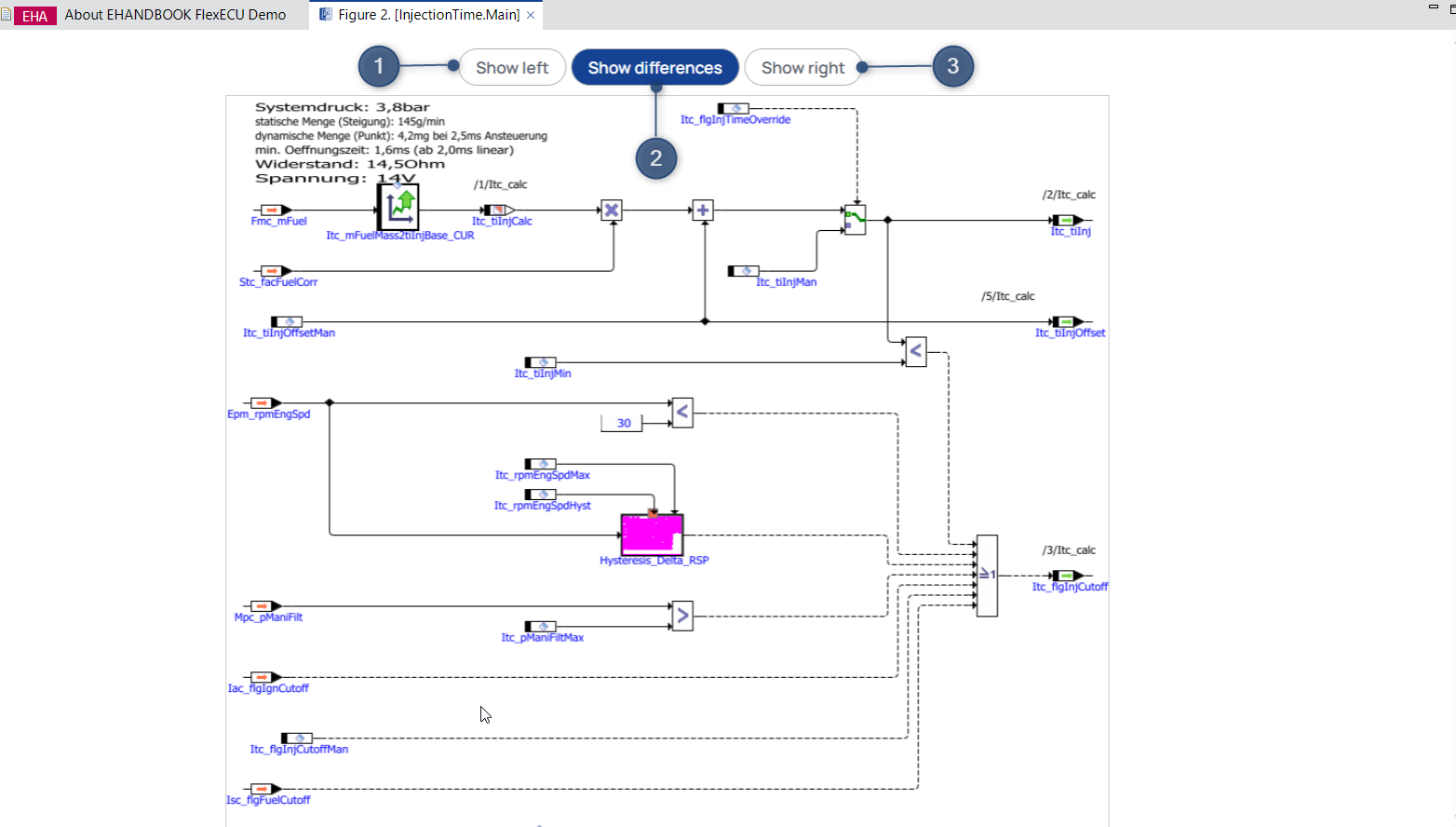
For images that contain modifications EHANDBOOK-NAVIGATOR offers a functionality to show details on where the differences are located within the images:
-
Click on the
Open detailed comparisonbutton located on top of the image.
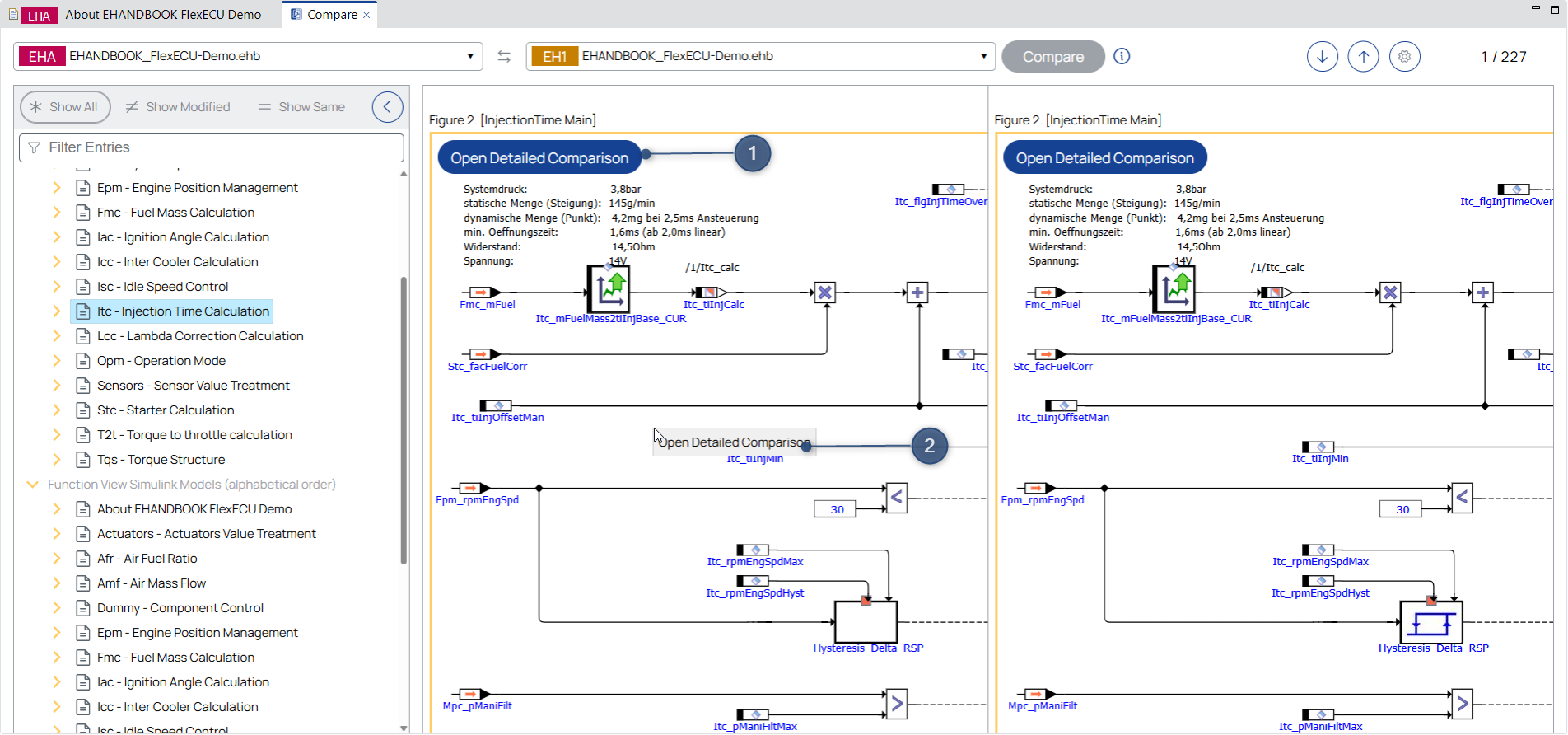
This opens a new tab which displays a layover of the two compared images where the differences are highlighted. The color used for this highlighting can be configured in the preferences.
The image comparison view provides three display modes, selected via the buttons at the top of the image:
-
Show left – Displays the image from the left container.
-
Show right – Displays the image from the right container.
-
Show differences – Highlights the detailed differences between the two images.
Navigating through the differences
The split-screen viewer features navigation buttons that allow you to move through differences in a group at a time. A border around the differences are drawn on both sides to group them logically. This functionality is particularly useful for detailed reviews for modifications, as it ensures the focus on all changes within a group on both sides.
Counting differences
The summation of differences on both sides are displayed while navigating through group of differences. 1 - 4 / 7 indicates that there are 4 differences in the current navigated group of differences. 5 / 7 indicates there is only one difference in the current grouping and this is mostly added or removed. Also if there is a difference in the type of list(unordered , ordered) then the difference is counted 1.
Customization options
To ensure good usability, you can customize the colors used to highlight the differences in your preferences.
Label Popup in Compare
To display the metadata of labels, you can open the Label Popup by clicking the label name highlighted in blue. For details see Label Popup.
|
The information loaded from any additional files (such as A2L, HEX, DCM) will be the same in the Label Popups for corresponding labels in the left and right container. Externally loaded containers in compare do not support the loading of corresponding files. |
Search Compare results
You can search the displayed comparison results using the shortcut Ctrl+F. See Search Views for details.