How to Navigate Between Related From and Goto Blocks
This page explains how to navigate between related From and Goto blocks in Simulink models within EHANDBOOK Navigator.
When you select a From or Goto block, EHANDBOOK shows the blocks related to it. Select a related block to navigate directly to it in the model. For example:
-
Goto → Related From blocks
-
From → Source Goto block
The Navigator automatically opens the required subsystem hierarchy and highlights the selected block.
Overview
In Simulink, From and Goto blocks create signal connections without visible wiring — a Goto block sends a signal to all From blocks that share the same tag. In large models, these blocks can be scattered across many different subsystems, making it difficult to locate their counterparts.
EHANDBOOK provides a Navigate to Related Blocks feature that lets you jump directly from a Goto block to its related From blocks, or from a From block back to its source Goto block.
The Navigate to Related Blocks feature is available from the context menu and the toolbar. The Related Blocks list shows the blocks you can navigate to.
How to Navigate
You can navigate between related From and Goto blocks using either the right-click context menu or the toolbar.
Method 1: Context Menu
-
Open your EHB Container which contains the Simulink model having the From and Goto blocks in EHANDBOOK Navigator.
-
Select a Goto or From block from the model explorer.
-
Right-click the selected block to open the context menu.
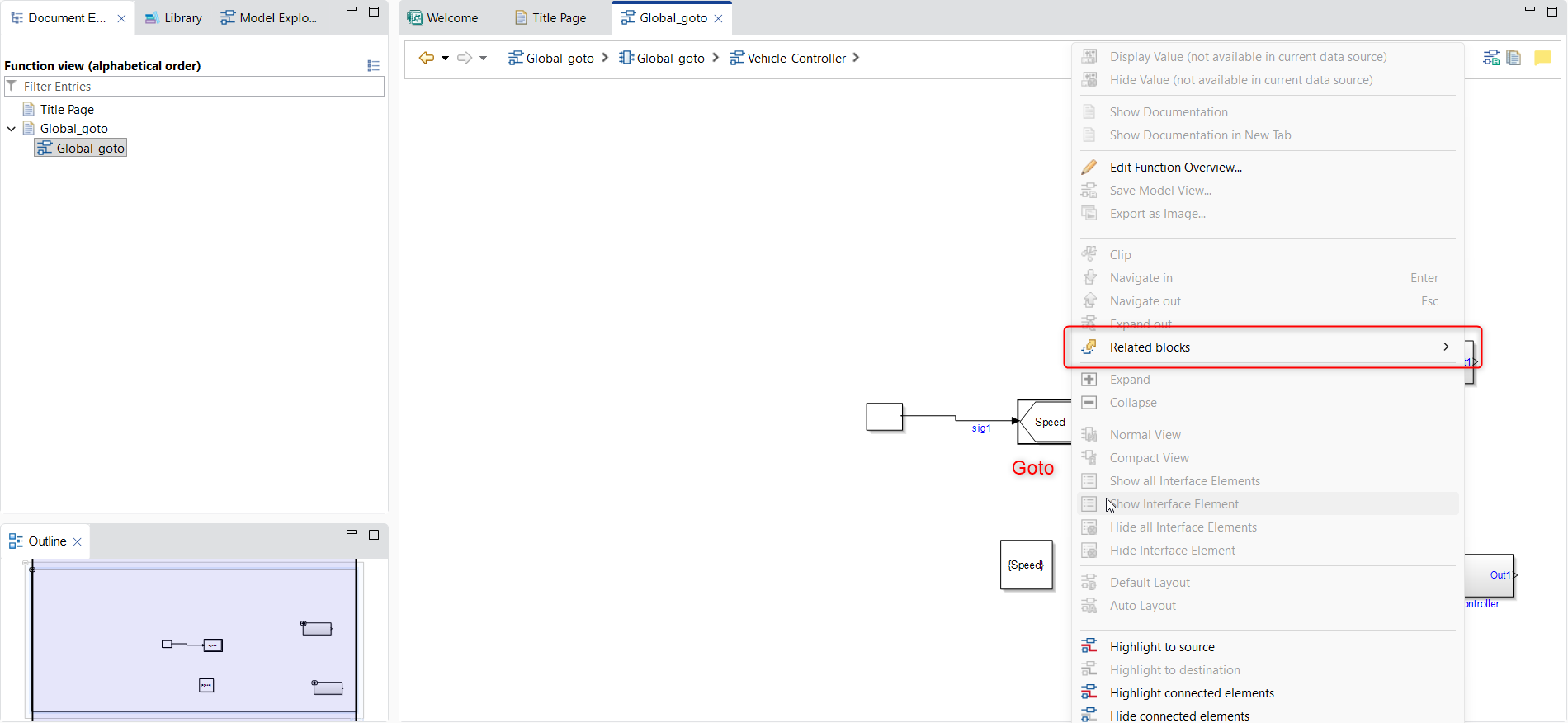
-
The context menu displays a Related Blocks section with entries for each related block along with the paths to those blocks.
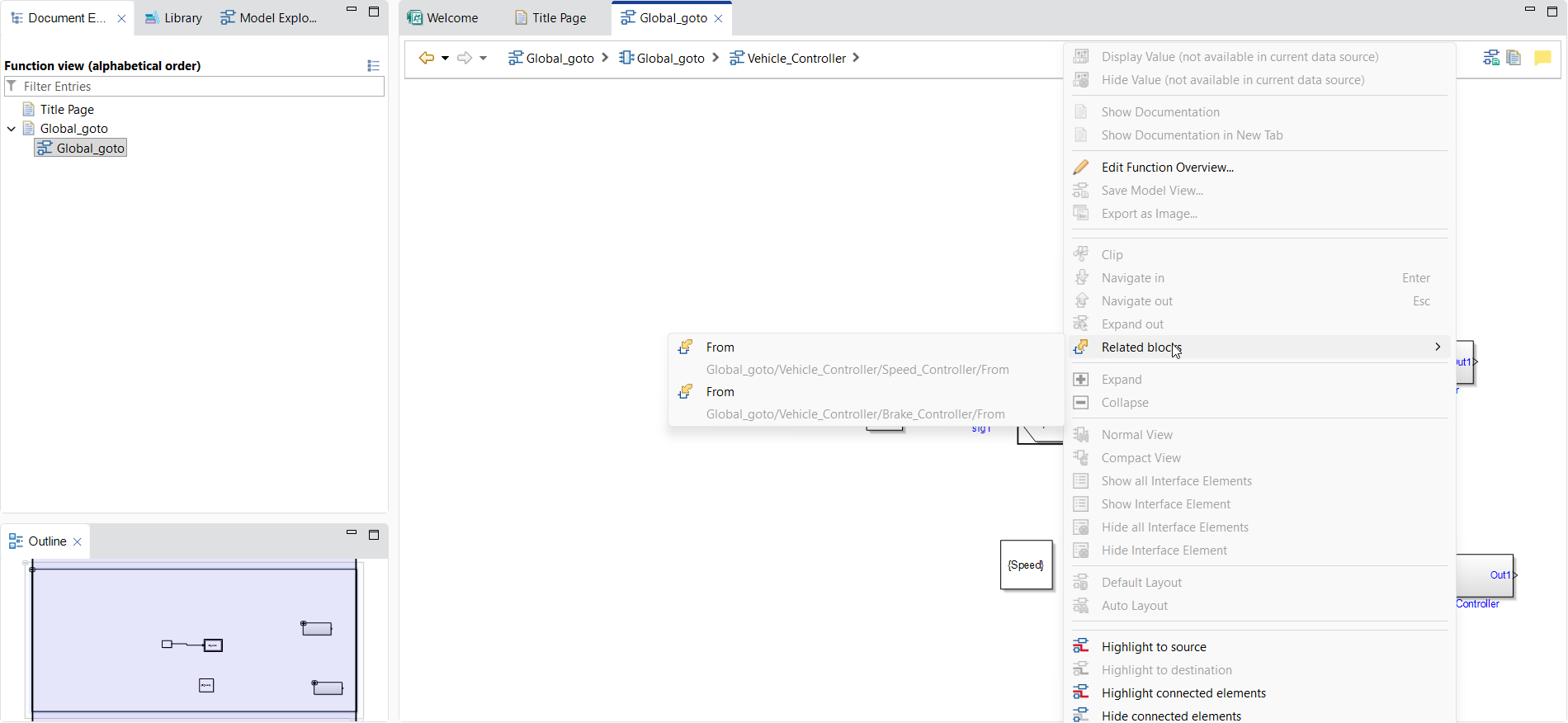
-
Click any entry to navigate directly to that block.
-
The Navigator automatically expands the necessary subsystems and centers the view on the target block.
-
The target block is highlighted with a green rectangle so you can easily identify it.
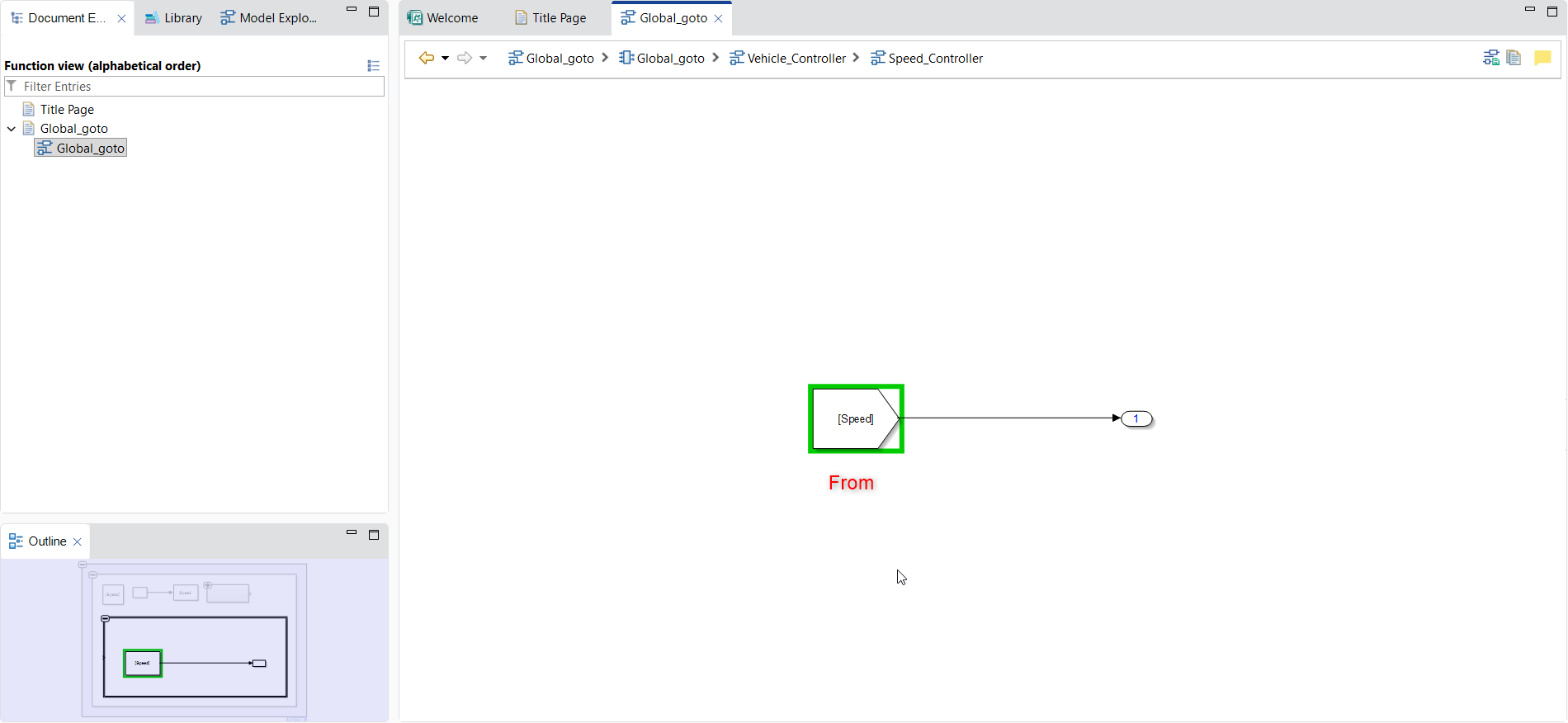
-
Method 2: Toolbar Dropdown
-
Select a Goto or From block in the diagram.
-
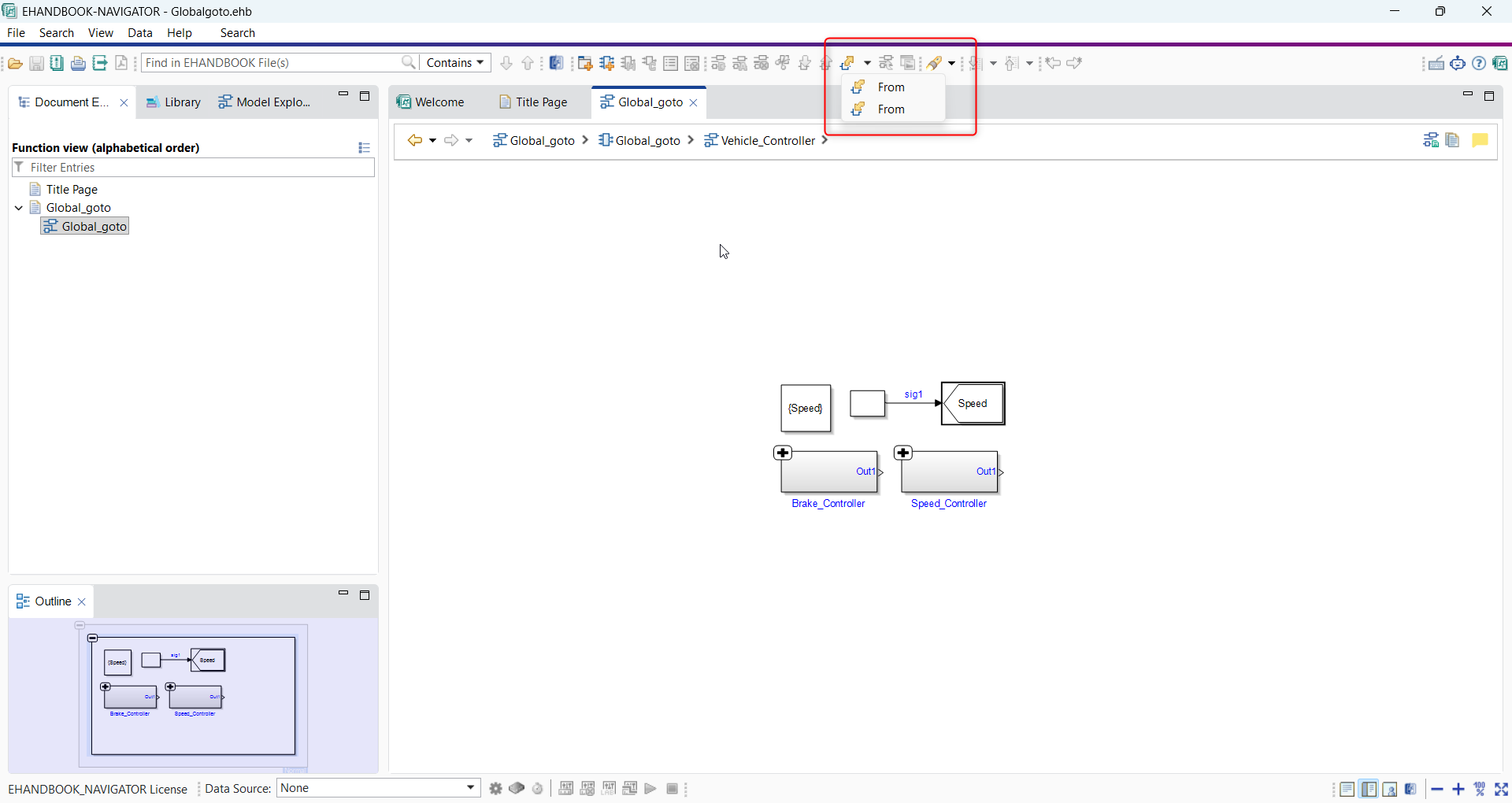
The Navigate to Related Blocks feature appears as a dropdown in the diagram editor toolbar.
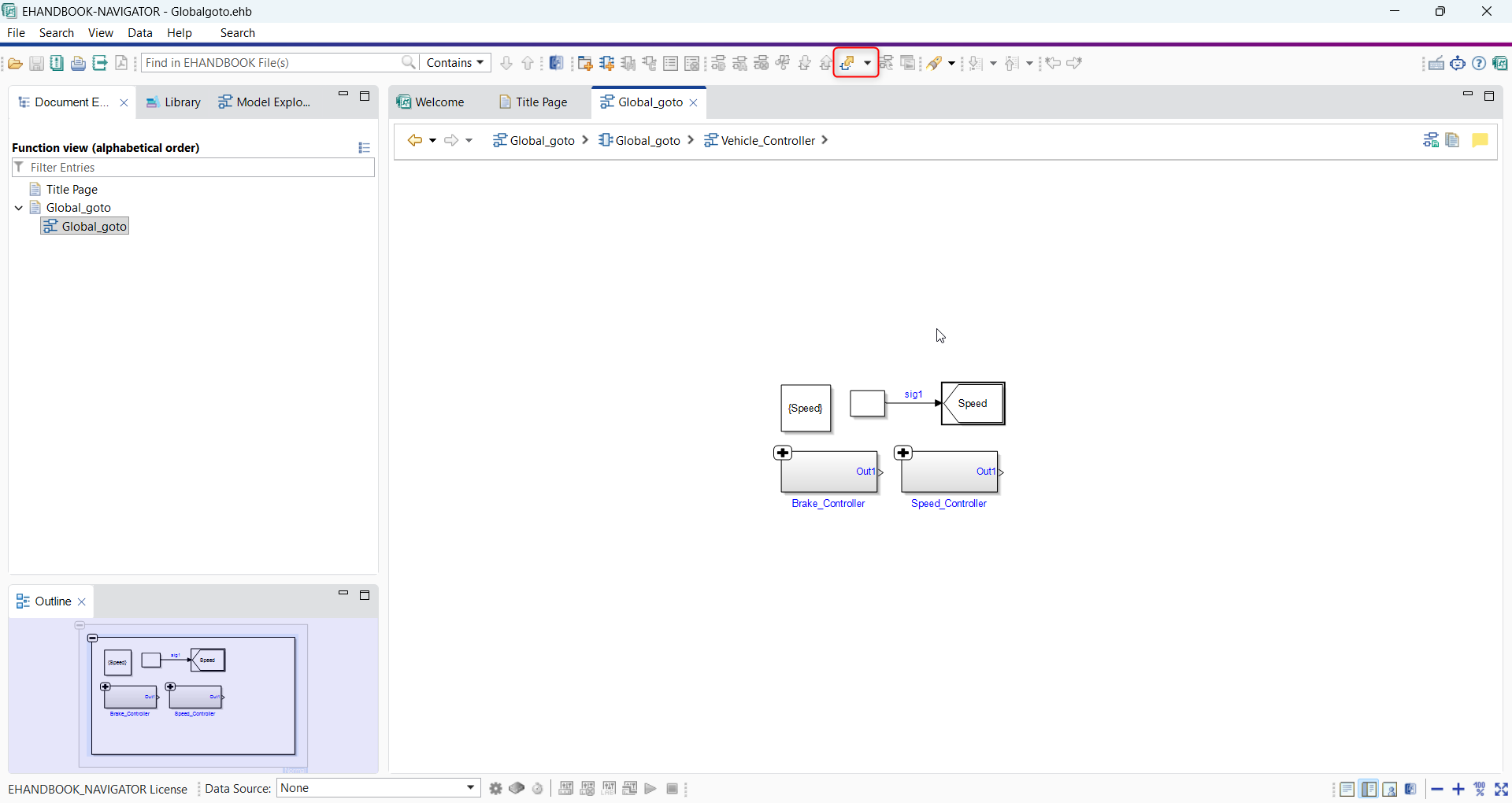
-
Click the dropdown to see the Related Blocks list.
-
Click any entry in the Related Blocks list to navigate directly to that block.
-
The Navigator automatically expands the necessary subsystems and centers the view on the target block.
-
The target block is highlighted with a green rectangle so you can easily identify it.
-
Navigating from Goto Blocks
When you select a Goto block, the Related Blocks list shows all From blocks that receive the signal from that Goto block. Each entry shows:
-
The name of the target From block
-
An icon indicating the block type
Clicking an entry takes you directly to the corresponding From block, even if it is located deep inside nested subsystems.
Navigating from From Blocks
When you select a From block, the Related Blocks list shows the source Goto block that provides the signal. This lets you trace back the signal origin without manually searching through the model.
|
Navigation works in both directions — you can navigate from a Goto block to its related From blocks, and vice versa from a From block back to its source Goto block. |
Tag Visibility Scopes
The Navigate to Related Blocks feature respects the Tag visibility setting configured on the Goto block in Simulink, which defines the scope in which the tag is accessible:
| Tag Visibility | Navigation Behavior |
|---|---|
Local |
Only related From blocks within the same subsystem are shown. |
Scoped |
Only related From blocks within the scope defined by the Goto Tag Visibility block are shown. |
Global |
All related From blocks in the model are shown. |
Examples
Example: Navigating with Scoped Goto Tag Visibility
This example shows a Goto block with scoped tag visibility, which uses a Goto Tag Visibility block to define the scope boundary. For a Scoped Goto block, the Goto Tag Visibility block defining the scope is also shown in the Related Blocks list. This allows you to navigate directly to the scope boundary.
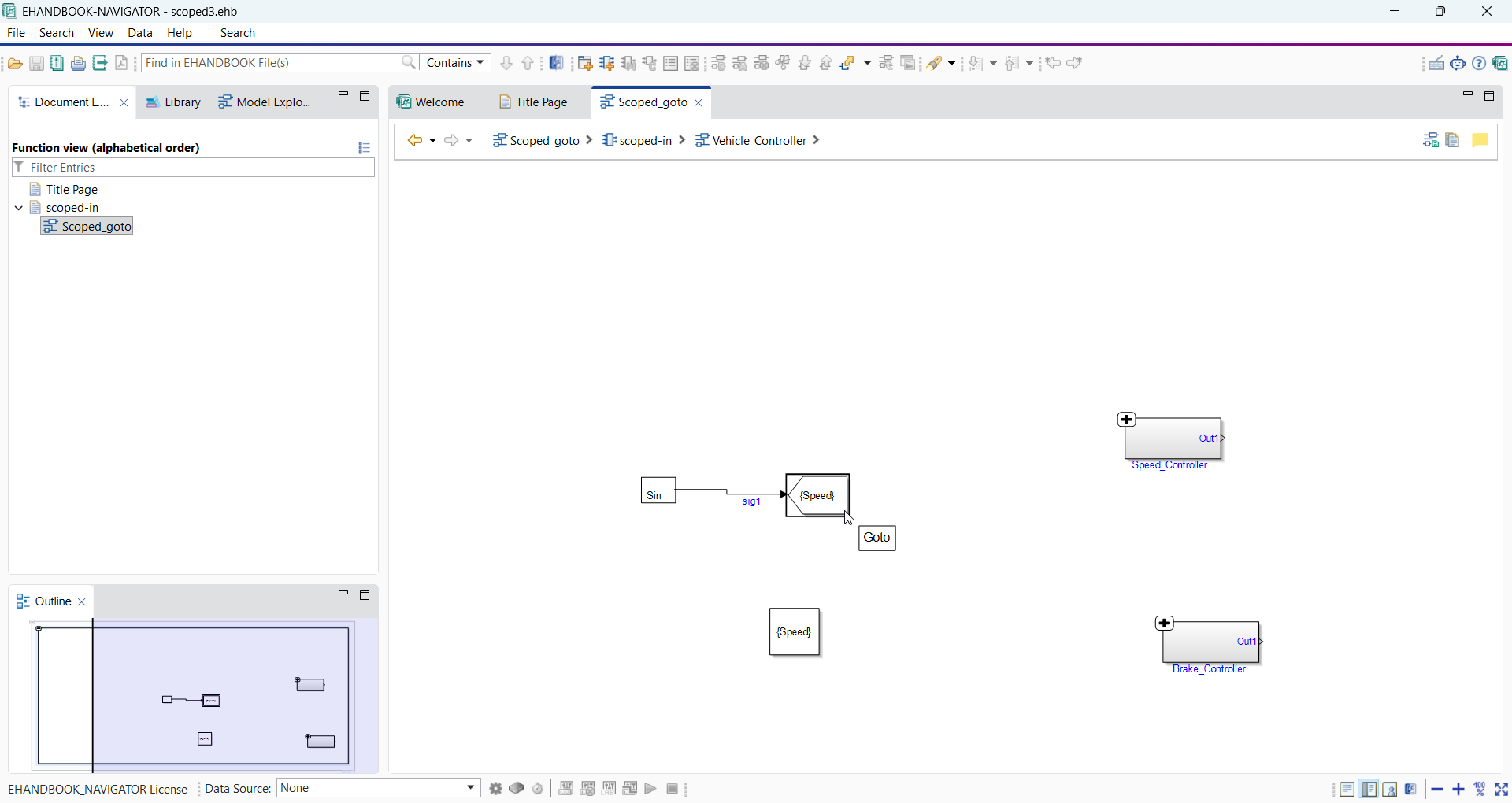
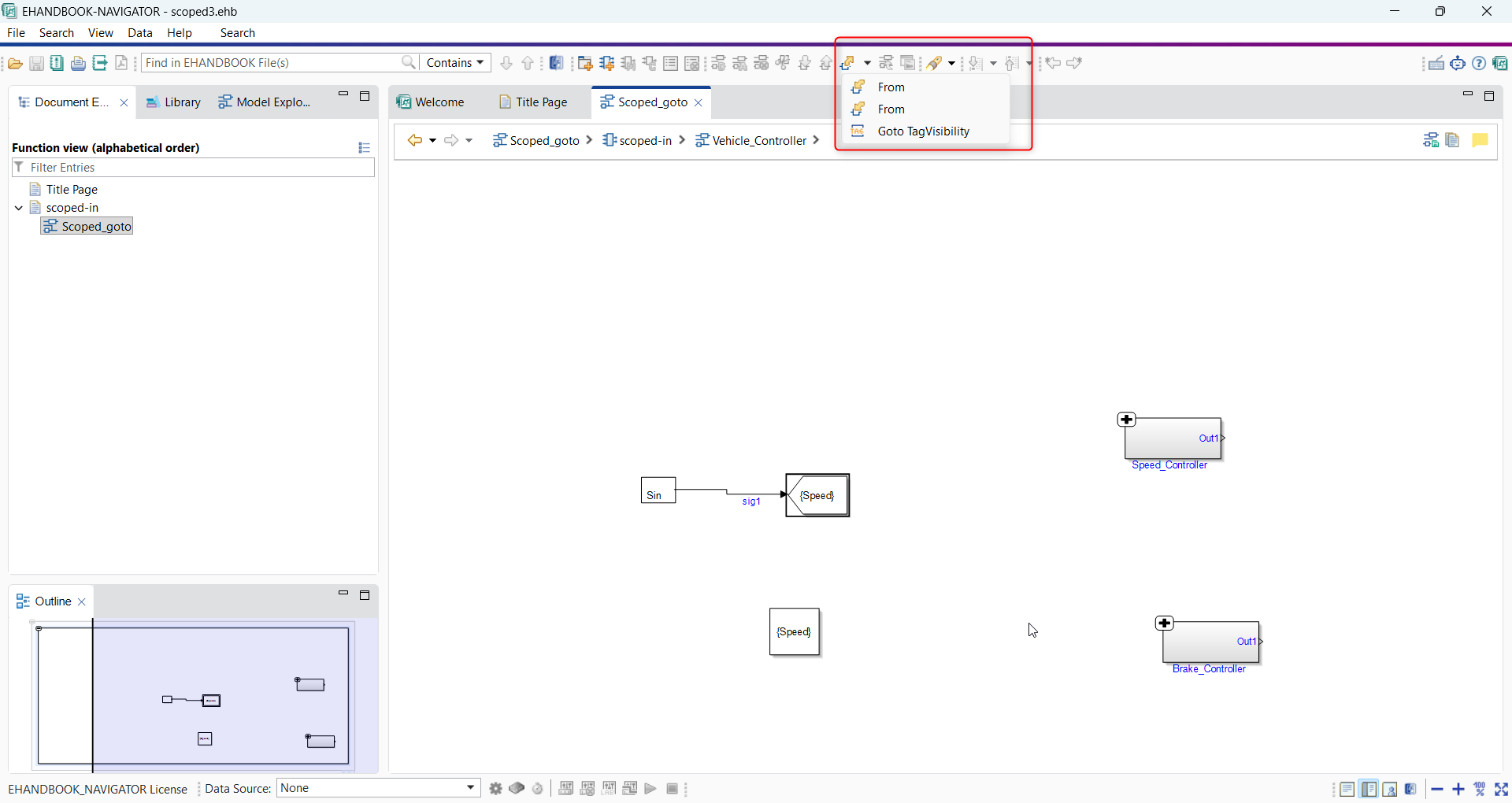
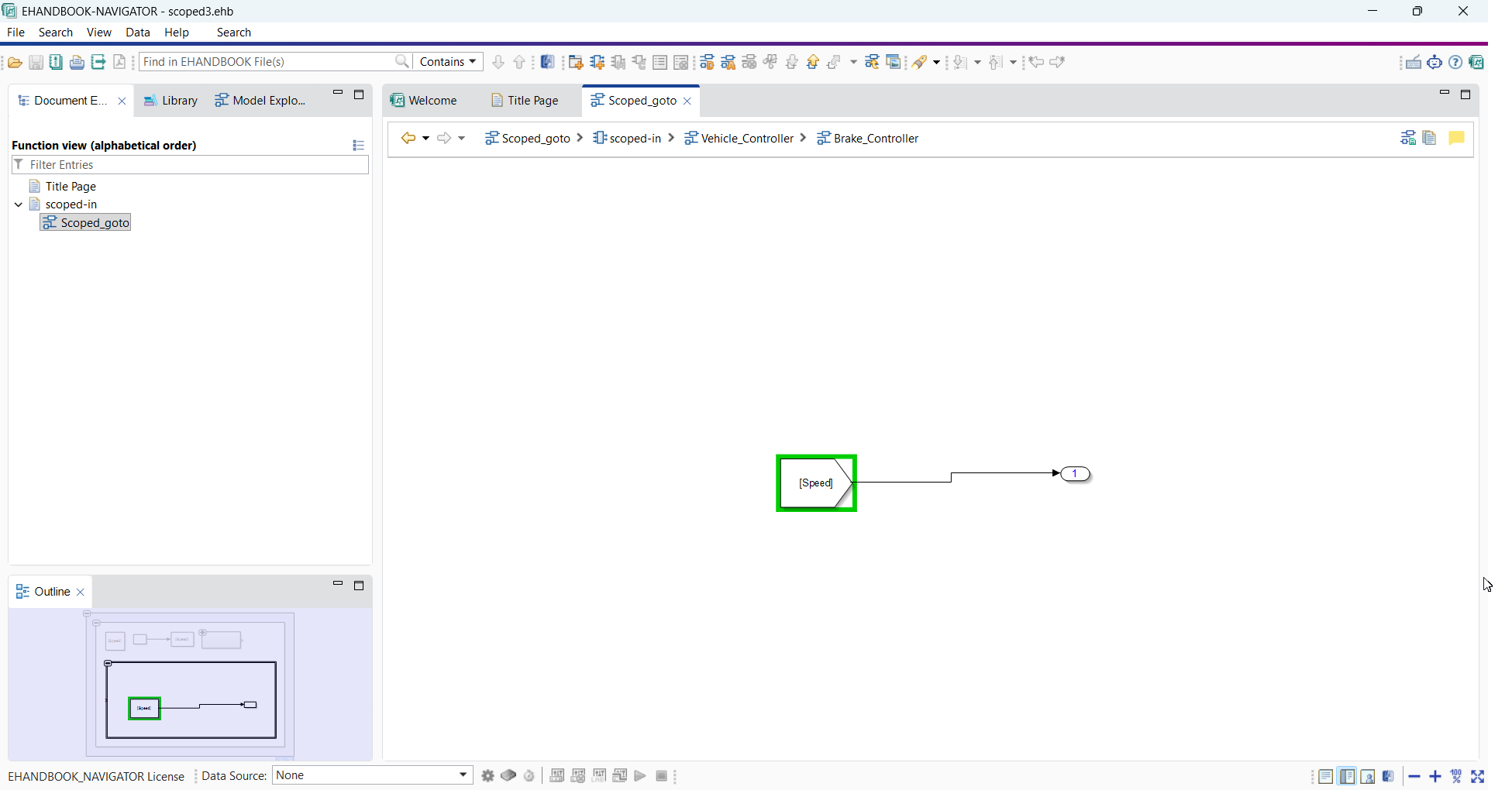
Navigated to the Goto Tag Visibility block
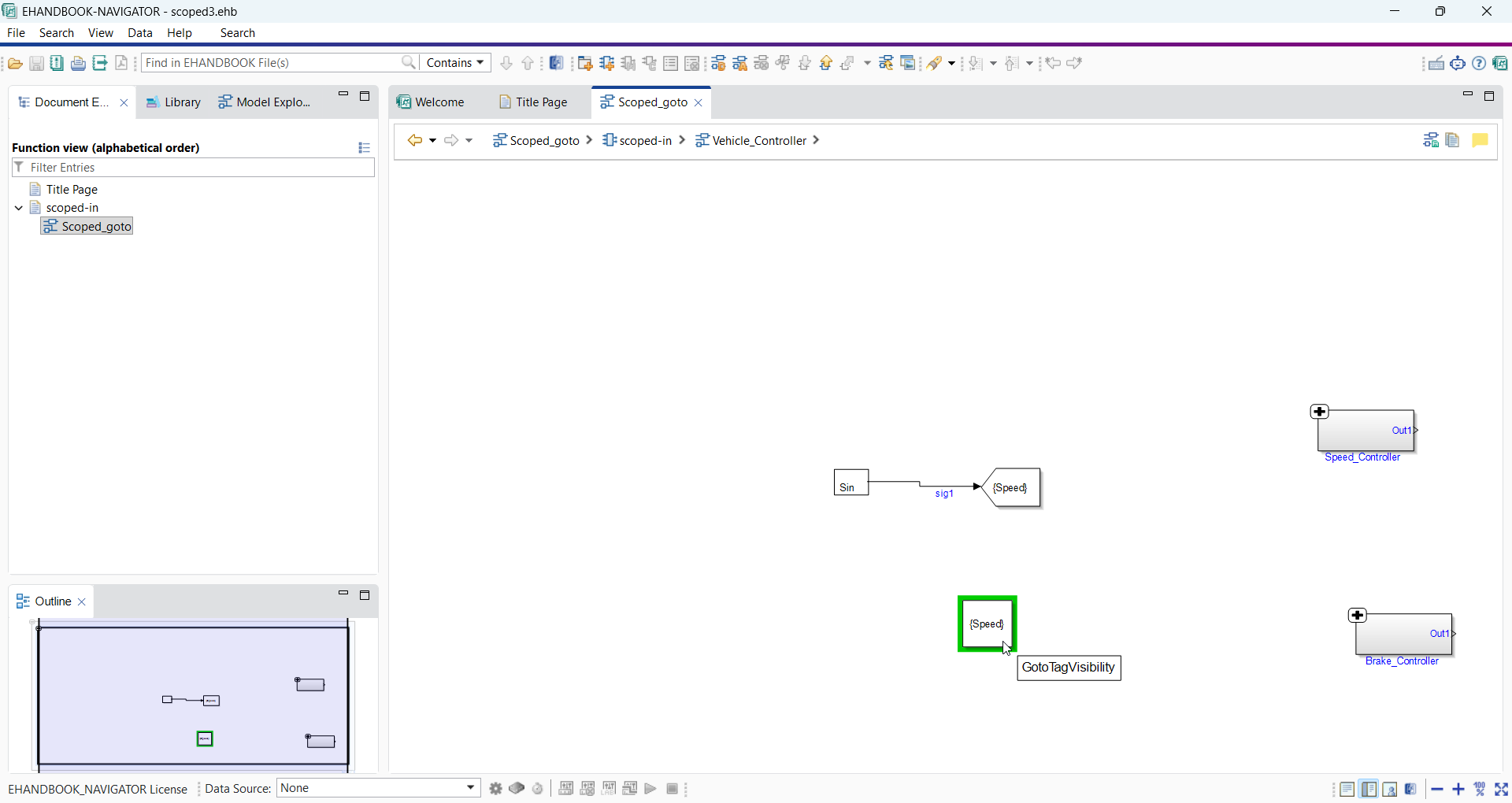
|
Navigation works in both directions — you can also select a From block or the Tag Visibility block and navigate back to the source Goto block. A From block always has exactly one related Goto block, since each From block receives its signal from a single Goto source identified by the shared tag. But one Goto can have multiple related From blocks. |
Configuration
No additional configuration is required. The Navigate to Related Blocks feature is available by default in EHANDBOOK Navigator for all Simulink models processed by EHB-CB.
The Related Blocks list is accessible from both the context menu and the toolbar dropdown.
|
ClickPic navigation is currently not supported for From and Goto blocks. Selecting these blocks through ClickPic will not navigate to their related blocks. |